> This is part 1 of 2 of the full documentation (pages 1–100 of 123).
> The content is paginated: fetch every part to see all of it.
> Next part: https://help.smartcv.co/llms-full.txt/1
> Page index: https://help.smartcv.co/llms.txt

# Welcome to Worklife Recruit

### Thank you for using Worklife Recruit to accelerate your recruitment process.&#x20;

<figure><img src="https://834622186-files.gitbook.io/~/files/v0/b/gitbook-x-prod.appspot.com/o/spaces%2F-Lf1c4bGTEs3T7jNosdZ%2Fuploads%2FI4SwC9tDmo468cc8GZ14%2Fimage.png?alt=media&amp;token=daf6f3ff-ed8f-488b-a250-5f509f9a1c02" alt=""><figcaption></figcaption></figure>

Once you have created your trial account you can immediately start receiving resumes in the following ways:\`

1. **Career Site**:
   * We have automatically created a [career site](/manage-candidates/add-candidates-to-a-job/career-site) for you at **apply.smartcv.co/COMPANY\_NAME.**
   * You customize this site by adding a company logo, changing the web address, or even disabling it through the Organization Settings page.
2. **Dedicated MailBox**:
   * We have set up a dedicated mailbox for you for your company at **<COMPANY_NAME@jobs.smartcv.co>.**
   * You can receive resumes via email sent to this address.
   * You may disable this mailbox at any time.&#x20;
3. **Upload Existing Resumes:.**
   * If you have resumes on hand, you can upload them directly through the [upload  Resumes page](/manage-candidates/add-candidates-to-a-job/upload-resumes).
4. **Career Job positions**:
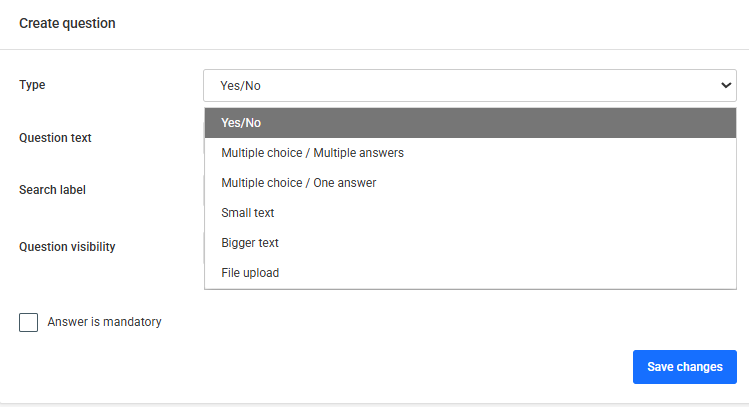
   * You can create new job positions and enrich the relevant application forms with custom questions via the [Manage Questions page.](/settings/manage-questions)
5. **Invite Team Members:**
   * You can invite other team members to collaborate on the recruitment process through the [Manage Users page.](/collaborate/manage-users)

If you have any questions or need further assistance, please visit our help center or contact support.


# Getting started

When you create an account at Worklife Recruit you are initially redirected to the [candidate view](/manage-candidates/candidate-view) of a demo profile  that allows you to quickly perform all candidate-related tasks. Additionally, a demo general submission job position is created, enabling to promptly [add candidates](/manage-candidates/add-candidates-to-a-job) to the system.

<figure><img src="https://834622186-files.gitbook.io/~/files/v0/b/gitbook-x-prod.appspot.com/o/spaces%2F-Lf1c4bGTEs3T7jNosdZ%2Fuploads%2FvoviJoHTVArcgCVLHx4b%2Fimage.png?alt=media&amp;token=38c62647-1b55-4d07-96a0-f2253f7f543b" alt=""><figcaption></figcaption></figure>

![](https://834622186-files.gitbook.io/~/files/v0/b/gitbook-legacy-files/o/assets%2F-Lf1c4bGTEs3T7jNosdZ%2F-ME2gLhJYWwksSjQuuhZ%2F-ME2kiyFt2zDFB77E_R1%2Fdemoprofile2.PNG?alt=media\&token=e0140045-4861-4bd3-8f49-9e185863dedb)

![](https://834622186-files.gitbook.io/~/files/v0/b/gitbook-legacy-files/o/assets%2F-Lf1c4bGTEs3T7jNosdZ%2F-ME2gLhJYWwksSjQuuhZ%2F-ME2kp-dIL3hGSB8iLrr%2Fdemoprofile3.PNG?alt=media\&token=56996432-0e32-4141-8e04-f2d889895e0d)

![](https://834622186-files.gitbook.io/~/files/v0/b/gitbook-legacy-files/o/assets%2F-Lf1c4bGTEs3T7jNosdZ%2F-ME2gLhJYWwksSjQuuhZ%2F-ME2kt-dXo-TPA1TNoPq%2Fdemoprofile4.PNG?alt=media\&token=6f73e161-064e-464f-a95b-61312335afc3)


# Create a new job

To create a new job, navigate to  Jobs and select **Create job**.

<figure><img src="https://834622186-files.gitbook.io/~/files/v0/b/gitbook-x-prod.appspot.com/o/spaces%2F-Lf1c4bGTEs3T7jNosdZ%2Fuploads%2FkoC2kJFnqKp2iKVAJ0rE%2Fimage.png?alt=media&amp;token=58c0b509-a9e4-4c97-82aa-97d2782d4004" alt=""><figcaption></figcaption></figure>

<figure><img src="https://834622186-files.gitbook.io/~/files/v0/b/gitbook-x-prod.appspot.com/o/spaces%2F-Lf1c4bGTEs3T7jNosdZ%2Fuploads%2FrMr5MIwIxerdECm3HrVp%2Fimage.png?alt=media&amp;token=b9f29d14-a873-4362-877a-c81a3371ea4d" alt=""><figcaption></figcaption></figure>

In order to create a new job, you need to complete the following fields

1. **Organization**:
   * Select from a list of organizations you have defined. An organization is automatically created during signup. This option is visible only if more than one organization exists.
2. **Job Title**:
   * Enter the title of the job position.
3. **Department**:
   * Select from a list of predefined departments. You can customize this list in  Settings. The selection is made under Settings → Departments, where you can also make changes.
4. **Country**:
   * Choose from a list of all countries.
5. **Area**:
   * Select from available areas within the chosen country. You can search for a specific area by typing letters into the area selection menu.
6. **Exact Address** (Optional):
   * Input the exact postal address of the job location to calculate the candidate's distance from the job more accurately. This address is for internal use only and will not be publicly displayed on the career site.
7. **Remote Job**:
   * Check the relevant checkbox if the job is remote.
8. **Job Description**:
   * You have two options for creating a job description:
     * **Use an Existing Template**: Choose from your [job templates](/settings/manage-templates).
     * **Create with AI Assistance**: Craft a job description with the help of[ AI guidance](/manage-jobs/dimioyrgia-thesis-ergasias/create-a-job-description-with-ai-assistance).
   * Use the following formatting options: bold, italic, anchor links, unordered & ordered lists.
9. **Pipeline stage set:**
   * From drop down list select the pipeline stage for the job. You can create as many pipeline stage sets as you need for different positions, and you can also edit existing pipeline stage sets from Settings → Pipeline Stage Sets.
10. **Hiring Teams**:
    * [Assign the job to one or more team members ](/collaborate/assign-job)by checking their names.
11. **Application Form Questions**:
    * If you have created questions, select those you want to add to the job's application form. You can create, edit, or delete questions on the [Manage Questions](/settings/manage-questions) page.
12. Interview Kit:&#x20;

For better evaluation consistency, each position can be linked to a structured assessment form. This form can be customized per role and generated via the Settings → Interview Kit

13. Next, you can click **Save** to store the position without publishing it on the career site.  ![](https://834622186-files.gitbook.io/~/files/v0/b/gitbook-x-prod.appspot.com/o/spaces%2F-Lf1c4bGTEs3T7jNosdZ%2Fuploads%2F9zzyWuDYuhA5dZXeTteA%2Fimage.png?alt=media\&token=036537b5-597b-4af8-bd1f-86f18cc5245e)

If you want, you can also click the arrow to proceed with posting.

<div align="left"><figure><img src="https://834622186-files.gitbook.io/~/files/v0/b/gitbook-x-prod.appspot.com/o/spaces%2F-Lf1c4bGTEs3T7jNosdZ%2Fuploads%2FprvxtgDyiSorjAK9yYAN%2Fimage.png?alt=media&amp;token=dabaa4f1-1c59-4672-8bcc-a47cc44e4eb3" alt=""><figcaption></figcaption></figure></div>


# Create a Job Description with AI Assistance

You can utilize AI assistance to create a job description. Simply provide the job title, define the writing style, and select the language.

When you create a new Job on the description you can choose from your templates or create an AI assistance.

<figure><img src="https://834622186-files.gitbook.io/~/files/v0/b/gitbook-x-prod.appspot.com/o/spaces%2F-Lf1c4bGTEs3T7jNosdZ%2Fuploads%2FVdVRP9SGp9SS9ppMTkdG%2Fimage.png?alt=media&amp;token=a13a1e30-03f3-4682-909e-932f048e06a0" alt="" width="375"><figcaption></figcaption></figure>

By clicking on  Create with AI the windows of AI assistance pop-ups.

<figure><img src="https://834622186-files.gitbook.io/~/files/v0/b/gitbook-x-prod.appspot.com/o/spaces%2F-Lf1c4bGTEs3T7jNosdZ%2Fuploads%2FJvLprwac2kzbCrbl0Auy%2Fimage.png?alt=media&amp;token=61d6aaa4-5365-43f8-81d6-1ec3c0d6d091" alt="" width="303"><figcaption><p>AI assistance</p></figcaption></figure>

1. **Provide Job Title:**
   * Use the title you have provide or start by entering the title of the job position for which you want to create a description.
2. **Define Writing Style:**

   * Choose the desired writing style for the job description, such as formal or casual.

   <figure><img src="https://834622186-files.gitbook.io/~/files/v0/b/gitbook-x-prod.appspot.com/o/spaces%2F-Lf1c4bGTEs3T7jNosdZ%2Fuploads%2FG52Dhrt7jVKHFhF0bZUj%2Fimage.png?alt=media&amp;token=1eee6bcb-299f-4c76-b3ac-1f466014292c" alt=""><figcaption></figcaption></figure>
3. **Select Language:**

   * Specify the language in which you want the job description to be generated.

   <figure><img src="https://834622186-files.gitbook.io/~/files/v0/b/gitbook-x-prod.appspot.com/o/spaces%2F-Lf1c4bGTEs3T7jNosdZ%2Fuploads%2F4sPhGpdkEXHWKLwbQqfo%2Fimage.png?alt=media&amp;token=8cbbfb2c-8d15-422a-817a-f6f7d8a2d50a" alt=""><figcaption></figcaption></figure>
4. **Generate with AI Assistance:**

   * After defining the job title, writing style, and language, by clicking on Generate the AI assistance process.

   <figure><img src="https://834622186-files.gitbook.io/~/files/v0/b/gitbook-x-prod.appspot.com/o/spaces%2F-Lf1c4bGTEs3T7jNosdZ%2Fuploads%2FBbSMvX83vDX8eVIElsbe%2Fimage.png?alt=media&amp;token=5d94cfad-fba1-441a-9f81-7633b03afd6c" alt="" width="301"><figcaption></figcaption></figure>
5. **Review and Edit:**
   * Review the job description generated by the AI.
   * Make any necessary edits or refinements to ensure the description aligns with your organization's requirements.
6. **Insert:**

   * Once satisfied with the job description, insert the job description into.
   * After inserting the job description, you can make any changes to the text if needed.

   <figure><img src="https://834622186-files.gitbook.io/~/files/v0/b/gitbook-x-prod.appspot.com/o/spaces%2F-Lf1c4bGTEs3T7jNosdZ%2Fuploads%2FHXk58fRc6IUniwiJ5IdS%2Fimage.png?alt=media&amp;token=9444eedf-3b71-4d83-ae2f-e5cbcd2a2e4d" alt="" width="375"><figcaption><p>Job description text</p></figcaption></figure>


# Edit an existing job

To edit an existing job, click on **Jobs** in the top navigation bar, then on options column click the edit icon to the right of the job title, as shown below:

![Jobs page](https://834622186-files.gitbook.io/~/files/v0/b/gitbook-legacy-files/o/assets%2F-Lf1c4bGTEs3T7jNosdZ%2F-MdSPJ27KMpgtuBkynXA%2F-MdSPa_0W78TBexb5P4z%2Fimage.png?alt=media\&token=c857c86f-7a77-4b11-8185-9e1f1b3cbf6a)

Alternatively, from an open job, you can edit the job details by clicking the edit icon in the top-right corner.

<figure><img src="https://834622186-files.gitbook.io/~/files/v0/b/gitbook-x-prod.appspot.com/o/spaces%2F-Lf1c4bGTEs3T7jNosdZ%2Fuploads%2FFlPdW7HMUcqKSavZ4wU6%2Fimage.png?alt=media&amp;token=9ba651bf-2207-41e7-a2a5-8e2442163ca2" alt=""><figcaption><p>Inside the Job</p></figcaption></figure>

![Edit job](https://834622186-files.gitbook.io/~/files/v0/b/gitbook-legacy-files/o/assets%2F-Lf1c4bGTEs3T7jNosdZ%2F-ME2lvS9pHY7QW0viecj%2F-ME2tPNP7yc37ZOGpP0_%2Feditjob2.png?alt=media\&token=b6293c7a-ad3b-447f-ab3e-e1937fb8b666)

You can edit the job details and [assign it to a team member](/collaborate/assign-job) or [add questions](/settings/manage-questions/add-questions-to-job) for the candidate's application form directly on the organization's [career site](/manage-candidates/add-candidates-to-a-job/career-site).


# Add candidates to a job

There are three ways to add candidates to a job:

1. **Upload Resumes**:
   * [Upload resumes](/manage-candidates/add-candidates-to-a-job/upload-resumes) that you already have.
2. **Career Site Applications**:
   * [Receive applications](/manage-candidates/add-candidates-to-a-job/career-site) via the career site that Worklife Recruit automatically creates for you.
3. **Job Mailbox**:
   * [Send resumes as file attachments ](/manage-candidates/add-candidates-to-a-job/job-mailbox)to the job's mailbox that Worklife Recruit automatically creates for each job.


# Upload resumes

In Worklife Recruit you can upload resumes on the [Upload Resumes to Job](/manage-candidates/add-candidates-to-a-job/upload-resumes) page. This page is accessible in two ways:

1. **Through the Jobs Page**:

   * Access the **Jobs** page from the top navigation bar.
   * From button to the right of each job click the **Upload Resumes to Job** , as shown below.

   <figure><img src="https://834622186-files.gitbook.io/~/files/v0/b/gitbook-x-prod.appspot.com/o/spaces%2F-Lf1c4bGTEs3T7jNosdZ%2Fuploads%2FKs1DmrWE5SmrqRGXDA7E%2Fimage.png?alt=media&amp;token=9e3de811-a37f-4a38-bc0a-5cfb74f95dcd" alt=""><figcaption><p>Job list</p></figcaption></figure>
2. **Through the Manage Job Applications Page**:

   * Go to the [Manage Job Applications](/manage-candidates/manage-job-candidates) page for the job you want to upload resumes to.
   * Click the **Upload Resumes** button in the upper right corner of the page, as shown below.

   <figure><img src="https://834622186-files.gitbook.io/~/files/v0/b/gitbook-x-prod.appspot.com/o/spaces%2F-Lf1c4bGTEs3T7jNosdZ%2Fuploads%2FMBkDFzHOcXuJ8FVPhe2I%2Fimage.png?alt=media&amp;token=4d7208a9-b889-4859-9ad5-237a908d3154" alt=""><figcaption><p>Job page</p></figcaption></figure>


# Import resumes from Outlook

You can import resumes from Microsoft Outlook by dragging and dropping the email directly into the application. This will insert both the resume and the email message.

<figure><img src="https://834622186-files.gitbook.io/~/files/v0/b/gitbook-x-prod.appspot.com/o/spaces%2F-Lf1c4bGTEs3T7jNosdZ%2Fuploads%2FdXFZGe52m8cq1fFC3LOO%2Fimage.png?alt=media&amp;token=6c5ed6bf-cc05-477e-8073-a75f76be4706" alt=""><figcaption></figcaption></figure>


# Upload Resumes from File Explorer

You can upload resumes from your local PC by dragging and dropping files from File Explorer. You can upload one or multiple files at once.

Accepted formats are: PDF, DOCX, DOC, RTF, ODT, [MSG](/manage-candidates/add-candidates-to-a-job/upload-resumes/import-resumes-from-outlook).

<figure><img src="https://834622186-files.gitbook.io/~/files/v0/b/gitbook-x-prod.appspot.com/o/spaces%2F-Lf1c4bGTEs3T7jNosdZ%2Fuploads%2FyrNpoH0YZwtK5rOzsHLO%2Fimage.png?alt=media&amp;token=03a9c72d-818b-4883-8cfe-2732a70dc880" alt=""><figcaption></figcaption></figure>


# Career Site Creation and Job Publishing

When you first sign up for Worklife Recruit, a career site is automatically created for your organization. The address of the career site is `apply.smartcv.co/{company_name}`, where `{company_name}` is derived from the email domain you used during the sign-up process.

You can control which jobs are published to the career site by selecting the corresponding option for each job on the **Jobs** page, as shown below.

<figure><img src="https://834622186-files.gitbook.io/~/files/v0/b/gitbook-x-prod.appspot.com/o/spaces%2F-Lf1c4bGTEs3T7jNosdZ%2Fuploads%2FqwrH0OU7V3EDklz58ZRE%2Fimage.png?alt=media&amp;token=70a4c121-7485-4201-bc52-2a9862929d2d" alt=""><figcaption><p>Job page</p></figcaption></figure>

#### Managing Career Site Settings

You can manage various settings of the career site in the [**Career Site Options**](/manage-candidates/add-candidates-to-a-job/career-site/career-site-options) section of the **Organization Settings** page.&#x20;


# Career site Settings

#### Managing Career Site Settings

You can manage various settings of the career site in the **Career Site Options** section of the **Organization Settings** page. The available settings are:

* **Organization Name**
* **Status** (Active/Inactive)
* **Career Site Address** (URL)
* **Organization Logo**
* **Corporate Website Address**
* **Career Site Language**
* **General admission  job**
* **Job grouping**
* **Company profile**
* **Background image**
* **Link color**
* **Button color**
* **Candidate Privacy Policy Acceptance** (whether the candidate must actively accept the privacy policy)
* **Privacy Policy Text**
* **General Terms Text**
* **Auto-reply template**
* **SMS sender name**

<figure><img src="https://834622186-files.gitbook.io/~/files/v0/b/gitbook-x-prod.appspot.com/o/spaces%2F-Lf1c4bGTEs3T7jNosdZ%2Fuploads%2FjBUkMgGwTF3xldY4wyl0%2Fimage.png?alt=media&amp;token=de07228c-25de-4124-914a-da6ce70b0933" alt="" width="364"><figcaption></figcaption></figure>

<figure><img src="https://834622186-files.gitbook.io/~/files/v0/b/gitbook-x-prod.appspot.com/o/spaces%2F-Lf1c4bGTEs3T7jNosdZ%2Fuploads%2Fkl53ijm35Rd4xvjgUcpE%2Fimage.png?alt=media&amp;token=0a48f342-2153-4ae1-965d-d1967b52a9e3" alt="" width="324"><figcaption></figcaption></figure>

<figure><img src="https://834622186-files.gitbook.io/~/files/v0/b/gitbook-x-prod.appspot.com/o/spaces%2F-Lf1c4bGTEs3T7jNosdZ%2Fuploads%2Fgs61eCF8TT8PsrnEABss%2Fimage.png?alt=media&amp;token=5f7990c5-b11f-4e70-98ab-ec83f77a6180" alt="" width="315"><figcaption></figcaption></figure>


# Publish a job

When the jobs are published, they appear on the career site created by WorkLife Recruit.

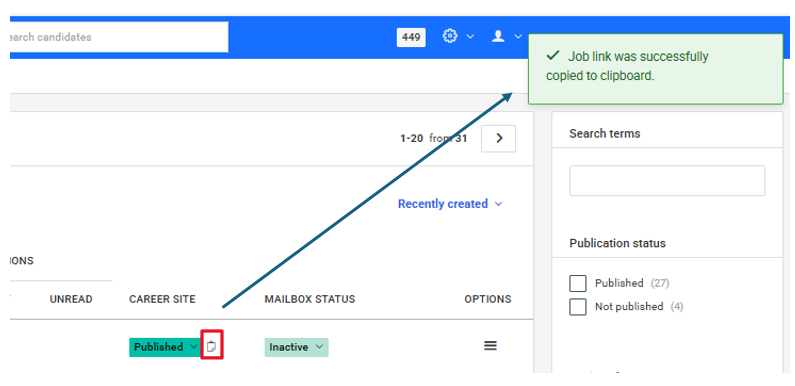
If the position is published, click the indicated icon to copy the link. You can then place this link on any job boards where you want to publish the job posting, so that CVs will be received directly on the platform for that specific position.

<div align="left"><figure><img src="https://834622186-files.gitbook.io/~/files/v0/b/gitbook-x-prod.appspot.com/o/spaces%2F-Lf1c4bGTEs3T7jNosdZ%2Fuploads%2F50SfdR5fDg9WZXxnv7Un%2Fimage.png?alt=media&amp;token=65be5339-7fdb-413c-853a-45c2aae4ba2f" alt=""><figcaption></figcaption></figure></div>

<figure><img src="https://834622186-files.gitbook.io/~/files/v0/b/gitbook-x-prod.appspot.com/o/spaces%2F-Lf1c4bGTEs3T7jNosdZ%2Fuploads%2FEAuvBqNTtTd0eCCV2A1F%2Fimage.png?alt=media&amp;token=4b766bee-546b-41d1-a14f-46517df1a70c" alt=""><figcaption></figcaption></figure>

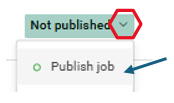
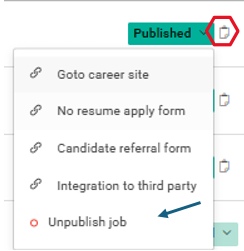
If the position is unpublished, click the highlighted area to publish it. You can use the same option to unpublish the position as well.

<div align="left"><figure><img src="https://834622186-files.gitbook.io/~/files/v0/b/gitbook-x-prod.appspot.com/o/spaces%2F-Lf1c4bGTEs3T7jNosdZ%2Fuploads%2FWpnveQcO9d8ZabbR0otl%2Fimage.png?alt=media&amp;token=1e3d5742-0cbd-4a71-829e-4234dfd4aa88" alt=""><figcaption></figcaption></figure></div>

<div align="left"><figure><img src="https://834622186-files.gitbook.io/~/files/v0/b/gitbook-x-prod.appspot.com/o/spaces%2F-Lf1c4bGTEs3T7jNosdZ%2Fuploads%2F96YasgJqEaFRD2kC4mpX%2Fimage.png?alt=media&amp;token=ef012409-0ddc-4c30-9692-f4a9e98cb4cd" alt=""><figcaption></figcaption></figure></div>

There are also integrations with job boards, and if you have an active job posting package there, you can publish your job ad directly without creating it on those platforms.

<figure><img src="https://834622186-files.gitbook.io/~/files/v0/b/gitbook-x-prod.appspot.com/o/spaces%2F-Lf1c4bGTEs3T7jNosdZ%2Fuploads%2FVohs3PT3yDk9Q4viXaca%2Fimage.png?alt=media&amp;token=d7e243f8-5ee7-48bc-b55b-6e7204cce202" alt="" width="122"><figcaption></figcaption></figure>

You can view the available job sites in Settings → Integrations.

<figure><img src="https://834622186-files.gitbook.io/~/files/v0/b/gitbook-x-prod.appspot.com/o/spaces%2F-Lf1c4bGTEs3T7jNosdZ%2Fuploads%2FKITsOjqPXLD1EZpisxKt%2Fimage.png?alt=media&amp;token=c00818a6-8316-4b8b-ba70-9550c52c5556" alt="" width="102"><figcaption></figcaption></figure>


# Job mailbox

For each job, in addition to the public URL, you have the option to enable a mailbox.&#x20;

By enabling the mailbox,&#x20;

![](https://834622186-files.gitbook.io/~/files/v0/b/gitbook-x-prod.appspot.com/o/spaces%2F-Lf1c4bGTEs3T7jNosdZ%2Fuploads%2F3AQObI2kNOwx5zgGtUta%2Fimage.png?alt=media\&token=b0c13516-2d76-4708-98fc-f00ac1e0b196)

you can share the job email with job board sites, facilitating the direct receipt of resumes on the job page.

<figure><img src="https://834622186-files.gitbook.io/~/files/v0/b/gitbook-x-prod.appspot.com/o/spaces%2F-Lf1c4bGTEs3T7jNosdZ%2Fuploads%2Fcr6iKGZJehtuH87jkNli%2Fimage.png?alt=media&amp;token=350ab3a8-da73-4da0-b495-f60e4c686ef2" alt=""><figcaption></figcaption></figure>


# Manage candidates for a job

You can manage all the applications, from all sources (resume upload, career site, job mailbox) for a specific job by clicking to the job title from either the application's home page or the Jobs page, both accessible from the top navigation bar.

## Basic job information

![](https://834622186-files.gitbook.io/~/files/v0/b/gitbook-legacy-files/o/assets%2F-Lf1c4bGTEs3T7jNosdZ%2F-MdSPJ27KMpgtuBkynXA%2F-MdSQArXquDUF9d6n4Qh%2Fimage.png?alt=media\&token=a3f8d297-d83c-44f3-b07e-b2b2ae162e4f)

* Basic information about the job such as Title, location, department, organization name, mailbox address (only shown if the mailbox for the specific job is enabled).
* The job's direct web address plus the following statistics: Number of views, visitors and applications received through the career site for the specific job (only shown if the job is published to the career site).
* The Upload resumes button for uploading resumes to the specific job.
* A menu button for more actions on the specific job: Enable/disable job mailbox, Publish/Unpublish job from the career site, edit job and Download applications in Excel format.

## Pipeline stages

Pipeline stages are an easy way of organizing candidates within a specific job. The defaults are All, Screening, Phone, Interview, Offer, Hired but you can easily add or remove stages at the [Application settings](/settings/application-settings) screen.

The pipeline stages are displayed in the Manage job's candidates screen, immediately above the candidate list and view panes, as shown below:

![](https://834622186-files.gitbook.io/~/files/v0/b/gitbook-legacy-files/o/assets%2F-Lf1c4bGTEs3T7jNosdZ%2F-MdSPJ27KMpgtuBkynXA%2F-MdSQGnYjHuSF2TB3R50%2Fimage.png?alt=media\&token=4ad959fd-8d4c-4edd-8f8b-c451d9cfabf6)

By clicking to a pipeline stage you can view all the candidates in this stage.

## Candidate List

![](https://834622186-files.gitbook.io/~/files/v0/b/gitbook-legacy-files/o/assets%2F-Lf1c4bGTEs3T7jNosdZ%2F-MdSPJ27KMpgtuBkynXA%2F-MdSQgch72_jCxyvYq18%2Fimage.png?alt=media\&token=0607e6d0-e9a5-40a9-9256-4c88f6f659a3)

At the left pane, the list of candidates for this job. The list contains the following info for each candidate: Photo (that is automatically captured from the resume, if exists), full name, most recent job title, most recent company (if he/she still works there) and the date the candidate applied for the job.

You can also perform a full-text search on all candidates' resumes and you can also change the sort order of the candidates. The default sort option is by Match Score. Other options are:

* Newest applications first
* Biggest match score
* Better evaluation
* Smallest distance for job location
* Oldest first
* Longest work experience
* Shortest work experience
* Highest education level
* Longest per employer experience
* Shortest per employer experience
* Longest management experience
* Shortest management experience
* Highest management level
* Lowest management level
* Employed first
* Unemployed first
* More foreign languages&#x20;

## Candidate view

<figure><img src="https://834622186-files.gitbook.io/~/files/v0/b/gitbook-x-prod.appspot.com/o/spaces%2F-Lf1c4bGTEs3T7jNosdZ%2Fuploads%2FnWYw6aK1cZjpq6uUVFGo%2Fimage.png?alt=media&amp;token=13b58a3a-48c1-4806-83c1-358ff1f73d60" alt=""><figcaption></figcaption></figure>

By clicking on the name of a candidate in the candidate list, a detailed [**Candidate view**](/manage-candidates/candidate-view) is displayed on the right pane.


# Candidate view

The Candidate view provides a detailed view of the candidate. It is comprised from the following sections:

## Candidate action buttons

The following actions are available:

* [Follow candidate](/manage-candidates/candidate-view/follow-candidate)
* [Move candidate to a pipeline stage](/manage-candidates/candidate-view/move-candidate-to-pipeline-stage)
* [Send an email to the candidate](/manage-candidates/candidate-view/send-an-email-to-the-candidate)
* [Send a text message to the candidate](/manage-candidates/candidate-view/send-a-text-message-to-the-candidate)
* [Invite candidate to a video interview](/manage-candidates/candidate-view/invite-candidate-to-a-video-interview)
* [Add a comment for the candidate](/manage-candidates/candidate-view/add-a-comment-for-the-candidate)
* [Add an evaluation for the candidate](/manage-candidates/candidate-view/add-an-evaluation-for-the-candidate)
* [Copy candidate to another job](/manage-candidates/candidate-view/copying-or-moving-a-candidate)
* [Edit candidate's name](/manage-candidates/candidate-view/edit-candidates-name)
* [Sending a Bryq Test to a candidate](/manage-candidates/candidate-view/sending-a-bryq-test-to-a-candidate)
* [Delete candidate](/manage-candidates/candidate-view/delete-candidate)

## At a glance

![](https://834622186-files.gitbook.io/~/files/v0/b/gitbook-legacy-files/o/assets%2F-Lf1c4bGTEs3T7jNosdZ%2F-ME3UtZ3V9rhfjMX47-e%2F-ME3VDwid_KmeDiPERv9%2Fimage.png?alt=media\&token=b228d2fa-f4d1-4d9b-95b3-b6d4bd6a30d8)

This section provides key information about the candidate such as:

* Full name
* Photo (if found in the candidate's resume)
* Most recent job title and employer
* Phone and email
* Location (City & Country) and the distance in kilometers from the job's location
* Current tags with an edit option
* Match Score together with the respective scores on the properties that were used to calculate it, such as:  Skills, job titles, industries, languages, management level and experience.
* Total work experience in years
* Average duration per employer
* Current employment status (employed or not employed)
* Managerial experience duration and level (if found)

## Activity timeline

![](https://834622186-files.gitbook.io/~/files/v0/b/gitbook-legacy-files/o/assets%2F-Lf1c4bGTEs3T7jNosdZ%2F-ME3UtZ3V9rhfjMX47-e%2F-ME3Vdocz9W6T6s7l7HT%2Fimage.png?alt=media\&token=a7de683e-15de-4cf3-8640-8990b110fcbd)

This section includes a detailed history of all the actions about the candidate in the platform from the moment the candidate was sourced.

{% hint style="info" %}
If you receive more than one applications for different jobs from the same candidate, the Activity timeline will include the full history of the candidate from all applications.
{% endhint %}

## Profile

![](https://834622186-files.gitbook.io/~/files/v0/b/gitbook-legacy-files/o/assets%2F-Lf1c4bGTEs3T7jNosdZ%2F-ME3UtZ3V9rhfjMX47-e%2F-ME3VoSWhDa9lqC-vLcy%2Fimage.png?alt=media\&token=cd75c02a-3e4e-4535-98df-7efabf7a7b48)

![](https://834622186-files.gitbook.io/~/files/v0/b/gitbook-legacy-files/o/assets%2F-Lf1c4bGTEs3T7jNosdZ%2F-ME3UtZ3V9rhfjMX47-e%2F-ME3Vy4xsxTp1wx-_y1S%2Fimage.png?alt=media\&token=47920550-30aa-4c26-b4fe-47613b52d9b9)

This section includes a detailed structured profile of the candidate that is automatically derived from her resume. The profile sub sections are:

* Summary
* Work experience
* Education
* Training history
* Licences / Certifications
* Languages
* Skills
* Achievements

{% hint style="info" %}
The work experience, education, languages and skills sub sections contain filtering buttons that allow you to instantly find candidates with the same properties such as: Work experience type, degree type, language etc.
{% endhint %}

## Resume

![](https://834622186-files.gitbook.io/~/files/v0/b/gitbook-legacy-files/o/assets%2F-Lf1c4bGTEs3T7jNosdZ%2F-ME3UtZ3V9rhfjMX47-e%2F-ME3W9ofpFlhdAV-Jj4u%2Fimage.png?alt=media\&token=2896cc74-ef39-4364-8b84-4a870fd23549)

This section includes an accurate preview of the original resume with the option of downloading it. You can download a pdf version of the resume, irrespective of its original format. In case the original resume format was different than pdf there is an option to download it in this format too.

{% hint style="info" %}
When you download a resume the filename is always in the form of {Last name}.{First name}.{file extension} irrespective of the original filename, a handy feature that allows you to easily organize resumes in the same folder.
{% endhint %}


# Follow candidate

You can view a custom timeline of all the actions on candidates you are interested in. You build this timeline by following the candidates you want at the [**Candidate view**](/manage-candidates/candidate-view):

![](https://834622186-files.gitbook.io/~/files/v0/b/gitbook-legacy-files/o/assets%2F-Lf1c4bGTEs3T7jNosdZ%2F-ME3UtZ3V9rhfjMX47-e%2F-ME3WPEmqjT9gK6_AdHO%2Fimage.png?alt=media\&token=6d632dc4-c35a-4cf2-8311-6c5190aa2d59)

When you click the follow button the caption will change and will include a tick that confirms the action coupled with the total number of followers (other team members) of the candidate.

<figure><img src="https://834622186-files.gitbook.io/~/files/v0/b/gitbook-x-prod.appspot.com/o/spaces%2F-Lf1c4bGTEs3T7jNosdZ%2Fuploads%2FDKlcn25TMlsrUpw4v9Bk%2Fimage.png?alt=media&amp;token=7e11120a-bea6-48a9-85f5-51fc136fc6eb" alt=""><figcaption></figcaption></figure>


# Move candidate to a different pipeline stage

You can move a candidate to a different pipeline stage by following these steps:

1. **Open the Candidate View:**
   * Navigate to the specific candidate's profile.
2. **Click the Pipeline Stage Button:**
   * At the top right of the candidate view, locate and click on the **Pipeline stage** button, as shown below:
3. **Select the Desired Stage:**
   * A menu with the available stages will appear. Select the stage you want to move the candidate to.
4. **Remove Candidate from Current Stage:**
   * If needed, you can also remove the candidate from the current stage by selecting the appropriate option in the menu. This will move the candidate to default stage (all).

By following these steps, you can efficiently manage and update the candidate's progress through the recruitment pipeline.

<figure><img src="https://834622186-files.gitbook.io/~/files/v0/b/gitbook-x-prod.appspot.com/o/spaces%2F-Lf1c4bGTEs3T7jNosdZ%2Fuploads%2FRRvpJUTncy7p3J92Rw7S%2Fimage.png?alt=media&amp;token=8a3193a5-e0be-43b1-a890-5309932a79c2" alt=""><figcaption><p>Candidate view</p></figcaption></figure>


# Send a text message to the candidate

You can send a text message to the candidate by clicking the respective button at the top of the Candidate view, as shown below:

<figure><img src="https://834622186-files.gitbook.io/~/files/v0/b/gitbook-x-prod.appspot.com/o/spaces%2F-Lf1c4bGTEs3T7jNosdZ%2Fuploads%2F8sysGVN25ZgJhnsLXSBc%2Fimage.png?alt=media&amp;token=832ad51d-1f16-495a-843e-1f3c94cc6d1a" alt=""><figcaption></figcaption></figure>

You need to fill the following information:

* **Country**: Select the country of the recipient's mobile number.
* **Mobile number**: Enter the mobile number of the recipient, without the international code.
* **Text message**: Enter the message text, up to 160 characters.

Click on the **Send** button to send the message, which will immediately appear in the candidate's [timeline](/manage-candidates/candidate-view#activity-timeline).

> Candidates cannot reply to these SMS messages because they are sent from a no-reply number.

{% hint style="info" %}
Text messages are subject to separate charge from Worklife Recruit. You have 10 free messages when you create a trial account. Click on the **Buy** button at the top navigation bar to buy more safely using your credit/debit card, within the application.
{% endhint %}


# Send an email to the candidate

You can send an email to the candidate by clicking the respective button at the top of the [Candidate view](/manage-candidates/candidate-view), as shown below:

<figure><img src="https://834622186-files.gitbook.io/~/files/v0/b/gitbook-x-prod.appspot.com/o/spaces%2F-Lf1c4bGTEs3T7jNosdZ%2Fuploads%2FbB3mPjdm5GZeZcHwAvws%2Fimage.png?alt=media&amp;token=5574807b-4545-42ce-9037-d5c2b3db43b7" alt=""><figcaption></figcaption></figure>

You need to fill the following information:

* **Subject**: Select the country of the recipient's mobile number.
* **Template**: Optionally select one of the [templates ](/settings/manage-templates)you have previously created. The email body field will immediately be filled with the template's text.
* **Email body**: Enter the body text of the email.
* **File**: Optionally add a file to be send as an attachment.

Click on the **Send** button to send the message, which will immediately appear in the candidate's [timeline](/manage-candidates/candidate-view#activity-timeline).

{% hint style="info" %}
**Advantages of emailing the candidates using SmartCV:**

* The candidate does not know your main corporate email.
* Both outbound and inbound emails are automatically displayed in the candidate's [timeline](/manage-candidates/candidate-view#activity-timeline) with all the other relevant information about the candidate.
  {% endhint %}


# Invite candidate to a video interview

You can invite a candidate to a video interview by clicking the respective button at the top of the [Candidate view](/manage-candidates/candidate-view), as shown below:

<figure><img src="https://834622186-files.gitbook.io/~/files/v0/b/gitbook-x-prod.appspot.com/o/spaces%2F-Lf1c4bGTEs3T7jNosdZ%2Fuploads%2FnueWLmkdHNd0oUvp1EMG%2Fimage.png?alt=media&amp;token=d72b6399-5465-4747-b90e-d54291324a18" alt=""><figcaption></figcaption></figure>

You need to fill the following information:

* **Email**: Enter the recipient's email. The default value of the field is the candidate's email that appears in his/her resume, but you can change it.
* **Video interview**: Select one of the video interviews you have previously created. You can create a video interview at the **Manage video interviews** screen.
* **Language**: Select the user interface language of the video interview. This setting has no effect on the language of the video interview itself.
* **Answer deadline**: Select or enter the deadline date for the candidate to complete the video interview. The date is inclusive, meaning that the candidate can complete the interview on this date.
* **BCC myself**: Check this box to receive a copy of the invitation. It will be send to the email you used to register to SmartCV as a user.
* **Notify me**: Check this box to receive a notification email when the video interview is completed by the candidate. The notification email will include a direct link to the completed interview.

Click on the **Send** button to send the invitation. The candidate's [timeline](/manage-candidates/candidate-view#activity-timeline) will immediately be updated with this action.


# Add a comment for the candidate

You can add a comment for a candidate by clicking the respective button at the top of the [Candidate view](/manage-candidates/candidate-view), as shown below:

<figure><img src="https://834622186-files.gitbook.io/~/files/v0/b/gitbook-x-prod.appspot.com/o/spaces%2F-Lf1c4bGTEs3T7jNosdZ%2Fuploads%2FHvp3lqWAhec5nrNAT8MU%2Fimage.png?alt=media&amp;token=e0d9fd25-611e-4b5d-8d93-c839170dadf0" alt=""><figcaption></figcaption></figure>

You need to fill the following information:

* **Comment**: Write your comment.
* You can mention a colleague by typing @ and selecting their name, then add a comment. The colleague will receive a notification in their company email, along with a link to the candidate’s profile.
* You can also select which roles can view your comment

Click on the **Submit** button to add the comment which will immediately appear in the candidate's [timeline](/manage-candidates/candidate-view#activity-timeline).


# Add an evaluation for the candidate

You can add a comment for a candidate by clicking the respective button at the top of the [Candidate view](/manage-candidates/candidate-view), as shown below:

<figure><img src="https://834622186-files.gitbook.io/~/files/v0/b/gitbook-x-prod.appspot.com/o/spaces%2F-Lf1c4bGTEs3T7jNosdZ%2Fuploads%2FXOL84g3EI8LOJK865hY4%2Fimage.png?alt=media&amp;token=30766b44-f516-4a72-9ea5-1335c5bfe787" alt=""><figcaption></figcaption></figure>

You need to fill the following information:

* **Evaluation text**: Optionally write a comment about the evaluation.
* **Evaluation**: Click on one of the stars (1-5).

Click on the **Submit** button to add the evaluation, which will immediately appear in the candidate's [timeline](/manage-candidates/candidate-view#activity-timeline).

The evaluation average will appear at the right of the candidate's name at the [Candidate view](/manage-candidates/candidate-view), as shown below:

![](https://834622186-files.gitbook.io/~/files/v0/b/gitbook-legacy-files/o/assets%2F-Lf1c4bGTEs3T7jNosdZ%2F-MGUTN8ycc-mksD7-58x%2F-MGUTnW8zr4Z2NUiiRXJ%2Fimage.png?alt=media\&token=4ecfced8-ecb0-4193-830f-961627c01a2b)


# Attach files to the candidate's application

Remember that time you were searching for a specific document and had to look through all of your email threads? No more tedious scrolling through your inbox to find relevant documents - keep them all safely organized in one place, the candidate’s profile.

To attach files follow the steps:

1\. Visit the candidate’s profile

2\. Click on the clip icon

<figure><img src="https://834622186-files.gitbook.io/~/files/v0/b/gitbook-x-prod.appspot.com/o/spaces%2F-Lf1c4bGTEs3T7jNosdZ%2Fuploads%2FDroeBQBsB6h39NBwPlD5%2Fimage.png?alt=media&amp;token=916c7bdc-fec7-44ec-8ca8-73dfbdb56b63" alt="" width="105"><figcaption></figcaption></figure>

3\. Click on add files

<figure><img src="https://834622186-files.gitbook.io/~/files/v0/b/gitbook-x-prod.appspot.com/o/spaces%2F-Lf1c4bGTEs3T7jNosdZ%2Fuploads%2FF4QedbhZ1omFhYZeQiF3%2Fimage.png?alt=media&amp;token=f9728b1e-e5f5-4d1b-95ee-f53729b4c3c5" alt="" width="375"><figcaption></figcaption></figure>

4. Hit the Start upload button once you select all the files you want to upload

You can access the candidate’s documents any time by visiting their profile. All documents are stored under the files section.

<figure><img src="https://834622186-files.gitbook.io/~/files/v0/b/gitbook-x-prod.appspot.com/o/spaces%2F-Lf1c4bGTEs3T7jNosdZ%2Fuploads%2FeZuiejQ7qvWuI8JaH3J9%2Fimage.png?alt=media&amp;token=a069f0d6-b960-48dc-84c8-36e9a21f6dd1" alt="" width="339"><figcaption></figcaption></figure>


# Copying or Moving a Candidate

### Overview

Worklife Recruit provides the functionality to [copy](/manage-candidates/candidate-view/copying-or-moving-a-candidate/copy-a-candidate) or [move](/manage-candidates/candidate-view/copying-or-moving-a-candidate/move-a-candidate) candidates, enabling efficient management of your candidate database. This feature allows you to transfer candidates between different job positions seamlessly.

* [Steps to Copy a Candidate](/manage-candidates/candidate-view/copying-or-moving-a-candidate/copy-a-candidate)
* [Steps to Move a Candidate](/manage-candidates/candidate-view/copying-or-moving-a-candidate/move-a-candidate)


# Copy a Candidate

### Steps to Copy a Candidate

1. **Select the Candidate:**
   * Browse through the left list of candidates.
   * If you need to copy more than one, check the box next to the candidates you want to copy and use the [bulk action](/manage-candidates/bulk-actions).&#x20;
2. **Initiate Copy Action:**

   * In profile area, from action buttons click on the copy/move.

   <figure><img src="https://834622186-files.gitbook.io/~/files/v0/b/gitbook-x-prod.appspot.com/o/spaces%2F-Lf1c4bGTEs3T7jNosdZ%2Fuploads%2FDIUknu1h0JkZzq10Tbwk%2Fimage.png?alt=media&amp;token=3075c4a2-d6a8-4aa3-8a11-ddf801d6f7b8" alt="" width="563"><figcaption></figcaption></figure>

   * A dialog box will appear prompting you to select the destination job position.

   <figure><img src="https://834622186-files.gitbook.io/~/files/v0/b/gitbook-x-prod.appspot.com/o/spaces%2F-Lf1c4bGTEs3T7jNosdZ%2Fuploads%2FNXKCPV30LCEW6LzYyYAx%2Fimage.png?alt=media&amp;token=47156132-e91e-407f-82a4-c8658f5d4304" alt="" width="563"><figcaption><p>Single candidate copy/move dialog box</p></figcaption></figure>

   * **Choose Destination job** choose the target job position from the list.
   * Select **Stage** from the dropdown menu.
   * Select **Copy** from the actions.
   * Click **Copy** to complete the action.
   * The candidate will be copied to the selected job position.

#### Additional Tips

* **Multiple Selections:**
  * You can select multiple candidates to copy them in [bulk action](/manage-candidates/bulk-actions).

{% hint style="info" %}

#### Benefits of Copying Candidates

* **Efficient Management:**
  * Streamline your candidate database by easily transferring candidates between different job positions.
* **Increased Flexibility:**
  * Adapt to changing recruitment needs by coping candidates to the most relevant positions.
    {% endhint %}


# Move a Candidate

### Steps to Move a Candidate

1. **Select the Candidate:**
   * Browse through the left list of candidates.
   * If you need to move more than one, check the box next to the candidates you want to move and use the [bulk action](/manage-candidates/bulk-actions).&#x20;
2. **Initiate Move Action:**

   * In profile area, from action buttons click on the copy/move.

   <figure><img src="https://834622186-files.gitbook.io/~/files/v0/b/gitbook-x-prod.appspot.com/o/spaces%2F-Lf1c4bGTEs3T7jNosdZ%2Fuploads%2FDIUknu1h0JkZzq10Tbwk%2Fimage.png?alt=media&amp;token=3075c4a2-d6a8-4aa3-8a11-ddf801d6f7b8" alt="" width="563"><figcaption></figcaption></figure>

   * A dialog box will appear prompting you to select the destination job position.

   <figure><img src="https://834622186-files.gitbook.io/~/files/v0/b/gitbook-x-prod.appspot.com/o/spaces%2F-Lf1c4bGTEs3T7jNosdZ%2Fuploads%2FaxnuCtzL6HTKor9kFE3B%2Fimage.png?alt=media&amp;token=0983a269-9a05-4434-b61a-b24a9b0671d5" alt="" width="563"><figcaption><p>Single candidate copy/move dialog box</p></figcaption></figure>

   * **Choose Destination job** choose the target job position from the list.
   * Select **Stage** from the dropdown menu.
   * Select **Move** from the actions.
   * Click **Move** to complete the action.
   * The candidate will be moved to the selected job position.

#### Additional Tips

* **Multiple Selections:**
  * You can select multiple candidates to move them in [bulk action](/manage-candidates/bulk-actions).

{% hint style="info" %}

#### Benefits of Moving Candidates

* **Efficient Management:**
  * Streamline your candidate database by easily transferring candidates between different job positions.
* **Increased Flexibility:**
  * Adapt to changing recruitment needs by moving candidates to the most relevant positions.
    {% endhint %}


# Edit candidate's name

When the candidate is sourced via [Resume upload](/manage-candidates/add-candidates-to-a-job/upload-resumes) or [Job mailbox](/manage-candidates/add-candidates-to-a-job/job-mailbox) the candidate's name may not be parsed accurately from the resume or even not parsed at all.

In this case you can manually set the candidate's name by clicking on the respective button at the top of the [candidate view](/manage-candidates/candidate-view), as shown below:

<figure><img src="https://834622186-files.gitbook.io/~/files/v0/b/gitbook-x-prod.appspot.com/o/spaces%2F-Lf1c4bGTEs3T7jNosdZ%2Fuploads%2F5CAoa2lXFeWlUMs6xWct%2Fimage.png?alt=media&amp;token=3e74c7c3-3888-4c9b-a179-0472cf7a123e" alt=""><figcaption></figcaption></figure>


# Sending a Bryq Test to a Candidate

### Sending a Bryq Test to a Candidate

Worklife Recruit allows you to easily send Bryq assessments to candidates. Follow the steps below to send a Bryq test to a candidate, ensuring a seamless and efficient evaluation process. Ensure you have [activated the Bryq](/settings/integrations) test integration before proceeding.&#x20;

### **How to Send a Bryq Test to a Candidate**

1. **Navigate to the Job or Candidates Page:**
   * Log in to your Worklife Recruit account.
   * Navigate to the **Jobs** page and select the specific job listing, or go directly to the **Candidates** page.
2. **Find the Candidate:**
   * Locate the candidate you want to send the Bryq test to. You can use the [search ](/manage-candidates/search-all-candidates)or [filter ](/manage-candidates/filter-candidates-for-a-job)options to find the candidate quickly.
3. **Access More Options:**

   * Click on the **More Options** button (usually represented by three dots) next to the candidate’s name.

   <figure><img src="https://834622186-files.gitbook.io/~/files/v0/b/gitbook-x-prod.appspot.com/o/spaces%2F-Lf1c4bGTEs3T7jNosdZ%2Fuploads%2FAEoXMPgAkM1kTO33MUw2%2Fimage.png?alt=media&amp;token=5c529860-82b5-4039-b33c-45ef0df5ddbf" alt="" width="563"><figcaption></figcaption></figure>
4. **Select "Send Bryq Assessment":**

   * From the dropdown menu, select the **Send Bryq Assessment** option.

   <figure><img src="https://834622186-files.gitbook.io/~/files/v0/b/gitbook-x-prod.appspot.com/o/spaces%2F-Lf1c4bGTEs3T7jNosdZ%2Fuploads%2FrlNEvEviMlyGBdh6aIXa%2Fimage.png?alt=media&amp;token=50c29cab-d70d-417c-a53d-23cb27ede8fc" alt="" width="140"><figcaption></figcaption></figure>
5. **Choose the Test:**

   * A dialog box will appear, prompting you to select the specific Bryq test you want the candidate to complete.
   * Choose the appropriate test from the list.

   <figure><img src="https://834622186-files.gitbook.io/~/files/v0/b/gitbook-x-prod.appspot.com/o/spaces%2F-Lf1c4bGTEs3T7jNosdZ%2Fuploads%2FjvfSrzdAiUxwMVbELSI9%2Fimage.png?alt=media&amp;token=cee899a3-97f8-4591-aba5-f0eade1d010d" alt="" width="563"><figcaption></figcaption></figure>
6. **Send the Test:**
   * Click the **Send** button to send the Bryq test to the candidate.
7. **Candidate Notification:**
   * The candidate will receive an email notification with the Bryq test and instructions on how to complete it.
8. **Review Results:**
   * Once the candidate completes the test, the results will be available in their profile.
   * Navigate to the candidate’s profile to review the Bryq assessment results.

***

### **Benefits of Using Bryq Assessments**

* **Efficient Evaluation:** Streamline your candidate assessment process with automated Bryq tests.
* **Objective Insights:** Gain objective insights into candidate capabilities and fit for the role.
* **Enhanced Decision-Making:** Make informed hiring decisions based on comprehensive assessment data.

By integrating Bryq tests into your recruitment workflow, you can enhance the efficiency and effectiveness of your candidate evaluations, leading to better hiring outcomes.


# Delete candidate

<figure><img src="https://834622186-files.gitbook.io/~/files/v0/b/gitbook-x-prod.appspot.com/o/spaces%2F-Lf1c4bGTEs3T7jNosdZ%2Fuploads%2FhSCQvw7WmImQJNU4XYE4%2Fimage.png?alt=media&amp;token=4451d65b-f425-44ae-935d-071d540e6c8e" alt=""><figcaption></figcaption></figure>

A popup window will appear that will require you to confirm this action, as shown below:

<figure><img src="https://834622186-files.gitbook.io/~/files/v0/b/gitbook-x-prod.appspot.com/o/spaces%2F-Lf1c4bGTEs3T7jNosdZ%2Fuploads%2F0XAGZxPNWc0CdoiOUKnf%2Fimage.png?alt=media&amp;token=f0dcd400-5b34-4df1-932e-42a63e944161" alt=""><figcaption></figcaption></figure>

{% hint style="info" %}
In order to delete the candidate from a job you must have the respective right as a user. See [Manage roles](broken://pages/-Lzw9P6PC9gQCPrx7hYG) for more details.
{% endhint %}

<figure><img src="https://834622186-files.gitbook.io/~/files/v0/b/gitbook-x-prod.appspot.com/o/spaces%2F-Lf1c4bGTEs3T7jNosdZ%2Fuploads%2FbmLcZWwjIzpbxvzaHwsy%2Fimage.png?alt=media&amp;token=5fb45d2b-d86a-4fcf-a288-faabbe3483e5" alt=""><figcaption></figcaption></figure>


# Search candidates for a job

You may search for specific candidates for a job by using the *search candidates input* box.

![](https://834622186-files.gitbook.io/~/files/v0/b/gitbook-x-prod.appspot.com/o/spaces%2F-Lf1c4bGTEs3T7jNosdZ%2Fuploads%2Fy2PlLoPj42a8wZCg1wlL%2Fimage.png?alt=media\&token=defeebba-06e4-4ca0-a1d1-7938bc76db9e)

## Search tips

* By **default** all words must be present in the candidate's resume. For example a search for *web developer* will return results that contain web and developer.
* You may search for **either words** using the OR operator. For example *php OR java* will return results that contain either php or java.&#x20;
* You may **exclude specific words** by using the - operator. For example *shipping -sales* will return results that contain the word shipping but do not include the word sales.
* You may use **complex boolean expressions** like software AND (developer OR engineer) which will return results that contain the word software and also either developer or engineer.
* You may search for a **phrase** by using quotation marks. For example *"web developer"* will return results that contain this exact phrase.
* You may alse search for **words that are near each other**. For example *"board member"\~3* will return results that contain both words but at a maximum distance of 3 words. This is very handy because it will return documents that for example may contain *board member* or *member of the board*.


# Compare candidates for a job

The **Compare Candidates** feature allows you to compare multiple candidates side by side for a specific job opening. This provides a quick overview of each candidate's qualifications and evaluation results, making it easier to identify the most suitable applicants.

### How to Compare Candidates

1. Navigate to the desired job opening.
2. Move the candidates you want to compare to the same hiring stage (e.g., **Initial Screen**, **Interview**, or **Offer**).
3. Select the **Compare Candidates** tab.
4. Click on the hiring stage that contains the candidates you want to review.
5. The system displays all candidates in the selected stage side by side, allowing you to compare their information, evaluations, comments, match score, and other application details.
6. If needed, use the available sorting options (e.g., **Match Score**) to reorder the candidates.
7. Click **Download in Excel format** to export the comparison results for offline review or sharing.

> **Note:** Only candidates who are in the same hiring stage can be compared. This ensures that all candidates are evaluated at the same point in the recruitment process.

<figure><img src="https://834622186-files.gitbook.io/~/files/v0/b/gitbook-x-prod.appspot.com/o/spaces%2F-Lf1c4bGTEs3T7jNosdZ%2Fuploads%2FVaYZSjLPvOhnpoLO5cU2%2Fimage.png?alt=media&amp;token=4c9b64ae-1158-4d08-9b38-5f331a6475f0" alt=""><figcaption></figcaption></figure>

<figure><img src="https://834622186-files.gitbook.io/~/files/v0/b/gitbook-x-prod.appspot.com/o/spaces%2F-Lf1c4bGTEs3T7jNosdZ%2Fuploads%2FgAlyJ3t1m86qZGky1SCD%2Fimage.png?alt=media&amp;token=e04e5165-2231-44ba-b579-7ed0d9bad70c" alt=""><figcaption></figcaption></figure>


# Filter candidates for a job

You can filter the candidates for a specific job by clicking on the **Filter candidates** tab at the [Manage candidates for a job](/manage-candidates/manage-job-candidates) screen, as shown below:

![](https://834622186-files.gitbook.io/~/files/v0/b/gitbook-legacy-files/o/assets%2F-Lf1c4bGTEs3T7jNosdZ%2F-ME3a1V6WBek1_ChBcis%2F-ME3aKZD7ahuLr7Sg3Vr%2Fimage.png?alt=media\&token=079273a1-8304-4711-830e-0fcd0db0b9dd)

The filter candidates screen is split in to panes:&#x20;

The left pane contains the filtering options and the right pane the candidate list that meets the selected filtering criteria, as shown below:

![](https://834622186-files.gitbook.io/~/files/v0/b/gitbook-legacy-files/o/assets%2F-Lf1c4bGTEs3T7jNosdZ%2F-ME3a1V6WBek1_ChBcis%2F-ME3aQXnmP8zWaG_Xgwf%2Fimage.png?alt=media\&token=d1ee2f7b-67d9-4484-9671-1bcc3b460455)

The available filtering criteria are:

* Work experience duration
* Management experience duration
* Employment status
* Type of experience
* Management level
* Executive type
* Employer name
* Job title
* Area
* School type
* Degree type
* Languages
* Tags
* Answers to [application form questions](/settings/manage-questions/add-questions-to-job)
* Pipeline stage

You can also **sort** the results by the following options:

![](https://834622186-files.gitbook.io/~/files/v0/b/gitbook-legacy-files/o/assets%2F-Lf1c4bGTEs3T7jNosdZ%2F-ME3a1V6WBek1_ChBcis%2F-ME3aZlM4OC-Jgj1GMeE%2Fimage.png?alt=media\&token=836eaf11-76b0-4edb-a652-c3905a05919e)

* Relevance (available only when a search phrase exists)
* Newest applications first
* Biggest average match score
* Better evaluation
* Smallest distance for job location
* Oldest first
* Longest work experience
* Shortest work experience
* Highest education level
* Longest per employer experience
* Shortest per employer experience
* Longest management experience
* Shortest management experience
* Highest management level
* Lowest management level
* Employed first
* Unemployed first
* More foreign languages&#x20;


# Viewing Unread Applications

### Viewing Unread Applications for Each User

In Worklife Recruit, you can easily view unread applications from candidates, tailored specifically for each user. This feature helps ensure that every team member stays up-to-date with their assigned job applications.

### **How to View Unread Applications**

1. **Navigate to the Applications Section:**

   * Log in to your Worklife Recruit account.
   * You can see the unread applications on the home page.

   <figure><img src="https://834622186-files.gitbook.io/~/files/v0/b/gitbook-x-prod.appspot.com/o/spaces%2F-Lf1c4bGTEs3T7jNosdZ%2Fuploads%2FPH5sfoHO6GmugIVLvWRr%2Fimage.png?alt=media&amp;token=0b9a6dbb-776e-4d4f-b247-55d599f72608" alt="" width="485"><figcaption><p>Home page</p></figcaption></figure>
2. **Filter the unread applications:**

   * Navigate to a job where there are unread applications.
   * Click on the unread options on the pipe line to select the specific unread applications.

   <figure><img src="https://834622186-files.gitbook.io/~/files/v0/b/gitbook-x-prod.appspot.com/o/spaces%2F-Lf1c4bGTEs3T7jNosdZ%2Fuploads%2Ffkg4PyAgZxdJxM6sao3X%2Fimage.png?alt=media&amp;token=3a9dd26d-6622-4173-9b77-0dd6f20f0ffe" alt="" width="286"><figcaption><p>Filtered Unread applications</p></figcaption></figure>

   * This will display only the applications that have not been read by the logged-in user.
3. **View Unread Applications:**
   * The filtered list will show all the unread applications for the logged-in user.
   * Click on any application to open and review the candidate's details.

### **Benefits**

* **Improved Organization:**
  * Each user of your team at Worklife Recruit can quickly access their unread applications, ensuring no candidate goes unnoticed.
* **Enhanced Efficiency:**
  * Streamlined access to unread applications helps users prioritize and manage their workload effectively.
* **Better Collaboration:**
  * Team members can stay updated on their specific responsibilities without overlapping with others, fostering clearer communication and collaboration.


# Viewing the Number of Applications for Other Positions

### Viewing the Number of Applications Each Candidate Has Submitted for Other Positions

In Worklife Recruit, you can view the number of applications each candidate has submitted for other positions. This helps you get a comprehensive view of a candidate's engagement with your organization.

### **How to View the Number of Applications for Other Positions**

1. **Navigate to the Candidates List:**
   * Log in to your Worklife Recruit account.
   * Select the job you manage.
   * Go to the **Candidates** section, the list on the left side bar.
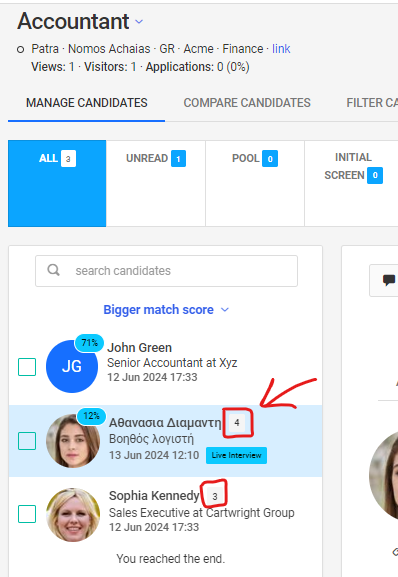
2. **View Application Count:**

   * In the list of candidates, this information is displayed next to each candidate's name.
   * You will see the number of applications each candidate has submitted for other positions in your organization.

   <figure><img src="https://834622186-files.gitbook.io/~/files/v0/b/gitbook-x-prod.appspot.com/o/spaces%2F-Lf1c4bGTEs3T7jNosdZ%2Fuploads%2FlzRqELWj31km8dt14Szd%2Fimage.png?alt=media&amp;token=60a7a06d-7b96-4ebd-9923-2e093ee8116e" alt="" width="299"><figcaption></figcaption></figure>
3. **Detailed View:**

   * Click on a candidate's name to open their profile and see more details about the positions they have applied for.

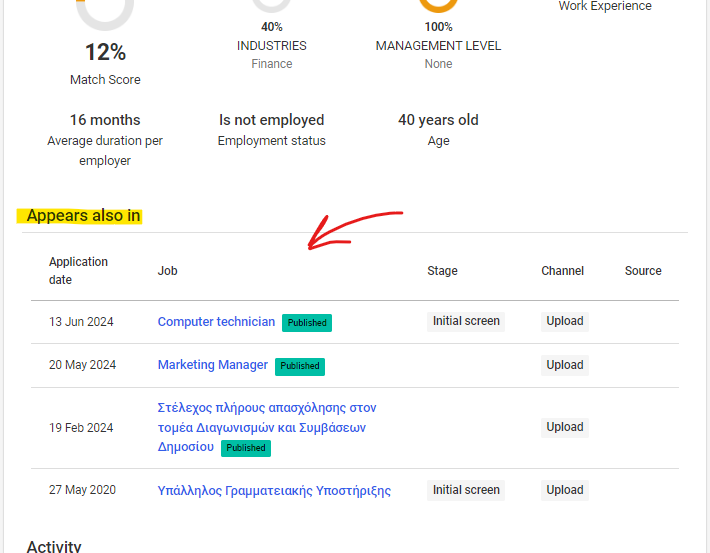
   <figure><img src="https://834622186-files.gitbook.io/~/files/v0/b/gitbook-x-prod.appspot.com/o/spaces%2F-Lf1c4bGTEs3T7jNosdZ%2Fuploads%2F70mVO9orR7E9fTS82RZz%2Fimage.png?alt=media&amp;token=5d3a275a-05e8-436c-8f70-7980e2c0fcd6" alt="" width="533"><figcaption><p>'Appears also in' section in  profile page</p></figcaption></figure>


# Recommended candidates for a job

When you create a new job you can get automatic recommendations for existing candidates that have applied to other jobs. This is done by clicking on the **Recommended candidates** tab at the [**Manage candidates for a job**](/manage-candidates/manage-job-candidates) screen, as shown below:

![](https://834622186-files.gitbook.io/~/files/v0/b/gitbook-legacy-files/o/assets%2F-Lf1c4bGTEs3T7jNosdZ%2F-ME3a1V6WBek1_ChBcis%2F-ME3ag6JGtW9TCAroO9O%2Fimage.png?alt=media\&token=d9fe0f45-1c39-4ed9-8dd2-a084df2e9cc0)

The screen is split in to panes: The left pane contains the filtering options and the right pane the candidate list that contains recommended candidates for the job, as shown below:

<div align="left"><img src="https://834622186-files.gitbook.io/~/files/v0/b/gitbook-legacy-files/o/assets%2F-Lf1c4bGTEs3T7jNosdZ%2F-ME3a1V6WBek1_ChBcis%2F-ME3b-o2VSwv3rt9_PRZ%2Fimage.png?alt=media&amp;token=a431589e-757d-4b86-a94a-c57a7653773d" alt=""></div>

The available filtering criteria are:

* Work experience duration
* Management experience duration
* Employment status
* Type of experience
* Management level
* Executive type
* Employer name
* Job title
* Area
* School type
* Degree type
* Languages
* Tags
* Answers to [application form questions](/settings/manage-questions/add-questions-to-job)
* Pipeline stage

You can also **sort** the results by the following options:

<div align="left"><img src="https://834622186-files.gitbook.io/~/files/v0/b/gitbook-legacy-files/o/assets%2F-Lf1c4bGTEs3T7jNosdZ%2F-ME3a1V6WBek1_ChBcis%2F-ME3b4j-lmj2LRpoSi91%2Fimage.png?alt=media&amp;token=d1175c99-00f7-4096-a37d-96a16da50c69" alt=""></div>

* Relevance (available only when a search phrase exists)
* Newest applications first
* Biggest average match score
* Better evaluation
* Smallest distance for job location
* Oldest first
* Longest work experience
* Shortest work experience
* Highest education level
* Longest per employer experience
* Shortest per employer experience
* Longest management experience
* Shortest management experience
* Highest management level
* Lowest management level
* Employed first
* Unemployed first
* More foreign languages&#x20;


# Analytics Tab

### Viewing and Utilizing Job Analytics

The **Analytics** tab provides comprehensive insights into the specific job you are managing. Here's how to access and interpret the data available:

<figure><img src="https://834622186-files.gitbook.io/~/files/v0/b/gitbook-x-prod.appspot.com/o/spaces%2F-Lf1c4bGTEs3T7jNosdZ%2Fuploads%2FjYczxmGrzNeH0WngPr7t%2Fimage.png?alt=media&amp;token=ba2ef67b-c318-4fc3-896d-9e55d3eb7ab5" alt="" width="563"><figcaption></figcaption></figure>

1. **Navigate to the Analytics Tab:**
   * Log in to your Worklife Recruit account.
   * Go to the job profile for which you want to view analytics.
   * Click on the **Analytics** tab.
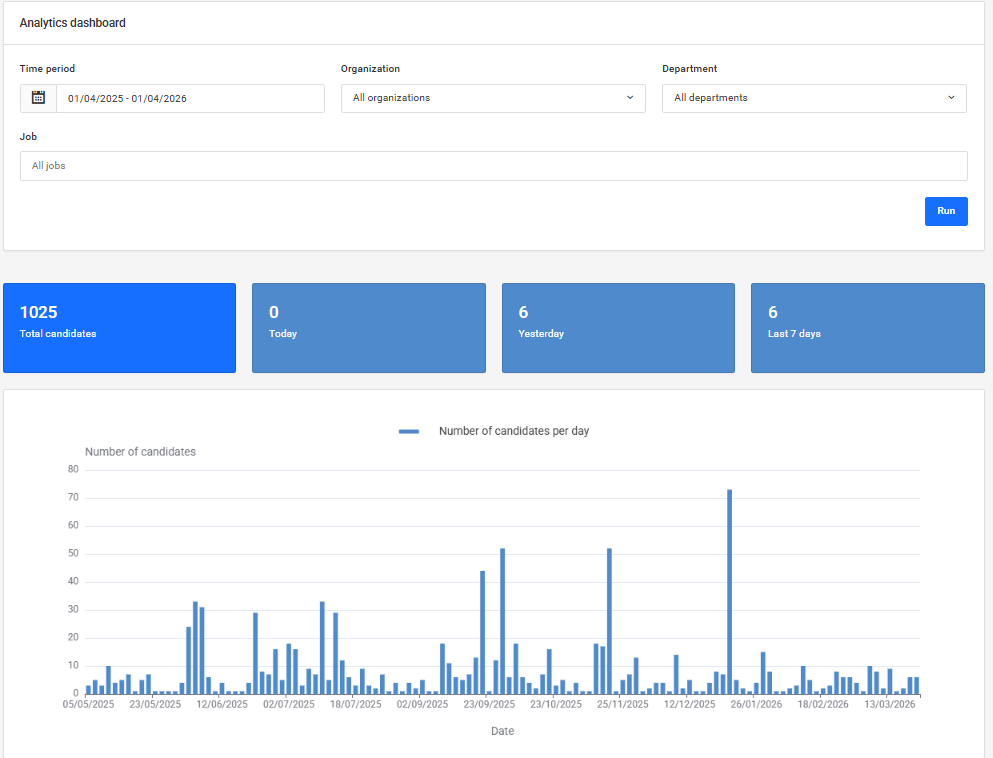
2. **View Total Candidates:**
   * **Total Candidates:** The total number of candidates who have applied for the job.
   * **Today:** The number of candidates who applied today.
   * **Yesterday:** The number of candidates who applied yesterday.
   * **Last 7 Days:** The number of candidates who applied in the last seven days
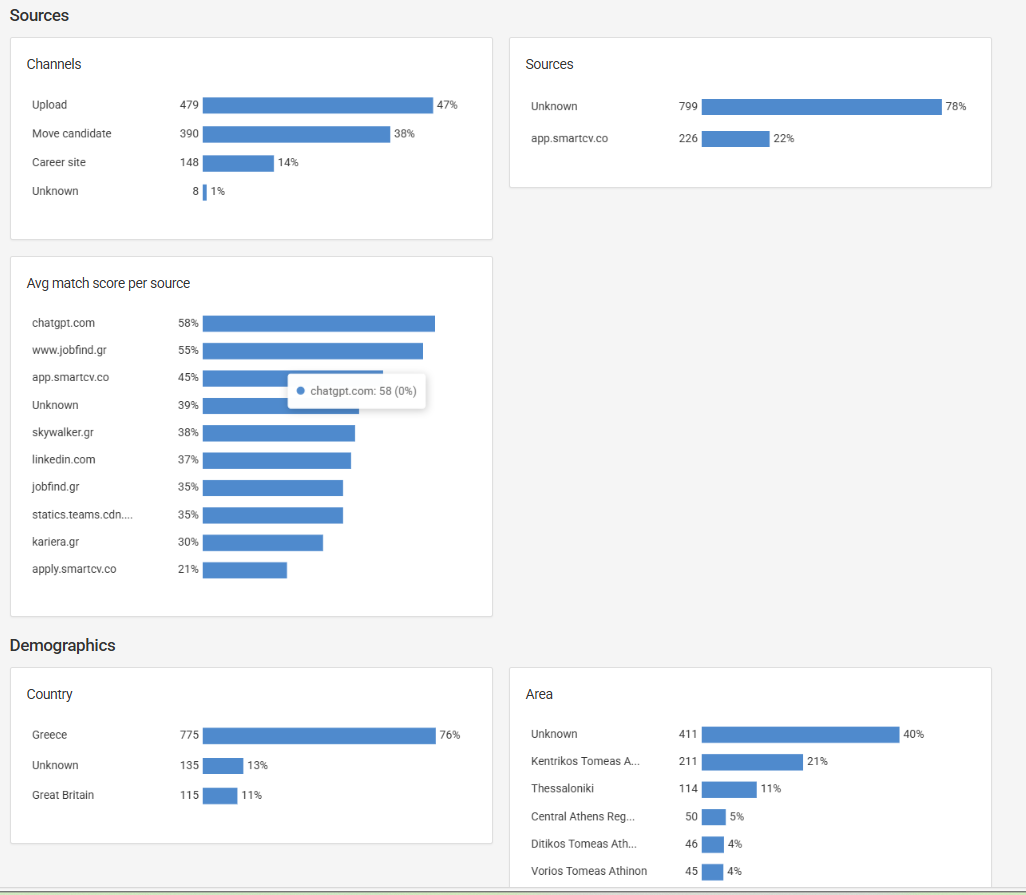
3. **Analyze Sources:**

   * **Channels:** View the different channels through which candidates applied (e.g., job boards, company website).
   * **Sources:** Detailed breakdown of sources.
   * **Avg Match Score per Source:** The average match score of candidates from each source.

   <figure><img src="https://834622186-files.gitbook.io/~/files/v0/b/gitbook-x-prod.appspot.com/o/spaces%2F-Lf1c4bGTEs3T7jNosdZ%2Fuploads%2F2Vk1rYfPNWnG0grI054F%2Fimage.png?alt=media&amp;token=9c186ed3-5d46-4f48-8e29-5db85eda9afd" alt="" width="563"><figcaption><p>Sources</p></figcaption></figure>
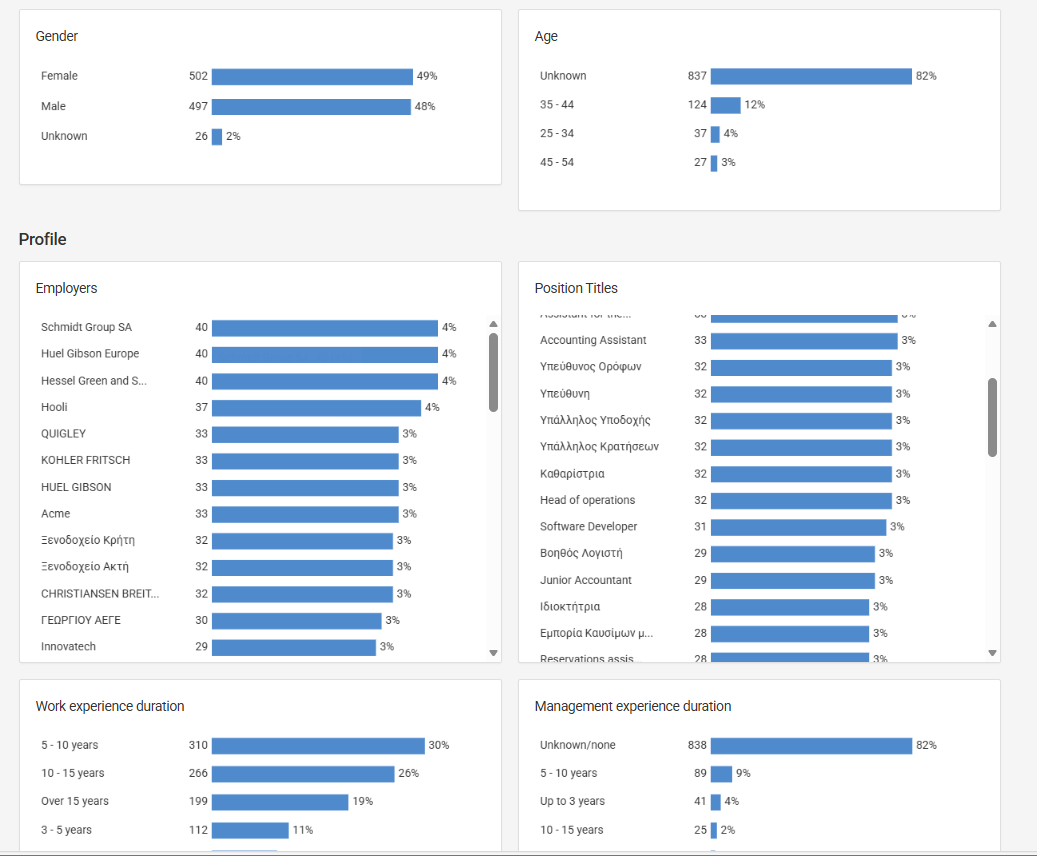
4. **Examine Demographics:**

   * **Country:** Distribution of candidates by country.
   * **Area:** Distribution of candidates by area within a country.
   * **Gender:** Gender distribution of candidates.

   <figure><img src="https://834622186-files.gitbook.io/~/files/v0/b/gitbook-x-prod.appspot.com/o/spaces%2F-Lf1c4bGTEs3T7jNosdZ%2Fuploads%2FLjdYV6wlLil1zwKFudhx%2Fimage.png?alt=media&amp;token=a46908b4-a2ff-48f2-b8d0-fce162b4155c" alt="" width="563"><figcaption><p>Demographics</p></figcaption></figure>
5. **Profile Insights:**

   * **Work Experience Duration:** Average duration of work experience among candidates.
   * **Management Experience Duration:** Average duration of management experience among candidates.
   * **Employment Status:** Current employment status of candidates (e.g., employed, unemployed).
   * **Seniority Level:** Seniority level of candidates (e.g., junior, mid-level, senior).
   * **Management Level:** Management level of candidates (e.g., team lead, manager, director).
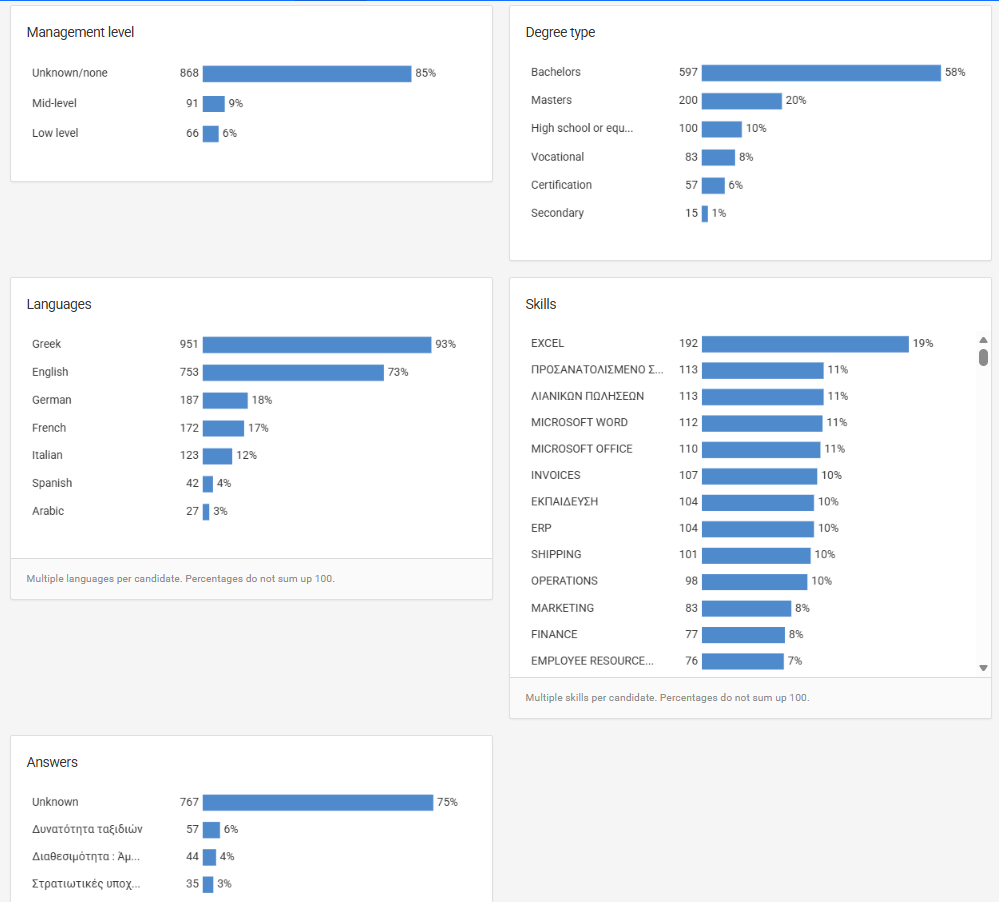
   * **Degree Type:** Types of degrees held by candidates.
   * **Languages:** Languages spoken by candidates. Note that percentages may exceed 100% as candidates can speak multiple languages.

   <figure><img src="https://834622186-files.gitbook.io/~/files/v0/b/gitbook-x-prod.appspot.com/o/spaces%2F-Lf1c4bGTEs3T7jNosdZ%2Fuploads%2FbBE1uYgBYhv1catm88Xq%2Fimage.png?alt=media&amp;token=5180ae82-f36e-4463-8d73-8e13f895644a" alt="" width="563"><figcaption><p>Example Profile Insights (Work Experience duration, Management experience duration)</p></figcaption></figure>

   <figure><img src="https://834622186-files.gitbook.io/~/files/v0/b/gitbook-x-prod.appspot.com/o/spaces%2F-Lf1c4bGTEs3T7jNosdZ%2Fuploads%2FNdEFEeS23n8jDmIjsrv0%2Fimage.png?alt=media&amp;token=cdf5dc5e-8908-462d-bcc4-b2bcc50af995" alt="" width="563"><figcaption><p>Example Profile Insights (Languages, Skills)</p></figcaption></figure>
6. **Evaluate Skills:**
   * **Skills:** Distribution of various skills among candidates.
7. **Review Answers:**
   * Evaluate candidate answers to specific job-related questions.
8. **Activity Monitoring:**

   * **Events Count by Type:** Number of different types of events related to the job (e.g., interviews scheduled, resumes reviewed).
   * **Count of Events by User:** Number of events performed by each user.

   <figure><img src="https://834622186-files.gitbook.io/~/files/v0/b/gitbook-x-prod.appspot.com/o/spaces%2F-Lf1c4bGTEs3T7jNosdZ%2Fuploads%2FLR0bhbUuJjh4b7rA7JzK%2Fimage.png?alt=media&amp;token=60fa0951-1827-4adc-9caf-e39712f03abf" alt="" width="563"><figcaption><p>Count of event by user</p></figcaption></figure>

{% hint style="info" %}

#### Clickable Analytics Bars

**Interactive Data:**

* Some of the bars in the analytics charts are clickable. Clicking on these bars will navigate you to a filtered candidate page, showing the candidates relevant to the selected metric.
* For example, click on the Excel bar

  <figure><img src="https://834622186-files.gitbook.io/~/files/v0/b/gitbook-x-prod.appspot.com/o/spaces%2F-Lf1c4bGTEs3T7jNosdZ%2Fuploads%2FOCT0hlvmUSmwYdeCEiG9%2Fimage.png?alt=media&amp;token=488b73df-23de-4d93-8f5d-9d91f832380d" alt="" width="396"><figcaption><p>Skills</p></figcaption></figure>
* Job Filter candidates Tab

  <figure><img src="https://834622186-files.gitbook.io/~/files/v0/b/gitbook-x-prod.appspot.com/o/spaces%2F-Lf1c4bGTEs3T7jNosdZ%2Fuploads%2FiQHSHzlFEF4sL8sJOf1y%2Fimage.png?alt=media&amp;token=5137dfbe-9342-406e-b0b8-ab20bd35a038" alt="" width="563"><figcaption><p>Job Filter Tab with Excel Filter</p></figcaption></figure>

{% endhint %}

### Example Use Cases <a href="#example-use-cases" id="example-use-cases"></a>

* **Identifying Effective Sources:**
  * Determine which channels or sources provide the highest quality candidates based on average match scores.
* **Demographic Insights:**
  * Adjust recruitment strategies based on the demographic data of applicants.
* **Skill Analysis:**
  * Ensure candidates possess the necessary skills for the job by analyzing the skills distribution.
* **Activity Tracking:**
  * Keep track of recruitment activities by monitoring event counts and user interactions.

{% hint style="info" %}

#### Benefits of Job Analytics

* **Comprehensive Overview:**
  * Gain a full understanding of candidate demographics, sources, and profiles.
* **Enhanced Decision-Making:**
  * Use data to make informed decisions about sourcing and candidate selection.
* **Performance Tracking:**
  * Monitor the performance of job postings and recruitment campaigns.
* **Team Insights:**
  * Understand team activity and distribution of recruitment efforts.
    {% endhint %}


# Activity Tab

### Viewing and Filtering Activity History for a Candidate

In the **Activity** Job tab, you have access to the complete candidate activity history for a specific Job.&#x20;

<figure><img src="https://834622186-files.gitbook.io/~/files/v0/b/gitbook-x-prod.appspot.com/o/spaces%2F-Lf1c4bGTEs3T7jNosdZ%2Fuploads%2FCOapUWpeAnzMInNY7nt3%2Fimage.png?alt=media&amp;token=abadd70d-d99e-4c17-8b78-07e986b7b0db" alt="" width="563"><figcaption><p>Activity Job tab</p></figcaption></figure>

Here's how you can utilize this feature effectively:

1. **Navigate to the Activity Tab:**
   * Log in to your Worklife Recruit account.
   * Go to the job you want to view the activity history.
   * Click on the **Activity** tab.
2. **View Activity History:**
   * The activity tab displays a chronological list of all activities related to the candidates in the specific Job.
3. **Filter by Event:**
   * Click on the **Event** dropdown list.
   * Select the specific event type you want to filter by (e.g. Move candidate to another stage, Resume upload, Rating candidate).
4. **Filter by User:**
   * Click on the **Users** dropdown list.
   * Select the specific user whose activities you want to view.
5. **Include Candidate Views:**

   * Check the option to **Include Candidate Views** to see when other team members have viewed the candidate's profile.

   <figure><img src="https://834622186-files.gitbook.io/~/files/v0/b/gitbook-x-prod.appspot.com/o/spaces%2F-Lf1c4bGTEs3T7jNosdZ%2Fuploads%2FKQb9mCYcRry6VMpy9BbK%2Fimage.png?alt=media&amp;token=29abe5f4-0586-4ff0-9d13-68e679edaf72" alt="" width="563"><figcaption><p>Activity filter area</p></figcaption></figure>
6. **Explore Activity History:**
   * Click on Run button to apply filters.
   * Browse through the filtered list to explore the activity history for the candidates.
   * This history provides insights into all interactions and changes related to the candidates.

### Example Use Case

* **Filter to Find Specific Actions:**
  * If you need to find out who move the candidates to another stage, filter by the "Move candidate to another stage" event and the specific user.
* **Monitor Candidate Views:**
  * By including candidate views, you can see which team members have recently viewed the candidate’s profile, ensuring everyone is informed and up-to-date.

{% hint style="info" %}

#### Benefits of the Job Activity Tab

* **Comprehensive Overview:**
  * The job activity tab gives you a complete overview of all actions taken on a candidate’s profile.
* **Enhanced Tracking:**
  * Easily track and monitor specific events and user interactions with the candidates.
* **Efficient Collaboration:**
  * Facilitates better team collaboration by providing transparency on candidates interactions.
    {% endhint %}


# Blind hiring

Unconscious bias occurs automatically as the brain makes quick judgments based on past experiences and background. Blind hiring is an initiative that helps recruiters to make objective decisions by removing information like gender (by hiding candidate’s name and email), age and few others.

How to turn on blind hiring mode?\
Click on the following:

1. Settings⚙️
2. Application settings

<figure><img src="https://834622186-files.gitbook.io/~/files/v0/b/gitbook-x-prod.appspot.com/o/spaces%2F-Lf1c4bGTEs3T7jNosdZ%2Fuploads%2FbjOI1p51c1FeazCxZ0N3%2Fimage.png?alt=media&amp;token=cfcc9f87-91b1-4abd-9540-96677d9951b0" alt=""><figcaption></figcaption></figure>

On the bottom of the general settings page you’ll see the blind hiring section.<br>

You can turn on blind hiring for specific roles or for all roles, and that’s because it’s highly recommended to use it as a company policy. Additional information you may want to hide is the location, educational institutions name, and the dates related to the work experience and education.


# Manage all candidates

You can manage all your candidates from all jobs by clicking on the **Candidates** button at the top navigation bar, as shown below:

![](https://834622186-files.gitbook.io/~/files/v0/b/gitbook-legacy-files/o/assets%2F-Lf1c4bGTEs3T7jNosdZ%2F-ME3a1V6WBek1_ChBcis%2F-ME3dNL3s6a-J1aY-FgB%2Fimage.png?alt=media\&token=7b91d168-b575-42f8-a075-7ba859016ca6)

You can also perform a full text search to the candidates' resumes by entering a search phrase to the respective input field at the top navigation bar, as shown below:

![](https://834622186-files.gitbook.io/~/files/v0/b/gitbook-legacy-files/o/assets%2F-Lf1c4bGTEs3T7jNosdZ%2F-ME3a1V6WBek1_ChBcis%2F-ME3dZlPEwlZIyGff9Gj%2Fimage.png?alt=media\&token=b9db5af9-55c0-4b08-b421-71b962a173c9)

You can **filter** the results by selecting multiple criteria at the left pane of the results page. The available filtering criteria are:

* Work experience duration
* Management experience duration
* Employment status
* Type of experience
* Management level
* Executive type
* Employer name
* Job title
* Area
* School type
* Degree type
* Languages
* Tags
* Answers to [application form questions](/settings/manage-questions/add-questions-to-job)
* Jobs
* Organization
* Department
* Source
* Pipeline stage

You can also **sort** the results by the following options:

* Relevance (available only when a search phrase exists)
* Newest candidates first
* Biggest average match score
* Better evaluation
* Smallest distance for job location
* Oldest first
* Longest work experience
* Shortest work experience
* Highest education level
* Longest per employer experience
* Shortest per employer experience
* Longest management experience
* Shortest management experience
* Highest management level
* Lowest management level
* Employed first
* Unemployed first
* More foreign languages&#x20;


# Search all candidates

In Worklife Recruit, you can search for all candidates in your account using the *search input box located* in the application's top navigation bar.

![](https://834622186-files.gitbook.io/~/files/v0/b/gitbook-x-prod.appspot.com/o/spaces%2F-Lf1c4bGTEs3T7jNosdZ%2Fuploads%2FOSgpBUtRcNfoawf9ZI6K%2Fimage.png?alt=media\&token=52a63885-b124-4326-a913-bd737162b22d)

### Search Functionality in Worklife Recruit

### **The latest enhancements in our search functionality include:**

* Automatic Bilingual Search: Simultaneously search resumes in both local language and English.
* Highlight Unseen Candidates: Mark candidates that have not been viewed in the search results.
* Highlight Search Terms: Emphasize search terms within the candidate's profile.
* Improved Result Relevance: Enhancements to the relevance of search results.

### Candidate Database unread applications&#x20;

In the candidate list, profiles that have not been viewed are now highlighted with a different color. This allowing each user to see which profiles they haven't viewed yet.

<figure><img src="https://834622186-files.gitbook.io/~/files/v0/b/gitbook-x-prod.appspot.com/o/spaces%2F-Lf1c4bGTEs3T7jNosdZ%2Fuploads%2FUaYuoSF0orgWdlm7X7cb%2Fimage.png?alt=media&amp;token=cf582a4c-aba5-4dc1-936e-229e9074c14b" alt="" width="563"><figcaption></figcaption></figure>

### Automatic Language Conversion

The search field can automatically translate search terms between Greek and English. For example, if you search for the term "ΛΟΓΙΣΤΗΣ" (Accountant in Greek) and click on the "expand query to secondary language" option, the search criteria will automatically be converted to "ΛΟΓΙΣΤΗΣ OR ACCOUNTANT".

<figure><img src="https://834622186-files.gitbook.io/~/files/v0/b/gitbook-x-prod.appspot.com/o/spaces%2F-Lf1c4bGTEs3T7jNosdZ%2Fuploads%2Fc8Jw0E8fh8LWvEkKdz57%2Fimage.png?alt=media&amp;token=7dc2e5fd-97ad-4c3d-b181-cd84fb840592" alt=""><figcaption></figcaption></figure>

### Highlighting Search Criteria in Candidate Profiles

The application also marks the search terms within the candidate's profile. This allows you to immediately see where and how often the search criteria appear. In the example below, the search was conducted using the term "marketing."

<figure><img src="https://834622186-files.gitbook.io/~/files/v0/b/gitbook-x-prod.appspot.com/o/spaces%2F-Lf1c4bGTEs3T7jNosdZ%2Fuploads%2FnASFm3yQeQphBtjlCVSw%2Fimage.png?alt=media&amp;token=988cf18f-b2a3-468d-996f-1bcbd866067c" alt=""><figcaption><p>Search for marketing in Candidates</p></figcaption></figure>

<figure><img src="https://834622186-files.gitbook.io/~/files/v0/b/gitbook-x-prod.appspot.com/o/spaces%2F-Lf1c4bGTEs3T7jNosdZ%2Fuploads%2FzCHVMTnODkQX03cjyzW4%2Fimage.png?alt=media&amp;token=cdb03ec6-2101-4bc1-8a23-fbb5d1e3f898" alt=""><figcaption><p>Search results within the candidates application</p></figcaption></figure>

### Highlighting Unread Applications

Beyond highlighting within the search results, the application also marks unread candidate applications. This feature helps you easily identify candidates whose profiles you haven't yet reviewed, ensuring no potential candidate is overlooked.

<figure><img src="https://834622186-files.gitbook.io/~/files/v0/b/gitbook-x-prod.appspot.com/o/spaces%2F-Lf1c4bGTEs3T7jNosdZ%2Fuploads%2FgfMYkELbyZ4eRr7QDPcw%2Fimage.png?alt=media&amp;token=cea50861-aed2-46d6-9810-54335570e998" alt=""><figcaption><p>Highlighting unread candidates</p></figcaption></figure>

<figure><img src="https://834622186-files.gitbook.io/~/files/v0/b/gitbook-x-prod.appspot.com/o/spaces%2F-Lf1c4bGTEs3T7jNosdZ%2Fuploads%2FASNH6s1rUmQBZPczqqOc%2Fimage.png?alt=media&amp;token=a011b0ae-a2a6-4c0f-b63e-d59710cd0b81" alt=""><figcaption><p>Highlighting unread candidates</p></figcaption></figure>

### Search tips

* **Basic Search:** By default all words must be present in the candidate's resume. For example a search for "*web developer"* will return results that contain both "web" and "developer".
* **Using OR  Operator:** Search for either words using the OR operator. For example "*php OR java"* will return results that contain either "php" or "java".&#x20;
* **Excluding Words:** Exclude specific words using the - operator. For example "*shipping -sales"* will return results that contain the word "shipping" but do not include the word "sales".
* **Complex Boolean Expressions:** Use complex boolean expressions for advanced searches. For example "**software AND (developer OR engineer)"** will return results that contain the word "software" and either "developer" or "engineer".
* **Phrase Search:** Search for an exact phrase by using quotation marks. For example *"web developer"* will return results that contain this exact phrase.
* **Proximity Search:** Search for words that are near each other using the tilde (\~) operator. For example, '*"board member"\~3'* will return results that contain both words within a maximum distance of 3 words. This is useful for finding variations like "*board member"* or "*member of the board"*.

By using these search tips in Worklife Recruit, you can refine your candidate searches to find the most relevant resumes quickly and efficiently.


# Download candidate data to Excel

Get the structured data we collect from candidates in an excel file based on job, organization, or as a complete overview of all applicants and use it according to your preferences whilst gaining key insights that will level up your hiring strategy.

Click on the following:

1. Settings⚙️
2. Export data

![](https://lh4.googleusercontent.com/8ldFkzN1fLAN3jK5y2i6C1GCfDxpjV0bbv6eZUu7toxJAhZFi-PpWcTycu4Lp-K2HP2UgiymCdDysIO5DYV0l3-2v6FID4PNOsVeczY5sb87ELl_VSHDtIiYu0sjlQzGNZrsehN3)

1. Download based on your preferences

![](https://lh4.googleusercontent.com/63zFclPD41mfmGHQIyjTuQLAl06qOPXAvVON5FTqVrPxfmNFrUgF_NU6M38NDmqqO5IuCk2AGrxDQA4oFn5qDzHOi1nH1f3i5O3Q0LzkM_60_IpY0mwWWzXmbwLfR-jube5LbrSa)


# Bulk Actions

### **Overview**

The "Bulk Actions" feature on the application page allows you to efficiently manage multiple candidates at once. This tool is designed to save time and streamline your workflow by enabling you to perform actions on several candidates simultaneously.

### **To  access and use the Bulk Action**

### **Viewing Applicants**

* Navigate to the application page where you can view and manage all applicants for the job.

<figure><img src="https://834622186-files.gitbook.io/~/files/v0/b/gitbook-x-prod.appspot.com/o/spaces%2F-Lf1c4bGTEs3T7jNosdZ%2Fuploads%2Fgx0FJqL9hrfyZ1INDP25%2Fimage.png?alt=media&amp;token=fa191715-ab52-4bbb-808b-e42c3bf1d338" alt=""><figcaption><p>View and manage all applicants for the job</p></figcaption></figure>

### **Selecting Candidates**

* From the left side list, select one or more candidates by checking the boxes next to their names.

<figure><img src="https://834622186-files.gitbook.io/~/files/v0/b/gitbook-x-prod.appspot.com/o/spaces%2F-Lf1c4bGTEs3T7jNosdZ%2Fuploads%2FrrdjLd7lD36gFma8rQH8%2Fimage.png?alt=media&amp;token=20d6582c-c18e-4f36-953b-4c1a7d42875f" alt=""><figcaption><p>Select one or more candidates</p></figcaption></figure>

### **Available Bulk Actions**

Once candidates are selected, the bulk action button appears and you can choose from the following actions:

1. **Send Email:**
   * Compose and send an email to the selected candidates.
2. **Move Candidate to Another Stage:**
   * Change the application stage for the selected candidates, such as moving them from "Interview" to "Offer".
3. **Copy/Move Candidate to Job:**
   * Copy or transfer the selected candidates to a different job listing.
4. **Download Resumes:**
   * [Download the resumes](/manage-candidates/bulk-actions/download-resumes) of the selected candidates as a zip file with the selected resumes.&#x20;
5. **Send Bryq Assessment:**
   * Send a Bryq assessment to the selected candidates to evaluate their skills and compatibility.

### **Tips for Using Bulk Actions**

* **Efficiency:** Use bulk actions to handle repetitive tasks quickly, reducing manual effort and time.
* **Communication:** Keep candidates informed and engaged by sending timely and personalized emails.
* **Organization:** Maintain a structured recruitment process by moving candidates to appropriate stages as they progress.
* **Documentation:** Ensure you have all necessary candidate information by downloading resumes.
* **Assessment:** Utilize Bryq assessments to gain deeper insights into candidate capabilities and fit for the role.

By utilizing the bulk actions feature, you can streamline your candidate management process, making it more efficient and effective.


# Download Resumes

### Bulk Action:

* **Download Resumes:** Download selected resumes as a zip file.

### Using Bulk Actions:

### **Downloading Resumes:**

1. **Select Candidates:**

   * Navigate to the list of candidates.

   <figure><img src="https://834622186-files.gitbook.io/~/files/v0/b/gitbook-x-prod.appspot.com/o/spaces%2F-Lf1c4bGTEs3T7jNosdZ%2Fuploads%2FH3krcsshIDEomLQ2nKlI%2Fimage.png?alt=media&amp;token=91ee7be8-0e5e-4d62-9c9c-7eab80f2caa5" alt="" width="355"><figcaption></figcaption></figure>

   * Select the checkboxes next to the candidates whose resumes you want to download.

   <figure><img src="https://834622186-files.gitbook.io/~/files/v0/b/gitbook-x-prod.appspot.com/o/spaces%2F-Lf1c4bGTEs3T7jNosdZ%2Fuploads%2FAwy88hNfOgbLIE3SqvtO%2Fimage.png?alt=media&amp;token=efd648d7-635f-40a2-83ce-830caa6878ed" alt="" width="209"><figcaption></figcaption></figure>
2. **Initiate Bulk Action:**

   * Click on the **Bulk Action** button.
   * From the dropdown menu, select **Download Resumes**.

   <figure><img src="https://834622186-files.gitbook.io/~/files/v0/b/gitbook-x-prod.appspot.com/o/spaces%2F-Lf1c4bGTEs3T7jNosdZ%2Fuploads%2FQwFUeaDS2fzzjHDEDTgA%2Fimage.png?alt=media&amp;token=5db633ed-5abf-4471-a020-f3b3e2b820d0" alt="" width="276"><figcaption><p>Download Resumes</p></figcaption></figure>

   <figure><img src="https://834622186-files.gitbook.io/~/files/v0/b/gitbook-x-prod.appspot.com/o/spaces%2F-Lf1c4bGTEs3T7jNosdZ%2Fuploads%2FkSg5rvgiM294AUDZ70v4%2Fimage.png?alt=media&amp;token=9d339708-8363-4a25-a3a6-7622058e3484" alt="" width="375"><figcaption><p>Zip file</p></figcaption></figure>
3. **Download the Zip File:**

   * A zip file containing the selected resumes will be downloaded to your local PC.

   <figure><img src="https://834622186-files.gitbook.io/~/files/v0/b/gitbook-x-prod.appspot.com/o/spaces%2F-Lf1c4bGTEs3T7jNosdZ%2Fuploads%2FWg6ZEqxPWxUcTBWnqzta%2Fimage.png?alt=media&amp;token=2eb3bfe8-bc3e-4948-bed2-9065fdf5dd36" alt="" width="188"><figcaption><p>Resume zip file</p></figcaption></figure>

   * The resumes will be saved as PDF files, named in the format `lastName.firstName.pdf`.
4. **Extracting the Resumes:**
   * Locate the downloaded zip file on your computer.
   * Right-click on the zip file and select **Extract All** (or use your preferred extraction method).
   * The resumes will be extracted to a folder, where you can view and manage them.

<figure><img src="https://834622186-files.gitbook.io/~/files/v0/b/gitbook-x-prod.appspot.com/o/spaces%2F-Lf1c4bGTEs3T7jNosdZ%2Fuploads%2Fy4SqJeYYC4hy5QCB9CgI%2Fimage.png?alt=media&amp;token=e70362ea-69f4-4407-bd78-b861776a5888" alt="" width="228"><figcaption><p>Resume PDFs files</p></figcaption></figure>


# Introduction to the Video Interviews

Video interviews on-demand are an excellent tool to know your candidates better. They work like this: You [send to the candidate an email invitation](/manage-candidates/candidate-view/invite-candidate-to-a-video-interview) to answer some questions. The candidate answers these questions via video by using the camera of his/her computer or smartphone, within a specific deadline you specify.

{% hint style="info" %}
Video interviews are fully integrated with the applicant tracking functionality Worklife Recruit but they are also available as a separate service.
{% endhint %}

{% embed url="<https://www.youtube.com/watch?v=VIrZLYDQVOs>" %}

Follow these steps to start using video interviews:

* First you have to create a video interview by defining the questions of it.
* Then, you can send an invitation for this interview to candidate. There are two types of invitations:
  * [Invitations to internal candidates](/video-interviews/manage-video-interview-invitations/send-an-invitation-for-a-video-interview-to-an-internal-candidate) that they already exist in your Worklife Recruit account.
  * [Invitations to external candidates](/video-interviews/manage-video-interview-invitations/send-an-invitation-for-a-video-interview-to-an-external-candidate) when you do not use the applicant tracking functionality of Worklife Recruit.

{% hint style="info" %}
When you first sign-up to Worklife Recruit, a demo interview named "Getting to know you" is created that helps you to immediately test the service by [sending an invitation for a video interview to yourself](/video-interviews/manage-video-interview-invitations/send-an-invitation-for-a-video-interview-to-an-external-candidate).
{% endhint %}


# Manage video interviews

You can manage video interviews by clicking the **Video interviews** option at the top navigation bar and then by clicking the Manage video interviews tab.

<figure><img src="https://834622186-files.gitbook.io/~/files/v0/b/gitbook-x-prod.appspot.com/o/spaces%2F-Lf1c4bGTEs3T7jNosdZ%2Fuploads%2F1HpO1RWlSKu8orSisiQ1%2Fimage.png?alt=media&amp;token=97980a12-c53f-48d2-aff3-6d3a0d6b3f49" alt="" width="563"><figcaption><p>Manage video interviews</p></figcaption></figure>

A list of all available video interviews appears. By clicking the video interview name you can manage the video interview's questions.

You can create a new video interview by clicking the **Create video interview** button.

At the right of each video interview name the following options are available:

* Edit a video interview
* Duplicate a video interview
* Delete an existing video interview&#x20;


# Create a new video interview

You can create a new video interview by clicking the **Create video interview** button at the [Manage video interviews](/video-interviews/manage-video-interviews) screen, as shown below.

![](https://834622186-files.gitbook.io/~/files/v0/b/gitbook-legacy-files/o/assets%2F-Lf1c4bGTEs3T7jNosdZ%2F-ME3a1V6WBek1_ChBcis%2F-ME3dsa0eVWgD3y1Q5UL%2Fimage.png?alt=media\&token=c36e024d-e2a1-471a-b08c-d8ca5ed60b86)

![](https://834622186-files.gitbook.io/~/files/v0/b/gitbook-legacy-files/o/assets%2F-Lf1c4bGTEs3T7jNosdZ%2F-ME3a1V6WBek1_ChBcis%2F-ME3dx629EFT3s85T6-g%2Fimage.png?alt=media\&token=66af2794-d9c3-4e37-b96a-bdc637d6acb3)

You need to fill the following information about the video interview:

* **Name**, the internal name that is used in the app to reference the interview.
* **Title**, the title of the interview as it will be shown to the candidate.
* **Record audio only**, check this option to disable the camera and record only the audio.
* **Available only for desktop/laptop computers**, check this option if you want to disable the ability to respond to the video interview with a smartphone. You may want this option enabled for better audio/video quality.
* **Introductory text**, you may optionally enter an introductory text that the candidate will view at the the interview's welcome screen.
* **Show questions upfront**, check this option if you want to display all the questions upfront at the interview's welcome screen. **Questions with a time-to-think limit will not be displayed**.
* **Introductory video**, you may optionally record an introductory video that the candidate will view at the the interview's welcome screen. You may also upload a pre-recorded video that you already have.
* **Outro video**, you may optionally record an introductory video that the candidate will view when they complete the video interview. You may also upload a pre-recorded video that you already have.


# Add questions to a video interview

Once you have created a video interview, you can add questions to it. Go to [Manage video interviews](/video-interviews/manage-video-interviews) screen and click the name of the video interview you want to add questions to.

<figure><img src="https://834622186-files.gitbook.io/~/files/v0/b/gitbook-x-prod.appspot.com/o/spaces%2F-Lf1c4bGTEs3T7jNosdZ%2Fuploads%2FIt9J9rvrO1svNnJ7SUT1%2Fimage.png?alt=media&amp;token=a24a651e-c479-407b-8c4f-5c8ff6d9f327" alt=""><figcaption></figcaption></figure>

Click the **Create video question** button, as shown below:

<figure><img src="https://834622186-files.gitbook.io/~/files/v0/b/gitbook-x-prod.appspot.com/o/spaces%2F-Lf1c4bGTEs3T7jNosdZ%2Fuploads%2FDdA8Z8FoY8hO1opqrYio%2Fimage.png?alt=media&amp;token=536b2474-1482-4691-b67f-d65a7527042a" alt=""><figcaption></figcaption></figure>

You will need to fill the following information about the question:

* **Question text:** Enter the text of the question
* **Additional instructions:** Optionally provide the candidate with additional instructions on how to answer the question.
* **Maximum duration of answer:** Select the maximum duration allowed of the answer.
* **Maximum number of takes:** Select the maximum number of video takes the candidate can record, allowing them to choose the best one.
* **Time to think:** If this option is selected, the candidate will see the question text only when they click the **Show question** button. A timed countdown begins when this button clicked and the recording starts automatically when the countdown ends.
* **Rank:** Select the rank of the question to order it appropriately within the interview.
* **Question in video format:** Optionally record a video version of the question that the candidate will view in addition to the question text. You may also upload a pre-recorded video if you have one.


# Manage video interview invitations

You can manage video interviews by clicking the **Video interviews** option at the top navigation bar.


# Send an invitation for a video interview to an internal candidate

You can invite a candidate that already exists in Worklife Recruit (internal candidate) to a video interview by clicking the **New invitation** button and selecting **to internal candidate**, as shown below:

![](https://834622186-files.gitbook.io/~/files/v0/b/gitbook-legacy-files/o/assets%2F-Lf1c4bGTEs3T7jNosdZ%2F-ME3a1V6WBek1_ChBcis%2F-ME3f2LCZ1iA5E3n7cdT%2Fimage.png?alt=media\&token=3943229e-17dd-4d0f-b977-95f21e87d2dd)

![](https://834622186-files.gitbook.io/~/files/v0/b/gitbook-legacy-files/o/assets%2F-Lf1c4bGTEs3T7jNosdZ%2F-ME3a1V6WBek1_ChBcis%2F-ME3f8UVp_WTYjhs2kkD%2Fimage.png?alt=media\&token=f1b45930-bfb5-4e48-a79f-721c68c2e9be)

You need to fill the following information:

* **Full name**: Select the internal candidate you want to sent the invitation to. Type a part of the candidate's first or last name.
* **Email**: You can leave the email as is or change it.
* **Language**: Select the user interface language of the video interview. This setting has no effect on the language of the video interview itself.
* **Video interview**: Select one of the video interviews you have previously created. You can create a video interview at the [Manage video interviews](/video-interviews/manage-video-interviews) screen.
* **Answer deadline**: Select or enter the deadline date for the candidate to complete the video interview. The date is inclusive, meaning that the candidate can complete the interview on this date.
* **BCC myself**: Check this box to receive a copy of the invitation. It will be sent to the email you used to register to SmartCV as a user.
* **Notify me**: Check this box to receive a notification email when the video interview is completed by the candidate. The notification email will include a direct link to the completed interview.

Click on the **Send** button to send the invitation. You will return to the [Manage video interview invitations](/video-interviews/manage-video-interview-invitations) screen.


# Send an invitation for a video interview to an external candidate

Video interviews are deeply integrated with the applicant tracking functionality of Worklife Recruit, but they are also available as a standalone service.

Thus, you can invite an external candidate that does not exist in Worklife Recruit to a video interview by clicking the **New invitation** button and selecting **to external candidate** option, as shown below:

![](https://834622186-files.gitbook.io/~/files/v0/b/gitbook-legacy-files/o/assets%2F-Lf1c4bGTEs3T7jNosdZ%2F-ME3a1V6WBek1_ChBcis%2F-ME3fHuqhBe-7GAD-8WA%2Fimage.png?alt=media\&token=9ac53853-2ad9-43ff-8d15-d08af257342d)

![](https://834622186-files.gitbook.io/~/files/v0/b/gitbook-legacy-files/o/assets%2F-Lf1c4bGTEs3T7jNosdZ%2F-ME3a1V6WBek1_ChBcis%2F-ME3fLUvqHczIBHi5wWb%2Fimage.png?alt=media\&token=fa62866f-56c0-41b9-8e64-7f1228dae7f2)

You need to fill the following information:

* **First name**: Enter the candidate's first name.
* **Last name**: Enter the candidate's last name.
* **Email**: You can leave the email as is or change it.
* **Language**: Select the user interface language of the video interview. This setting has no effect on the language of the video interview itself.
* **Video interview**: Select one of the video interviews you have previously created. You can create a video interview at the [Manage video interviews](/video-interviews/manage-video-interviews) screen.
* **Answer deadline**: Select or enter the deadline date for the candidate to complete the video interview. The date is inclusive, meaning that the candidate can complete the interview on this date.
* **BCC myself**: Check this box to receive a copy of the invitation. It will be sent to the email you used to register to Worklife Recruit as a user.
* **Notify me**: Check this box to receive a notification email when the video interview is completed by the candidate. The notification email will include a direct link to the completed interview.

Click on the **Send** button to send the invitation. You will return to the [Manage video interview invitations](/video-interviews/manage-video-interview-invitations) screen.


# View a completed video interview

Once the candidate completes the video interview you may view it through the [Manage video interview invitations](/video-interviews/manage-video-interview-invitations) screen by clicking the interview thumbnail as shown below:

![](https://834622186-files.gitbook.io/~/files/v0/b/gitbook-legacy-files/o/assets%2F-Lf1c4bGTEs3T7jNosdZ%2F-ME3a1V6WBek1_ChBcis%2F-ME3fix8Q-zCcJ5UJR0k%2Fimage.png?alt=media\&token=5a05e7a3-2984-4d2b-9e28-2568c4dd2a66)

You may view the candidate's answer to a specific question by clicking the respective question. You may also view the candidate's text notes, if they exist, below the video.

![](https://834622186-files.gitbook.io/~/files/v0/b/gitbook-legacy-files/o/assets%2F-Lf1c4bGTEs3T7jNosdZ%2F-ME3a1V6WBek1_ChBcis%2F-ME3ftHf76eGpAUmPiLz%2Fimage.png?alt=media\&token=22e847da-003c-43a6-878e-298de4b1541a)

## View the interview inside the candidate view

If the interview was completed by an internal candidate you can view it inside the [candidate view](/manage-candidates/candidate-view) by clicking the Video interview tab, as shown below:

![](https://834622186-files.gitbook.io/~/files/v0/b/gitbook-legacy-files/o/assets%2F-Lf1c4bGTEs3T7jNosdZ%2F-ME3a1V6WBek1_ChBcis%2F-ME3g3PVsVyrlhz6WhMb%2Fimage.png?alt=media\&token=e47a2c5a-7bbd-4ce5-9658-59edf4c5c21f)


# Manage users

You can add all members of your team as users of the Worklife Recruit application. Each user has specific rights based on their role.

To manage users:

1. Click the gear icon in the top right navigation bar.
2. Select the **Manage Users** option, as shown below

<figure><img src="https://834622186-files.gitbook.io/~/files/v0/b/gitbook-x-prod.appspot.com/o/spaces%2F-Lf1c4bGTEs3T7jNosdZ%2Fuploads%2F4hKMwpzX4xNjOIKQv5S2%2Fimage.png?alt=media&amp;token=720ca9bf-0c3d-41e8-a178-c7174731073a" alt=""><figcaption><p>Home page</p></figcaption></figure>

A list of all users will appear.

<figure><img src="https://834622186-files.gitbook.io/~/files/v0/b/gitbook-x-prod.appspot.com/o/spaces%2F-Lf1c4bGTEs3T7jNosdZ%2Fuploads%2FIzLuWctR3rqquM3DI5iB%2Fimage.png?alt=media&amp;token=31d10448-d75d-47dd-91cd-e170c9d1000e" alt=""><figcaption><p>Manage Users</p></figcaption></figure>

To create a new user:

* Click the [Create User](/collaborate/manage-users/create-a-user) button.

For each user, the following options are available on the right side of each row:

* **Edit User**: Modify the user's details.
* **Resend Invitation**: This option is available only for users who have not yet confirmed their email.


# Creating a New User

To create a new user, click the **Create User** button on the [Manage Users](/collaborate/manage-users) screen. You need to provide the following information:

<figure><img src="https://834622186-files.gitbook.io/~/files/v0/b/gitbook-x-prod.appspot.com/o/spaces%2F-Lf1c4bGTEs3T7jNosdZ%2Fuploads%2FYcH8XIJrELIN389YZOYU%2Fimage.png?alt=media&amp;token=2ed47da5-b297-473d-9b0d-2d75ec569ef4" alt=""><figcaption><p>Manage Users</p></figcaption></figure>

<figure><img src="https://834622186-files.gitbook.io/~/files/v0/b/gitbook-x-prod.appspot.com/o/spaces%2F-Lf1c4bGTEs3T7jNosdZ%2Fuploads%2FPGy37Rg4stmTBL93CU4E%2Fimage.png?alt=media&amp;token=e63e4b75-2326-4741-9264-7d2e5c2f8c82" alt=""><figcaption><p>Create user</p></figcaption></figure>

You need to provide the following information:

* **First Name**: Enter the user's first name.
* **Last Name**: Enter the user's last name.
* **Email**: Enter the user's email address.
* **Role**: Select the role of the user.
* **Application Language**: Select the default user-interface language. The user can change this at any time later.

After filling in the details, click the **Save Changes** button. An invitation email will be sent to the user with a link to confirm their email address. When the user clicks the link, they will be prompted to set a password and will then be redirected to the login screen.

&#x20;


# Assign a job to a user

**Navigate to Jobs:**

* Click on **Jobs** in the top navigation bar.
* Click the edit icon to the right options of the job title, as shown below.

<figure><img src="https://834622186-files.gitbook.io/~/files/v0/b/gitbook-x-prod.appspot.com/o/spaces%2F-Lf1c4bGTEs3T7jNosdZ%2Fuploads%2FQSUKEF8QL1Y058tJY04Q%2Fimage.png?alt=media&amp;token=aac2d48c-a49b-4a81-a21e-84c03ddd3f4f" alt=""><figcaption><p>Job Page</p></figcaption></figure>

**Select Team Members:**

* In the edit job window, select the users you want to assign the job to by checking the corresponding checkboxes next to the team member names, as shown below.

![Assign Job to](https://834622186-files.gitbook.io/~/files/v0/b/gitbook-legacy-files/o/assets%2F-Lf1c4bGTEs3T7jNosdZ%2F-ME3a1V6WBek1_ChBcis%2F-ME3iKxER6chpKavSjb3%2Fimage.png?alt=media\&token=06d8ce9e-dc5a-4ce7-9342-e04ad1eb7a8e)

**Visibility of Assigned Jobs:**

* The team members you selected will see the job on their home screen in the **Jobs Assigned to Me** section.

{% hint style="info" %}
Add New Team Members:

You can add new team members in the [Manage Users](/collaborate/manage-users) section
{% endhint %}


# User settings

You may set various user settings by clicking the user icon at the top navigation bar and selecting **User settings**, as shown below:

<figure><img src="https://834622186-files.gitbook.io/~/files/v0/b/gitbook-x-prod.appspot.com/o/spaces%2F-Lf1c4bGTEs3T7jNosdZ%2Fuploads%2FMycuvdzrFbT4Y7N5H9N5%2Fimage.png?alt=media&amp;token=f0c8bd47-0ea4-449b-b9e9-fb16795fb5ae" alt=""><figcaption><p>Home page</p></figcaption></figure>

<figure><img src="https://834622186-files.gitbook.io/~/files/v0/b/gitbook-x-prod.appspot.com/o/spaces%2F-Lf1c4bGTEs3T7jNosdZ%2Fuploads%2FEpyZwjjObeLPKoD03cyN%2Fimage.png?alt=media&amp;token=4965e4bb-b836-4177-978a-1450dc068045" alt=""><figcaption></figcaption></figure>

The following settings are available:

* **First name,** enter your first name
* **Last name**, enter your last name
* **User inactivity timeout**
* **Recent applications time frame**
* **Sender display name**
* **Sender email**
* **Default candidates sorting**, select the default sorting option when viewing candidates for a job.
* **Application language**, select the application language. Current options: English  Greek and Romanian.
* **Time zone**, select your time-zone. All date & time data will be displayed accordingly.
* **Simplified resume view**, check this option for a more simple preview of the resume at the candidate view. Default setting is off.
* **Show detailed job history for candidate**, check this option to include details for each job position at the work experience section of the candidate view.


# Two-Factor Authentication (2FA)

#### Overview

Two-Factor Authentication (2FA) adds an extra layer of security to your account. In addition to your password, you'll need to enter a 6-digit code sent to your email to log in.

#### Enabling Two-Factor Authentication

1. **Log in to Your Account:**
   * Go to the Worklife Recruit login page and log in with your username and password.
2. **Navigate to User Settings:**

   * Click on your profile icon in the top right corner.

   <figure><img src="https://834622186-files.gitbook.io/~/files/v0/b/gitbook-x-prod.appspot.com/o/spaces%2F-Lf1c4bGTEs3T7jNosdZ%2Fuploads%2Ffata7EgY2ODUy77EKZCj%2Fimage.png?alt=media&amp;token=52e5c81e-9916-4d97-b8bb-2c8de8e0f7c5" alt=""><figcaption><p>User Settings</p></figcaption></figure>

   * Scroll on the bottom of the page on **Security Options.**

   <figure><img src="https://834622186-files.gitbook.io/~/files/v0/b/gitbook-x-prod.appspot.com/o/spaces%2F-Lf1c4bGTEs3T7jNosdZ%2Fuploads%2FDEPG3ayEgGdcIajGH0wG%2Fimage.png?alt=media&amp;token=e3c8ace0-a826-4f1f-8fc9-f81bcc1310e5" alt=""><figcaption><p>Security Options</p></figcaption></figure>
3. **Enable Two-Factor Authentication:**
   * Check the box to **Enable 2FA**.
4. **Next time you login to Worklife Recruit:**
   * A 6-digit verification code will be sent to your registered email address.
   * Enter the 6-digit code in the provided field.
   * Click **Sign in** and done

#### Using Two-Factor Authentication

1. **Log in with Your Credentials:**
   * Enter your username and password on the Worklife Recruit login page.
2. **Enter the 6-Digit Code:**

   * After entering your password, you will be prompted to enter a 6-digit code.

   <figure><img src="https://834622186-files.gitbook.io/~/files/v0/b/gitbook-x-prod.appspot.com/o/spaces%2F-Lf1c4bGTEs3T7jNosdZ%2Fuploads%2F3BQRlESQZeJqtrxk9vo3%2Fimage.png?alt=media&amp;token=6e90537f-661e-46a7-ac76-57665b71cc18" alt=""><figcaption><p>Verification field</p></figcaption></figure>

   * Check your email for the code sent by Worklife Recruit.

   <figure><img src="https://834622186-files.gitbook.io/~/files/v0/b/gitbook-x-prod.appspot.com/o/spaces%2F-Lf1c4bGTEs3T7jNosdZ%2Fuploads%2FQ9Uu3Wy1KypEnQlJgUPb%2Fimage.png?alt=media&amp;token=37ff8f33-ddb0-4097-92cd-470205ba8f40" alt="" width="375"><figcaption></figcaption></figure>

   * Enter the code in the provided field.
3. **Access Your Account:**
   * Once the correct code is entered, you will be granted access to your account.

#### Benefits of Two-Factor Authentication

* **Enhanced Security:** Adds an extra layer of protection beyond just your password.
* **Peace of Mind:** Ensures that even if your password is compromised, your account remains secure.
* **Compliance:** Meets security standards and best practices for protecting sensitive information.


# Application settings

You may set various application-wide settings by clicking the tools icon at the top navigation bar and selecting **Application Settings**,, as shown below:

<figure><img src="https://834622186-files.gitbook.io/~/files/v0/b/gitbook-x-prod.appspot.com/o/spaces%2F-Lf1c4bGTEs3T7jNosdZ%2Fuploads%2FJPiuLYCHUxZuTSsx6gf3%2Fimage.png?alt=media&amp;token=65021988-0298-4612-839b-cba85ecbbd4b" alt=""><figcaption></figcaption></figure>

<figure><img src="https://834622186-files.gitbook.io/~/files/v0/b/gitbook-x-prod.appspot.com/o/spaces%2F-Lf1c4bGTEs3T7jNosdZ%2Fuploads%2FTPwiP2uOue4gHdsWm5WS%2Fimage.png?alt=media&amp;token=aae40269-6490-4549-9170-41bcba87abcd" alt=""><figcaption></figcaption></figure>

<figure><img src="https://834622186-files.gitbook.io/~/files/v0/b/gitbook-x-prod.appspot.com/o/spaces%2F-Lf1c4bGTEs3T7jNosdZ%2Fuploads%2FPkleJGtEQ39GuGzksu0W%2Fimage.png?alt=media&amp;token=b1545e05-a4a2-4621-92ef-71c0b253560a" alt=""><figcaption></figcaption></figure>

## General settings

* **Invoice language**, select the desired languages of the invoices you will receive when buying products from within the application.
* **Account job mailbox**, you may set the mailbox name for the general submission job that Worklife Recruit automatically creates.&#x20;

## GDPR settings

* **Candidates retention period**, select the retention period for all candidate data.
* **The candidate may redraw his/her application**, check this option to provide the candidates that apply through the career site to redraw their application.


# GDPR settings


# Manage Organization

**Overview**

The Manage Organization section allows you to configure and customize your Career Site. This section provides options to edit various aspects of your Career Site to ensure it accurately reflects your company's brand and policies.

**How to Use**

1. **Access Manage Organization**
   * Navigate to the Manage Organization section in your Worklife Recruit.
2. **Edit Information**
   * Click the edit option next to each setting you wish to update.
   * Make the necessary changes in the provided fields or upload required files.
3. **Save Changes**
   * After editing, review the changes and click the "Save Changes" button to apply them.

**Editing Options**

1. **Organization Name**
   * Fill in the company name..
2. **Career Status**
   * Toggle the status of your Career Site between active and inactive.
3. **Career Site Address**
   * Specify the URL for your Career Site. It will appear as **apply.smartcv.co/\[site address]**
4. **Company Logo**
   * Upload an image file to display your company's logo.
5. **Corporate Website Address**
   * Provide the URL for your main corporate website.
6. **Career Site Language**
   * Select the language for your Career Site to cater to your audience.
7. **General Submission Job Link**
   * Enter the link where candidates can submit their resumes for general consideration.
8. **Jobs Grouping**
   * Organize job listings into groups for easier navigation and better user experience.
9. **Company Profile**
   * Write or update the company profile that appears on the Career Site.

**GDPR Settings section**

Configure settings to ensure compliance with GDPR regulations.

1. **Terms Acceptance Checkbox**
   * Add a checkbox that candidates must select to accept your terms before submitting an application.
2. **Privacy Policy**
   * Include your company's privacy policy to inform candidates how their data will be used.
3. **External Link**
   * Provide an additional link, such as a link to company privacy policy.
4. **Auto-Reply Email for Successful Submission**
   * Set up an automated email response that candidates will receive upon successfully submitting an application.

**Save Changes Button**

* Once all desired changes are made, click this button to save and apply them to your Career Site.

**Tips for Effective Configuration**

* **Consistency:** Ensure that all information and visual elements are consistent with your overall brand.
* **Compliance:** Regularly update GDPR and privacy policy settings to stay compliant with current regulations.
* **User Experience:** Organize job listings and provide clear navigation to enhance the user experience for candidates.
* **Regular Updates:** Keep the information, especially open positions and company profile, up-to-date to provide accurate and relevant information to job seekers.


# Users

The **Manage Users** section allows you to create new users and manage existing ones. This includes actions such as deactivating users or modifying their roles, helping you maintain proper access control and user management within the system.

<figure><img src="https://834622186-files.gitbook.io/~/files/v0/b/gitbook-x-prod.appspot.com/o/spaces%2F-Lf1c4bGTEs3T7jNosdZ%2Fuploads%2FJR6Z0T4WKa20AKh97qwe%2Fimage.png?alt=media&amp;token=d714aec0-3143-4507-894c-1065e117006b" alt=""><figcaption></figcaption></figure>


# Pipeline stages sets

### Managing Pipeline Stages Sets

The **Pipeline Stages Sets** section allows you to manage, create, edit, and delete pipeline stages. This feature helps you tailor the recruitment process for different job positions by customizing the pipeline stages according to your needs.

### **Default Pipeline Stages**

* **Suggested Stages:**

  * The default pipeline stages set includes suggested stages.
  * You can rename, add, or remove these stages to suit your recruitment process.

  <figure><img src="https://834622186-files.gitbook.io/~/files/v0/b/gitbook-x-prod.appspot.com/o/spaces%2F-Lf1c4bGTEs3T7jNosdZ%2Fuploads%2F3b8d64o7fBzDhRvMQWoF%2Fimage.png?alt=media&amp;token=4a95af80-bb01-4647-bb41-3c7a63e6ac00" alt="" width="563"><figcaption><p>Default Stage</p></figcaption></figure>

### **Custom Pipeline Stages**

* **Creating Custom Pipelines:**

  * You have the option to create custom pipeline stages sets.
  * These custom pipelines can be assigned to different job positions, allowing you to adjust the pipeline stages according to the specific requirements of each job.

  <figure><img src="https://834622186-files.gitbook.io/~/files/v0/b/gitbook-x-prod.appspot.com/o/spaces%2F-Lf1c4bGTEs3T7jNosdZ%2Fuploads%2FDVyNziVxuzHpTDLrzsQn%2Fimage.png?alt=media&amp;token=56813196-863c-44cf-8662-b5d21c3b9d83" alt="" width="563"><figcaption></figcaption></figure>

### **How to Manage Pipeline Stages Sets**

1. **Access Pipeline Stages Sets:**

   * Click on the gear icon in the top right corner.
   * Navigate to the **Pipeline Stages Sets** area in your Worklife Recruit account.

   <figure><img src="https://834622186-files.gitbook.io/~/files/v0/b/gitbook-x-prod.appspot.com/o/spaces%2F-Lf1c4bGTEs3T7jNosdZ%2Fuploads%2FSSYv93Y9IsglnGeZTnEX%2Fimage.png?alt=media&amp;token=7859253d-d836-4c46-8c71-87b3676d3ada" alt=""><figcaption><p>Gear icon -> pipeline stages sets</p></figcaption></figure>
2. **Editing the Default Stage:**
   * Click on the default stage set to view the suggested stages.
   * **Rename, Add, or Remove Stages:**

     * To rename a stage, click on edit icon on  the options and enter the new name.
     * To add a new stage, click the **Create pipeline stage** button and enter the stage name.
     * To remove a stage, click the **Delete** button icon you want to delete.

     <figure><img src="https://834622186-files.gitbook.io/~/files/v0/b/gitbook-x-prod.appspot.com/o/spaces%2F-Lf1c4bGTEs3T7jNosdZ%2Fuploads%2FcpQfYlX8UlyETTpI5rJV%2Fimage.png?alt=media&amp;token=b237aacf-a87b-4fae-8d3e-c44420694492" alt="" width="563"><figcaption><p>Stage options</p></figcaption></figure>
3. **Creating Custom Pipelines:**
   * Click on the **Create Pipeline stages set** button.
   * **Define Stages:**
     * Enter the name for your custom pipeline and Save your changes.
     * Add stages by clicking on the name of the stage you create and entering the stage name. Repeat to add more stages
   * **Assign to Job Positions:**
     * Once your custom pipeline is created, you can assign it to different job positions by navigating to the [job's settings and selecting the appropriate pipeline stages set](/manage-jobs/dimioyrgia-thesis-ergasias).
4. **Deleting Pipelines:**
   * To delete a pipeline stages set, click the **Delete** button next to the set you want to remove. Confirm the deletion to finalize the action.

### **Benefits of Custom Pipeline Stages**

* **Tailored Recruitment Process:**
  * Customizing pipeline stages allows you to create a recruitment process that best fits the needs of each job position.
* **Improved Organization:**
  * Managing different pipeline stages for various positions helps keep the recruitment process organized and efficient.
* **Flexibility:**
  * Easily adapt to changes in your recruitment strategy by editing existing stages or creating new ones as needed.


# Manage questions

You can enrich the application form for a specific job with custom questions. Questions are created once and then they may be attached to specific jobs.

The following **question types** are supported:

* Yes/no
* Multiple options with multiple options selection
* Multiple options with a single option selection
* Small text
* Longer text
* File upload&#x20;

After creating a question you may attach it to a job.

<figure><img src="https://834622186-files.gitbook.io/~/files/v0/b/gitbook-x-prod.appspot.com/o/spaces%2F-Lf1c4bGTEs3T7jNosdZ%2Fuploads%2FsW1NEwQYo6pYikIlkmPD%2Fimage.png?alt=media&amp;token=0c8c4d5e-dfb5-475a-b7c7-5f1bb6ddce89" alt=""><figcaption></figcaption></figure>

You can create a new question by clicking the **Create question** button.

You can manage questions by clicking the gear icon at the top navigation bar and clicking the **Manage questions** option, as shown below.

A list of all available questions appears.&#x20;

<figure><img src="https://834622186-files.gitbook.io/~/files/v0/b/gitbook-x-prod.appspot.com/o/spaces%2F-Lf1c4bGTEs3T7jNosdZ%2Fuploads%2FkMkLMGIL84qBSc2bbZo9%2Fimage.png?alt=media&amp;token=a20e2d9b-36e1-4e12-a109-c54f3b89c405" alt=""><figcaption></figcaption></figure>

At the right of each question the following options are available:

* Edit question
* Delete question


# Create a question

You may create a new question by clicking the **Create question** button at the [Manage questions](/settings/manage-questions) screen.

<figure><img src="https://834622186-files.gitbook.io/~/files/v0/b/gitbook-x-prod.appspot.com/o/spaces%2F-Lf1c4bGTEs3T7jNosdZ%2Fuploads%2FMmRe9Ixj66vLmFzKjsGx%2Fimage.png?alt=media&amp;token=a3aef119-47ea-4bd0-a630-49e5747f4e71" alt=""><figcaption></figcaption></figure>

You need to fill the following information about the question:

* **Type**, select the type of the question among the following types:
  * Yes/no
  * Multiple options with multiple options selection
  * Multiple options with a single option selection
  * Small text
  * Longer text
  * File Upload
* Question text, enter the question's text.
* Answers, in case of multiple options question type enter the possible answers separated by a comma.
* **Question label**, in case of yes/no or multiple question types, enter the label that will be used in filtering candidates

Once you have created a question, you can [add it to a job's application form](/settings/manage-questions/add-questions-to-job).


# Add questions to a job's application form

You may add questions to the job's application form by clicking **Jobs** at the top nav bar and the edit icon at the right of the job title as shown below:

![](https://834622186-files.gitbook.io/~/files/v0/b/gitbook-legacy-files/o/assets%2F-Lf1c4bGTEs3T7jNosdZ%2F-ME2lvS9pHY7QW0viecj%2F-ME2tMCC_R5zUiBO0YSr%2Feditjob1.png?alt=media\&token=9839acae-d675-469f-bbfa-4e73853ef84c)

Select the questions you want to add to the job's application form by checking the corresponding check box at the left of the team member name, as shown below:

![](https://834622186-files.gitbook.io/~/files/v0/b/gitbook-legacy-files/o/assets%2F-Lf1c4bGTEs3T7jNosdZ%2F-ME3j8QWvgBj8A3JpRjA%2F-ME3mDesyzVbD8mhUzY6%2Fimage.png?alt=media\&token=f70eab0b-8728-4613-bb44-67d507fdfe51)

{% hint style="info" %}
You can create questions that can be added for the candidate application form at the [Manage Questions](/settings/manage-questions) section
{% endhint %}


# Manage interview kits

Having difficulties comparing candidates’ answers? With Worklife Recruit you have a structure at hand - ask candidates the same questions, score their answers on a scale, and add your notes instantly.

How to create an interview kit?

Click on the following:

1. Settings⚙️&#x20;

2.Manage interview kits

![](https://lh5.googleusercontent.com/RiPv-4gGWm4BK4q_x1Xkykz9uyRTuo-q50Ws53RvSxtjfdnYvff9Jnsz5yU2FyoztWfGUGvdlapFWZMBqIZvE5PXpT0NQEV9kYA21SyOX93xZLsl5Lyp19Kxsv9m5l8KnWKbHwsO)

1. Create interview kit

![](https://lh3.googleusercontent.com/dJKC74muon7XXUYSVRQFtxHSDk5H09xqumz0THRDaWtq3D9X-LGKBGFH6s7jla_ZAYbQETpWi7XPHbTsTY3jgggU_p-9M3M_9eCp7aImVnNbagYJh7t-h1lE5lViTs8zJ9s8StaE)

Name the interview kit&#x20;

![](https://lh5.googleusercontent.com/BLSWpQEVgHuJhN8g_A5A5YQXnMU9R72DDYuoWZPdB9WPpGr7aNghRy5l5WCAUAyz7Ok3LFudFjAXo11yAtFBJJ3bXVUY_E_pKqVU4HaFUWp7Vhe2VknEuu8pOPBmT1gnEXERET8p)

1.Save changes

2\. Click on the interview kit’s name you just created

![](https://lh5.googleusercontent.com/V_p3xM-fYUCOr17Gg1LNSM9kqYem_5t40anxwuLT-tORujtdnnz-nDKTNuClrZ-D1iWifEJYsR6zVDQq9SoT59MoUVE3hH3RaEII9EXRTIvaLXG3ADkntc0SwEjvKy-M_V78fFcq)

3\. Start creating questions

![](https://lh3.googleusercontent.com/wTVIChQ2j-ynMmiSklUizFYJg9JXx0UDl2VpZOeWH1Gx4VLvX8gFUwQPcxe7SyvLHhIdfu8znC_ZYICG7hp7sVHUm_FqPi6hQuI5S42Q7zDEfsPWw5glQ3Qs52w6s4jmG8D7kUDQ)

![](https://lh4.googleusercontent.com/WeviH7geqOrWs0CYnj5JPWc3pLiRAVUN_rRubAKQbyo0pFRUxoIp8a8WID6pVNQjm3lVAifVsyro0xZ1MWDtJKDnP9D4t-nvkWTokBa9Kq9_C2nrYMuWfBCE1hOo-CQPzFU0nqRy)

How to link an interview kit to a newly created or existent job? &#x20;

Either you’re creating a new job or you’re editing an existing one, you’ll find the interview kit section at the bottom of the job page. Simply select the interview kit from the drop down menu.

![](https://lh6.googleusercontent.com/BGsxVPOC3hu9L2xQZfI52bEgeYQiKFT4SnpX6ORiwSJkY8Ie_iAwGF8PKxBlAzoUhdHZXatXrQRsQSiamzUCowjxsp_PGXaMKI98y8s-wh2JtQ_rMxZh1EtEs9ANkH5C2liiIKMG)

Afterwards, you’ll find in each candidate’s profile the 3 stars icon and when you’ll click on it you’ll be able to see the interview kit.

![](https://lh4.googleusercontent.com/JDQrGE88czYe6jymEkSGUNMHaWUE0KG8uCnAZC6ciQlGk7iec42wcUbfNfPSKddRJS471Odj61N1vdxUsmsDxqaEomAlZx0wR1S4A7_WyYKBctOe89RSQizdwBk_Oc_2p6DRvrNy)

Take notes instantly and score the candidate's answers.

![](https://lh4.googleusercontent.com/3K4i3VrBlj-lbjHO36aJGSQ14rujpMIn0O2BfbTsnfny1r_4zF4zoUHu4lmUvGSl7eJ3jRhStceIvhytosIGx-xzmPqmRwT7ljtrNv7yaY8XeUFF3USp2_r-EYfH2AHuZGoIL7jV)

In case you want to work collaboratively, your colleagues will need to follow the same process, scoring candidate’s answers, and in the end you’ll be able to check the average score, get an overview as well as detailed notes of all people involved. This information will be displayed on the candidate's profile.

![](https://lh5.googleusercontent.com/F60YjkVefs8luad9g36qY_sW6Aw6KrYIeo52WPpumFo8oT6DHQsvdSsP9w3yg23mkGE1XNPh1fg5eYmdgjrQIlTuEYqANkAVEYX0fo1GPTuALziBgFqP4WUQ6jCB98ECVQ3W1ZxM)


# Manage interview kits

### How to Create an Interview Kit

1. Go to **Settings ⚙️ → Manage Interview Kits**

<div align="left"><figure><img src="https://834622186-files.gitbook.io/~/files/v0/b/gitbook-x-prod.appspot.com/o/spaces%2F-Lf1c4bGTEs3T7jNosdZ%2Fuploads%2F6pE18xbwEEdXzYGEhTk4%2Fimage.png?alt=media&amp;token=e8fba498-db03-40bc-b203-66b740ff6781" alt="" width="61"><figcaption></figcaption></figure></div>

2.You have **two options** to create a kit:&#x20;

<div align="left"><figure><img src="https://834622186-files.gitbook.io/~/files/v0/b/gitbook-x-prod.appspot.com/o/spaces%2F-Lf1c4bGTEs3T7jNosdZ%2Fuploads%2FFNy5d28eNiaDCQqCHozi%2Fimage.png?alt=media&amp;token=93630d32-0750-4eac-b61e-a876ed386f19" alt="" width="173"><figcaption></figcaption></figure></div>

#### Option 1: Create Your Own Interview Kit

* Click **Create Interview Kit**
* Name your kit
* Save changes &#x20;

<div align="left"><figure><img src="https://834622186-files.gitbook.io/~/files/v0/b/gitbook-x-prod.appspot.com/o/spaces%2F-Lf1c4bGTEs3T7jNosdZ%2Fuploads%2FNDDvvMWqoHVpKFLuId3O%2Fimage.png?alt=media&amp;token=b2337912-4e46-40e6-b589-857dce810e3c" alt="" width="375"><figcaption></figcaption></figure></div>

* Click on the kit’s name to start adding **your own questions and criteria**

<div align="left"><figure><img src="https://834622186-files.gitbook.io/~/files/v0/b/gitbook-x-prod.appspot.com/o/spaces%2F-Lf1c4bGTEs3T7jNosdZ%2Fuploads%2FrpdI7V1uSBz3m2khLEaZ%2Fimage.png?alt=media&amp;token=d21b13d3-fe91-4a6e-8b66-784297af0e9b" alt="" width="375"><figcaption></figcaption></figure></div>

#### Option 2: Generate with AI

* Click **Create with AI**
* Enter the **job title**, **number of criteria**, and **language**

<div align="left"><figure><img src="https://834622186-files.gitbook.io/~/files/v0/b/gitbook-x-prod.appspot.com/o/spaces%2F-Lf1c4bGTEs3T7jNosdZ%2Fuploads%2FxSRnfzAiSZkRUuukNBy0%2Fimage.png?alt=media&amp;token=3204ef26-31ab-46d4-8b51-7ba8b30424de" alt="" width="375"><figcaption></figcaption></figure></div>

* Click **Generate**
* Save by selecting **Use this interview kit** &#x20;

<div align="left"><figure><img src="https://834622186-files.gitbook.io/~/files/v0/b/gitbook-x-prod.appspot.com/o/spaces%2F-Lf1c4bGTEs3T7jNosdZ%2Fuploads%2FmT07kOf9yDgxQJ0J4A6D%2Fimage.png?alt=media&amp;token=6c83e611-3b39-4c33-8134-8ab2175a32cf" alt="" width="298"><figcaption></figcaption></figure></div>

* You can always **edit the kit**: add, modify, or delete criteria

<div align="left"><figure><img src="https://834622186-files.gitbook.io/~/files/v0/b/gitbook-x-prod.appspot.com/o/spaces%2F-Lf1c4bGTEs3T7jNosdZ%2Fuploads%2Fpw4posTZORPtqR5AHtND%2Fimage.png?alt=media&amp;token=1f1f8ae2-0f54-4e96-9ece-bd9ef9e15e4d" alt="" width="375"><figcaption></figcaption></figure></div>

#### How to link an interview kit to a newly created or existent job?

* You can create an interview kit before or after creating the job position.
* When creating a new position, you can select the interview kit to link at that time.&#x20;
* You’ll find the interview kit section at the bottom of the job page. Simply select the interview kit from the drop down menu.

![](https://834622186-files.gitbook.io/~/files/v0/b/gitbook-x-prod.appspot.com/o/spaces%2F-Lf1c4bGTEs3T7jNosdZ%2Fuploads%2FgDJeDfXBNgTaiiWCWrFB%2Fimage.png?alt=media\&token=72766d20-8db6-42ec-98df-c9bf1508a220)![](https://834622186-files.gitbook.io/~/files/v0/b/gitbook-x-prod.appspot.com/o/spaces%2F-Lf1c4bGTEs3T7jNosdZ%2Fuploads%2FWX6WH0NAB8KNq50fxDak%2Fimage.png?alt=media\&token=7e16dbbc-5095-4888-b932-a29b78c0cbaf)

<div align="left"><figure><img src="https://834622186-files.gitbook.io/~/files/v0/b/gitbook-x-prod.appspot.com/o/spaces%2F-Lf1c4bGTEs3T7jNosdZ%2Fuploads%2Fk28t8BWnKYnhJoSe2d8p%2Fimage.png?alt=media&amp;token=904a0ad0-3afb-416e-8b25-0c34f36edcaa" alt="" width="375"><figcaption></figcaption></figure></div>

Alternatively, you can create the position without an interview kit and add it later through the “Edit Job” option , either **while viewing a specific job** or **from the job list page** where all positions are displayed.

![](https://834622186-files.gitbook.io/~/files/v0/b/gitbook-x-prod.appspot.com/o/spaces%2F-Lf1c4bGTEs3T7jNosdZ%2Fuploads%2FB9BULSpSP2wLIAEf0S4d%2Fimage.png?alt=media\&token=e2019ad6-6d49-459d-9424-848e30d31ce6) &#x20;

<figure><img src="https://834622186-files.gitbook.io/~/files/v0/b/gitbook-x-prod.appspot.com/o/spaces%2F-Lf1c4bGTEs3T7jNosdZ%2Fuploads%2FS1NjNzVxA9ig9lbaBQCq%2Fimage.png?alt=media&amp;token=295d6657-3330-4be8-bfe3-86f3156064ac" alt=""><figcaption></figcaption></figure>

Αfterwards, you’ll find in each candidate’s profile the 3 stars icon and when you’ll click on it you’ll be able to see the interview kit.

<div align="left"><figure><img src="https://834622186-files.gitbook.io/~/files/v0/b/gitbook-x-prod.appspot.com/o/spaces%2F-Lf1c4bGTEs3T7jNosdZ%2Fuploads%2FNSc1HeNaf2vYWMrmLdnA%2Fimage.png?alt=media&amp;token=67151c6d-75d0-4460-931b-e16bf668d522" alt="" width="182"><figcaption></figcaption></figure></div>

Take notes instantly and score the candidate's answers.

<div align="left"><figure><img src="https://834622186-files.gitbook.io/~/files/v0/b/gitbook-x-prod.appspot.com/o/spaces%2F-Lf1c4bGTEs3T7jNosdZ%2Fuploads%2FThmeA9gM0EETXVYi6BeT%2Fimage.png?alt=media&amp;token=8fabcafe-0bd8-46e5-a1fb-908b3585b77a" alt="" width="375"><figcaption></figcaption></figure></div>

In case you want to work collaboratively, your colleagues will need to follow the same process, scoring candidate’s answers, and in the end you’ll be able to check the average score, get an overview as well as detailed notes of all people involved. This information will be displayed on the candidate's profile.

<div align="left"><figure><img src="https://834622186-files.gitbook.io/~/files/v0/b/gitbook-x-prod.appspot.com/o/spaces%2F-Lf1c4bGTEs3T7jNosdZ%2Fuploads%2FLV4dbaDZqY5FaEXHLeQ9%2Fimage.png?alt=media&amp;token=45da0ef7-9f4d-4004-b197-1d67eb938872" alt="" width="375"><figcaption></figcaption></figure></div>


# Manage consents

Worklife Recruit is compliant with the european General Data Protection Regulation framework (GDPR) and additionally it offers the capability of customizable consents.\
What’s the value?\
You may want to ask candidates for their permission to send them promotional material like newsletters or relevant job offers.<br>

This is an example of adding 3 consents to the application form:

![](https://lh6.googleusercontent.com/H1gFW0sKMH1xEOa03fdrm41e6Hny836LyWIus1rTIZY-kceIC-gsQW22vxrruQ4ia7YkxBzNtO9CjnSsnj31cfz_1yQM_tT3Emi4p6qIuT__jrrkwjnRBjOcA7nnn5_bmzErhOzO)

## How to create consents?<br>

Click on the following:

1. Settings⚙️
2. manage consents

![](https://lh4.googleusercontent.com/ihANMcL_AZvOZftzpps_vsYEbO4QkmQRO7K5geQmC14LCTJ7y7jg98KIriNn2VyspDGbDCWHDcw0JH-q2hGoO-jQKPWUaZVpWNpyTvn8TAzVKjjIPCJol0ZCH9gFpIA6Dkk94ABX)

3\. Create consent

![](https://lh5.googleusercontent.com/K2-GBV2OmDtGVCLFN5IUY_I0tHZhpGNMsGrAG1RaBWevp_2hYxcZlQQBHOgYk4nsGdEUtLGqVRA4ZoL0IN_kHaiT5S_jrXpRbkbg7rttcZRCWvIDvnqDWuFOe4DLvtxbQR8Hc-vg)

The following fields appears on the form:

1. **Internal name**, A unique name that is used for internal purposes only
2. **Filter label**, A name to be used as a filter criteria
3. **Organization**, The name of the organization that you wish to include the consent in its career site
4. **Status**, Active or Inactive
5. **Consent is mandatory**
6. **Appears**, Everywhere, General admissions, Open jobs only
7. **Consent text**, The text you wish to be displayed
8. **Retention**, The time frame you want this consent to be valid
9. **Rank**, Rank allows you to adjust the sequence of the displaying consents

In the end the consent will be visible to the application form:<br>

![](https://lh4.googleusercontent.com/SXA1rE4C17LXh6j2f3aoGHR1ub7HqEBv_5s1y-NTqha8loMP5xoix8ov2z5O93xR19BGoRmyhCKE1LSQlYcoHtHMMNaNrZA1DKT-7cZz9lwB-mxtJwaUF5qX7eAKjI_BNdvTwnFI)

At the bottom of candidate’s profile page, you’ll be able to check their consents<br>

![](https://lh6.googleusercontent.com/draURlmntE925AmSpYNtwkhnq_VhmiMJIzrC1_19ZgTgHdr86DObRGJJJ8jCtlvoYx-xl6yv0CE60vBrD48UUNLQhItOCGuDjXk_qZeH5kwDfRUpVVl-Hd65OIF4FZbYX2P_LzGu)


# Manage questions

Include questions in the application form that will help you to screen your candidates. For example if a job position requires frequent traveling you may want to ask upfront if people are willing to travel. Questions can be open-ended (small/big text) and close-ended (Yes/No/multiple choice).

How to create a question?

Click on the following:

1. Settings⚙️
2. Manage questions

![](https://lh4.googleusercontent.com/jMY6UYvpQC8oT4WNNkRanU-jaiDa4ZR0z8qI8P28MPaIfwQVArk2CIpl_kPbbjWGjgTocJrcoDkfiYamvKTae3h9uUishnwd_hVl-SnqQLfdk83I0e1CggiRuBnGAKJ6sx9KMRuM)

1. Create question

![](https://lh3.googleusercontent.com/7Z4xk2JlI3d7WEimxqa3KvfmI3DjAG-RT5505K5b9loycnqLbQk_LyTLzD84ehcTuOAcPV82sfxYfLc2tM5NtuziMz4-qhyFP4TDxmNpehBuUxgFXQ9F5zvm9HKMzlJvDk89EC5j)

A question has the following attributes:<br>

* Type&#x20;
  * yes or no
  * single answer
  * multiple choice - multiple answer
  * multiple choice - one answer&#x20;
  * small text
  * &#x20;big text
* Question text
* Search label

In case you want to filter candidates based on their answer to that specific question

* Is mandatory

![](https://lh6.googleusercontent.com/knbJRgdi0RaxtzSiAzflSJcU2Mx6FavXfa_-jOFgMxa4X4kruWQoKlwoaEm7npoj0UCVWGYHJ7Fh6vrHIVGAYOOK_oW-8RMSxVszwoMt6BWLbfrVKccWvDnf01n1B8aBN2PjBGhS)


# Manage templates

Τemplates save you time and effort. Reuse them any time - for creating job openings and sending emails to candidates. Polish your content and add some personality to your templates to engage your audience and level up your communication strategy.&#x20;

Click on the following:<br>

1. Settings⚙️
2. Manage templates

<div align="left"><figure><img src="https://834622186-files.gitbook.io/~/files/v0/b/gitbook-x-prod.appspot.com/o/spaces%2F-Lf1c4bGTEs3T7jNosdZ%2Fuploads%2F0zI8YsdyIGOTTiHAcGD4%2Fimage.png?alt=media&amp;token=bc27790a-7ac9-4334-a22a-27c081573cd1" alt=""><figcaption></figcaption></figure></div>

1. Create template

<div align="left"><figure><img src="https://834622186-files.gitbook.io/~/files/v0/b/gitbook-x-prod.appspot.com/o/spaces%2F-Lf1c4bGTEs3T7jNosdZ%2Fuploads%2Fr0ShKDMNjJvvslRPeSsl%2Fimage.png?alt=media&amp;token=bd7880ab-ecd8-4982-9f08-717c076bf4bd" alt=""><figcaption></figcaption></figure></div>

A template has the following attributes:

<figure><img src="https://834622186-files.gitbook.io/~/files/v0/b/gitbook-x-prod.appspot.com/o/spaces%2F-Lf1c4bGTEs3T7jNosdZ%2Fuploads%2FESJBYujTgVausf9e1JnA%2Fimage.png?alt=media&amp;token=b192491e-608c-4c4b-8530-52faa5cda3e4" alt="" width="375"><figcaption></figcaption></figure>

* Type&#x20;
  * Job
  * Email body
* Language : at the moment Worklife Recruit supports english and greek.
* Template title&#x20;
* Template text

## How to use a job template

Click on:

1. Jobs
2. Create a job
3. Select template

After you select the job template, you’ll see the title and description filled with information.&#x20;

<figure><img src="https://834622186-files.gitbook.io/~/files/v0/b/gitbook-x-prod.appspot.com/o/spaces%2F-Lf1c4bGTEs3T7jNosdZ%2Fuploads%2F5zmALQVlJgylj1sl2Q6V%2Fimage.png?alt=media&amp;token=488c0a47-9d8d-4863-9ed1-c58d89650cf1" alt="" width="183"><figcaption></figcaption></figure>

## How to use an email template

You can either send the email to one or multiple candidates; here’s a sample workflow for sending an email to multiple recipients.<br>

1. Click on a specific job
2. Click on the bulk action option and then send email

<figure><img src="https://834622186-files.gitbook.io/~/files/v0/b/gitbook-x-prod.appspot.com/o/spaces%2F-Lf1c4bGTEs3T7jNosdZ%2Fuploads%2Fnn57vshtZEZCrPlrk5ik%2Fimage.png?alt=media&amp;token=dc22afe8-186c-415f-8814-3b77935f1b7f" alt="" width="222"><figcaption></figcaption></figure>

1. Select the email template

<figure><img src="https://834622186-files.gitbook.io/~/files/v0/b/gitbook-x-prod.appspot.com/o/spaces%2F-Lf1c4bGTEs3T7jNosdZ%2Fuploads%2FT9OriTjN7GlR393WLqSD%2Fimage.png?alt=media&amp;token=01c26edc-7032-4c82-b8f9-7e6571ab2eeb" alt="" width="375"><figcaption></figcaption></figure>


# Manage templates

Τemplates save you time and effort. Reuse them any time - for creating job openings and sending emails to candidates. Polish your content and add some personality to your templates to engage your audience and level up your communication strategy.

#### &#x20;How to create a template?

Click on the following:

1\. Settings⚙️

2\. Manage templates

<div align="left"><figure><img src="https://834622186-files.gitbook.io/~/files/v0/b/gitbook-x-prod.appspot.com/o/spaces%2F-Lf1c4bGTEs3T7jNosdZ%2Fuploads%2FuFTc8fgLjXL7RlV7XK9a%2Fimage.png?alt=media&amp;token=6ab3616c-5aae-4563-951c-264d644c947f" alt="" width="149"><figcaption></figcaption></figure></div>

3\. Create template

<div align="left"><figure><img src="https://834622186-files.gitbook.io/~/files/v0/b/gitbook-x-prod.appspot.com/o/spaces%2F-Lf1c4bGTEs3T7jNosdZ%2Fuploads%2F7XyAqZtDzykCZSKgPJya%2Fimage.png?alt=media&amp;token=53b54a96-0308-420f-9e0e-ebe4eb659dec" alt=""><figcaption></figcaption></figure></div>

A template has the following attributes:

\* Type: job or email&#x20;

\* Language: At the moment Worklife Recruit supports english and greek.

&#x20;\* Template title

\* Template text

<div align="left"><figure><img src="https://834622186-files.gitbook.io/~/files/v0/b/gitbook-x-prod.appspot.com/o/spaces%2F-Lf1c4bGTEs3T7jNosdZ%2Fuploads%2FfX2WNsjDQkd9MAJaiXQL%2Fimage.png?alt=media&amp;token=c2317f47-9167-49df-8604-d454b1c18877" alt="" width="375"><figcaption></figcaption></figure></div>

#### &#x20;How to create an email with AI

&#x20;You can create a template manually or use AI to generate it:

•        Select Email as the template type.

•        Choose the language.

•        Click Generate. &#x20;

<div align="left"><figure><img src="https://834622186-files.gitbook.io/~/files/v0/b/gitbook-x-prod.appspot.com/o/spaces%2F-Lf1c4bGTEs3T7jNosdZ%2Fuploads%2FJmOzkYyCG0WabfcMOlST%2Fimage.png?alt=media&amp;token=1862f51f-a7af-44fe-b300-21b6bc194534" alt="" width="375"><figcaption></figcaption></figure></div>

Choose the template type and language, then select **Insert** if you want to keep the template and make changes.

<div align="left"><figure><img src="https://834622186-files.gitbook.io/~/files/v0/b/gitbook-x-prod.appspot.com/o/spaces%2F-Lf1c4bGTEs3T7jNosdZ%2Fuploads%2FpJnfGKKg6EiOYyPRaPon%2Fimage.png?alt=media&amp;token=4287637a-2971-47e2-acb7-b21ade960858" alt="" width="375"><figcaption></figcaption></figure></div>

**Template Fields**

Template Title – Give your template a clear and descriptive name. This is for internal use only and will not appear as the email subject or title for recipients.

Template Text – Fill in the body of the template with your own content, e.g., \[Your Name] or any relevant information.

Personalization – Use placeholders such as Dear {{first\_name}} {{last\_name}}. These will automatically populate with each candidate’s personal information, ensuring each message feels tailored and professional.

&#x20; **Insert Special Fields**

At this stage, you can insert **special fields** that automatically adapt to each candidate’s information.\
For example, you can include fields such as:

Candidate’s First and Last Name:  {{first\_name}} {{last\_name}}.&#x20;

Job Position: The title of the role the candidate is applying for

These fields will be automatically replaced with the correct details for every candidate, making your templates personalized and efficient.

<div align="left"><figure><img src="https://834622186-files.gitbook.io/~/files/v0/b/gitbook-x-prod.appspot.com/o/spaces%2F-Lf1c4bGTEs3T7jNosdZ%2Fuploads%2FzF4ludj3GVVkKBOldWY2%2Fimage.png?alt=media&amp;token=0181babd-566b-407d-b58d-65d3ce38476a" alt="" width="142"><figcaption></figcaption></figure></div>

#### &#x20; How to use a job template

&#x20;Click on:

&#x20;1\. Jobs ![](https://834622186-files.gitbook.io/~/files/v0/b/gitbook-x-prod.appspot.com/o/spaces%2F-Lf1c4bGTEs3T7jNosdZ%2Fuploads%2FWgBodCWV65GZPzt2tWrQ%2Fimage.png?alt=media\&token=807a3a67-0d1a-4343-ab1e-83e4a97d5c84)

2\. Create a job![](https://834622186-files.gitbook.io/~/files/v0/b/gitbook-x-prod.appspot.com/o/spaces%2F-Lf1c4bGTEs3T7jNosdZ%2Fuploads%2F3HlNvNnNt70qXIIscJW5%2Fimage.png?alt=media\&token=e8b4e964-396e-476f-835c-d636f3edbb14)

3\. Select template

<div align="left"><figure><img src="https://834622186-files.gitbook.io/~/files/v0/b/gitbook-x-prod.appspot.com/o/spaces%2F-Lf1c4bGTEs3T7jNosdZ%2Fuploads%2FaxZYedVoM1Z6BCQSv0fA%2Fimage.png?alt=media&amp;token=2a5502d6-3d54-404b-ba0d-4b6c200824bf" alt="" width="375"><figcaption></figcaption></figure></div>

&#x20;

After you select the job template, you’ll see the title and description filled with information.

&#x20;&#x20;

#### &#x20;How to use an email template

&#x20;You can either send the email to one or multiple candidates; here’s a sample workflow for sending an email to multiple recipients.

1\. Click on a specific job

2\. Click on the bulk action option and then send email

<div align="left"><figure><img src="https://834622186-files.gitbook.io/~/files/v0/b/gitbook-x-prod.appspot.com/o/spaces%2F-Lf1c4bGTEs3T7jNosdZ%2Fuploads%2FFp0VidCTMKKz17YEE2NK%2Fimage.png?alt=media&amp;token=1ab63f32-c0bd-4591-afff-11b94350e71d" alt="" width="375"><figcaption></figcaption></figure></div>

3\. Select the email template

<div align="left"><figure><img src="https://834622186-files.gitbook.io/~/files/v0/b/gitbook-x-prod.appspot.com/o/spaces%2F-Lf1c4bGTEs3T7jNosdZ%2Fuploads%2FbLcNDiNLPuTMMS98HZfx%2Fimage.png?alt=media&amp;token=82629768-45b3-4094-ab0b-9ed1af5dfac4" alt="" width="375"><figcaption></figcaption></figure></div>

&#x20;


# Projects

### Using Projects in Worklife Recruit

Projects in Worklife Recruit offer a structured approach to organizing and managing various recruitment activities effectively. They allow you to categorize candidates, streamline workflows, and enhance collaboration among team members.

### **Creating a New Project**

1. **Navigate to the Projects:**

   * Log in to your Worklife Recruit account.
   * Click on the gear icon and click the Projects.

   <figure><img src="https://834622186-files.gitbook.io/~/files/v0/b/gitbook-x-prod.appspot.com/o/spaces%2F-Lf1c4bGTEs3T7jNosdZ%2Fuploads%2FiD1P74IrGQPa6bIW7Vvg%2Fimage.png?alt=media&amp;token=588dfa3f-b446-422b-bddb-5a179fc3c222" alt="" width="563"><figcaption></figcaption></figure>
2. **Create a New Project:**

   * Click on the "Create Project" button..

   <figure><img src="https://834622186-files.gitbook.io/~/files/v0/b/gitbook-x-prod.appspot.com/o/spaces%2F-Lf1c4bGTEs3T7jNosdZ%2Fuploads%2FUK5v2LwHyu2iqMGIzna9%2Fimage.png?alt=media&amp;token=6f1a8a82-f48f-4df3-b675-21dfffabbb8a" alt=""><figcaption></figcaption></figure>

   * Enter the project name.
   * Set the project status to Active or Inactive based on your current needs.

   <figure><img src="https://834622186-files.gitbook.io/~/files/v0/b/gitbook-x-prod.appspot.com/o/spaces%2F-Lf1c4bGTEs3T7jNosdZ%2Fuploads%2FPyLnToxR97Q06agDJK7l%2Fimage.png?alt=media&amp;token=0eb57d5e-ef43-467b-a576-61fc4db88f72" alt=""><figcaption></figcaption></figure>

### **Benefits of Using Projects**

1. **Organized Recruitment Efforts:**
   * Projects help you categorize and manage recruitment activities by themes, campaigns, or initiatives, ensuring a structured approach.
2. **Improved Collaboration:**
   * Projects provide a shared space for team collaboration, updates, and progress monitoring, fostering better teamwork and communication.
3. **Customizable Organization:**
   * Projects can be tailored to fit unique recruitment needs, whether for specific job openings, hiring campaigns, or internal initiatives.

### **Example Use Cases**

* **Seasonal Hiring Campaigns:**
  * Manage all activities and candidates related to seasonal hiring in a dedicated project.
* **Department-Specific Recruitment:**
  * Create projects for different town, location or entity to streamline recruitment processes for various roles.


# Integrations

### Integrating Bryq Test with Worklife Recruit

Worklife Recruit allows you to integrate the Bryq test to streamline your recruitment process. Follow the steps below to add, activate, or deactivate the Bryq test API key.

### **Accessing the Bryq Integration**

1. **Navigate to Integrations:**

   * Log in to your Worklife Recruit account.
   * Click on the gear icon in the top navigation bar to access the settings menu.
   * Select the **Integrations** option from the menu.

   <figure><img src="https://834622186-files.gitbook.io/~/files/v0/b/gitbook-x-prod.appspot.com/o/spaces%2F-Lf1c4bGTEs3T7jNosdZ%2Fuploads%2FOKCLXowhXM4udtt7nW48%2Fimage.png?alt=media&amp;token=4d8ac837-14c9-4415-9e18-483347e5fc10" alt="" width="563"><figcaption></figcaption></figure>
2. **Adding the Bryq API:**

   * In the Integrations section, locate the Bryq integration.

   <figure><img src="https://834622186-files.gitbook.io/~/files/v0/b/gitbook-x-prod.appspot.com/o/spaces%2F-Lf1c4bGTEs3T7jNosdZ%2Fuploads%2Fjpgw5d2wm4vrR8gf8jQ6%2Fimage.png?alt=media&amp;token=4cda2e16-1eb1-42b3-9a49-f696c9a90215" alt="" width="563"><figcaption></figcaption></figure>

   * Click on the **Activate** button.
   * Enter the API Key provided by Bryq.

   <figure><img src="https://834622186-files.gitbook.io/~/files/v0/b/gitbook-x-prod.appspot.com/o/spaces%2F-Lf1c4bGTEs3T7jNosdZ%2Fuploads%2FORyyDXesDePJZ7SprQaD%2Fimage.png?alt=media&amp;token=74049f6a-66e5-4ed2-9dee-4bcb5f72bf59" alt="" width="452"><figcaption></figcaption></figure>

   * Click **Integrate** to add the Bryq API to your account.

### **Activating the Bryq Integration:**

* After adding the API, the Bryq integration is activated.
* The integration is now active, and you can start using Bryq tests within your recruitment process.

<figure><img src="https://834622186-files.gitbook.io/~/files/v0/b/gitbook-x-prod.appspot.com/o/spaces%2F-Lf1c4bGTEs3T7jNosdZ%2Fuploads%2FGAQ3ebE5OcuuFoajEXGN%2Fimage.png?alt=media&amp;token=40e99751-d139-4a4f-bec5-10408a1aad65" alt="" width="563"><figcaption><p>Manage Integration</p></figcaption></figure>

### **Deactivating the Bryq Integration:**

* If you need to deactivate the Bryq integration, you can do so easily.
* Navigate back to the Integrations section.
* Click on Deactivate button next to the Bryq integration.

<figure><img src="https://834622186-files.gitbook.io/~/files/v0/b/gitbook-x-prod.appspot.com/o/spaces%2F-Lf1c4bGTEs3T7jNosdZ%2Fuploads%2Fwbh0do8AEwt9BJbHAKU8%2Fimage.png?alt=media&amp;token=072b75b1-759e-467d-829a-3a4c366ec856" alt="" width="563"><figcaption><p>Manage Integrations - Deactivate</p></figcaption></figure>

* The integration is now deactivated, and Bryq tests will no longer be available for use.

### **Managing Bryq Integration**

Once the Bryq integration is activated, you can manage and utilize it as part of your candidate assessment process. This includes sending Bryq tests to candidates and reviewing their results directly within Worklife Recruit.


# Career site

**Overview**

The Worklife Recruit Career Sites provides an intuitive platform for candidates to explore job opportunities at your company. Here, candidates can submit a general application, browse open positions, and apply for specific jobs.

**Features**

1. **General Submission**
   * Candidates can submit their resumes for general consideration if they do not see a specific job that matches their skills and interests. This allows your company to build a pool of potential candidates for future openings.
2. **Open Jobs**
   * A comprehensive list of all current job openings is available. Candidates can browse through these listings and find positions that align with their qualifications and career aspirations.

From Settings, in the Organizations section, you can view your career site where all your published job postings are displayed. You can also add this link to the Careers section of your company website, so that anyone who visits your site can view your open positions and submit their CV, which will then be received in the platform

<figure><img src="https://834622186-files.gitbook.io/~/files/v0/b/gitbook-x-prod.appspot.com/o/spaces%2F-Lf1c4bGTEs3T7jNosdZ%2Fuploads%2FjjjQLLAe3Q9vyRvaEsVy%2Fimage.png?alt=media&amp;token=72bcaa7c-f2d4-43cb-8b05-b5997209a25d" alt=""><figcaption></figcaption></figure>


# Application Process

<figure><img src="https://834622186-files.gitbook.io/~/files/v0/b/gitbook-x-prod.appspot.com/o/spaces%2F-Lf1c4bGTEs3T7jNosdZ%2Fuploads%2FkoPF3OfRHrqdbD4ayFKX%2Fimage.png?alt=media&amp;token=1d791085-7580-4c9c-bb37-b0e8415b3893" alt=""><figcaption><p>Apply for this job</p></figcaption></figure>

**Applying for a Job**

* Candidates can apply for a job by following these steps:
  * **Fill Personal Details:** Provide basic personal information such as name, contact details, and other required fields.
  * **Attach Resume:** Upload a resume to highlight relevant experience and qualifications.
  * **Cover Letter (Optional):** Optionally, candidates can include a cover letter to further express their interest and suitability for the job.
  * **Answer Job-Related Questions:** Respond to any additional questions that are specific to the job or the company.
  * **Submit Application:** Review all entered information and submit the application.

<figure><img src="https://834622186-files.gitbook.io/~/files/v0/b/gitbook-x-prod.appspot.com/o/spaces%2F-Lf1c4bGTEs3T7jNosdZ%2Fuploads%2FUrCKDgLMQ58NMBolc4QP%2Fimage.png?alt=media&amp;token=f28e15f5-8c39-452b-8bc2-f924e2d3d29a" alt=""><figcaption><p>Application Details</p></figcaption></figure>

[**Apply Without a resume**](/career-site/apply-without-resume)

* For candidates who do not have a resume to attach, there is an option to apply for a job [without submitting a resume](/career-site/apply-without-resume) file. This process might require filling out more detailed personal and professional information to compensate for the lack of a resume.

<figure><img src="https://834622186-files.gitbook.io/~/files/v0/b/gitbook-x-prod.appspot.com/o/spaces%2F-Lf1c4bGTEs3T7jNosdZ%2Fuploads%2FZcmVFQxgmbfeNrNKH0lo%2Fimage.png?alt=media&amp;token=030fae8e-54b7-4316-86aa-4e89dd9365f1" alt=""><figcaption><p><strong>Apply Without a resume</strong></p></figcaption></figure>


# Apply Without resume

The "Apply Without Resume" feature allows candidates to apply for job positions even if they do not have a resume. This streamlined application process ensures that potential candidates can still showcase their qualifications by filling out detailed personal and professional information directly on the Career Site.

**Application Process**

To apply for a job without a resume, candidates need to complete the following steps:

1. **Personal Details**
   * **First Name**: Enter your first name.
   * **Last Name**: Enter your last name.
   * **Mobile Phone**: Provide a valid mobile phone number.
   * **Email**: Enter your email address for correspondence.
   * **Area of Residence**: Specify your current place of residence.
2. **Work Experience**
   * Detail your previous job roles, responsibilities, and any significant achievements.
3. **Education**
   * List your educational background, including degrees, certifications, and any relevant coursework.
4. **Cover Letter**
   * Optionally, write a cover letter to express your interest in the position and outline why you are a suitable candidate.
5. **Job-Related Questions**
   * Answer any specific questions related to the job or the company. These questions help the employer understand your suitability for the role.
6. **Submit Application**
   * Review all the information you have provided to ensure it is accurate and complete.
   * Click the "Submit" button to send your application.

<figure><img src="https://834622186-files.gitbook.io/~/files/v0/b/gitbook-x-prod.appspot.com/o/spaces%2F-Lf1c4bGTEs3T7jNosdZ%2Fuploads%2FPu8uD2dVCh1AjgrQbAEd%2Fimage.png?alt=media&amp;token=03526630-0737-4d4a-9839-2a2e43f5ced7" alt=""><figcaption><p><strong>Apply Without a resume</strong></p></figcaption></figure>

By using the "Apply Without Resume" option, candidates can effectively convey their qualifications and interest in the job, even in the absence of a formal resume. This feature ensures that no potential candidate is overlooked due to the lack of a traditional resume document. Worklife Recruit will create an [application page for the candidate](/manage-candidates/candidate-view) in the same way it would be created for those applying with a resume.


# Candidate Referral Form

**Overview**

The Candidate Referral Form allows current employees or external partners to refer potential candidates for open positions within the company. This form helps streamline the referral process and ensures that referred candidates are considered for relevant job opportunities.

**How to Use the Candidate Referral Form**

1. **Accessing the Form**

   * Navigate to the Candidate Referral Form, which can be found on the [Jobs page](https://app.smartcv.co/jobs).

   <figure><img src="https://834622186-files.gitbook.io/~/files/v0/b/gitbook-x-prod.appspot.com/o/spaces%2F-Lf1c4bGTEs3T7jNosdZ%2Fuploads%2FPFrKp4N7bxvKQt8Evz6T%2Fimage.png?alt=media&amp;token=242e9359-22c2-4b59-9a52-3d591acd8eed" alt=""><figcaption><p>Candidate Referral link</p></figcaption></figure>

   * Click on the "Candidate Referral Form" link on the Career Site options. This will open the referral form page.

**Filling Out the Form**

* **Referrer Contact Details:**
  * **First Name:** Enter your first name.
  * **Last Name:** Enter your last name.
  * **Email:** Provide your email address.
  * **Referral Letter:** Optionally, write a referral letter explaining why you are recommending the candidate.
* **Referred Candidate Details:**
  * **Resume (Attachment):** Upload the candidate's resume.
* **Additional Questions:**
  * Answer any specific questions related to the referral or the candidate.

1. **Submitting the Referral**

   * Review all the information you have entered to ensure it is correct.
   * Click the "Submit" button to complete the referral process.

<figure><img src="https://834622186-files.gitbook.io/~/files/v0/b/gitbook-x-prod.appspot.com/o/spaces%2F-Lf1c4bGTEs3T7jNosdZ%2Fuploads%2FLNSO1jeKzLnMVUsKv0Vo%2Fimage.png?alt=media&amp;token=895d92f9-8cad-48a0-972a-4f43a926a245" alt=""><figcaption></figcaption></figure>

&#x20;**Note:** Worklife Recruit will receive the referral. The candidate will be created and a tag with the name of the referrer will be automatically created. This will help with filtering or searching for candidates.

<figure><img src="https://834622186-files.gitbook.io/~/files/v0/b/gitbook-x-prod.appspot.com/o/spaces%2F-Lf1c4bGTEs3T7jNosdZ%2Fuploads%2FQaQKr4y40OfqFiOJqu2h%2Fimage.png?alt=media&amp;token=a269e95f-5bef-49e0-9905-47b14e52e7cd" alt=""><figcaption><p>Referral tag</p></figcaption></figure>

{% hint style="info" %}
**Benefits of Using the Candidate Referral Form**

* **Streamlined Process:** Makes it easy for referrers to submit candidate recommendations quickly and efficiently.
* **Expanded Talent Pool:** Taps into the networks of current employees and partners to find high-quality candidates.
* **Efficient Evaluation:** Provides hiring managers with detailed information to facilitate the evaluation of referred candidates.

Using the Candidate Referral Form helps streamline the referral process, enhancing your company's ability to attract and evaluate top talent through trusted recommendations.
{% endhint %}


# Worklife Recruit - Mobile View

In Worklife Recruit, mobile access is optimized for essential functions across key sections of the Worklife recruit application: the Home Page, Jobs, Candidates, and User Account Settings.

### **Worklife Recruit Home Page:**&#x20;

The mobile version of the Home Page provides a streamlined interface where users can quickly access important updates, notifications, and summaries of ongoing recruitment activities. It serves as a central dashboard for staying informed on the go.

<figure><img src="https://834622186-files.gitbook.io/~/files/v0/b/gitbook-x-prod.appspot.com/o/spaces%2F-Lf1c4bGTEs3T7jNosdZ%2Fuploads%2FMSmduYhsWnWBjppgCHHa%2Fimage.png?alt=media&amp;token=4fa8b8c6-cedb-4438-b157-cdc4df153eaa" alt="" width="288"><figcaption><p>Worklife Recruit Mobile view - Home page</p></figcaption></figure>

### **Jobs Section:**&#x20;

When accessing Worklife Recruit on mobile, users can view and manage job postings efficiently. Each job listing provides essential details such as job descriptions and applicant counts. Mobile optimization ensures that users can monitor and interact with job postings seamlessly from their smartphones.

<figure><img src="https://834622186-files.gitbook.io/~/files/v0/b/gitbook-x-prod.appspot.com/o/spaces%2F-Lf1c4bGTEs3T7jNosdZ%2Fuploads%2FlSyDzWrYZCqozByO8FQL%2Fimage.png?alt=media&amp;token=fc9cca64-eab5-48ca-842c-d028962bcfe0" alt="" width="563"><figcaption><p>Worklife Recruit Mobile view - Job page and Applicants page</p></figcaption></figure>

### **Candidates Section:**&#x20;

Managing candidate applications is crucial in recruitment, and Worklife Recruit ensures mobile-friendly access to candidate profiles and application details. Users can review candidate resumes, update application statuses, and engage with potential hires directly from their mobile devices. The Candidates section offers comprehensive tools for effective candidate management on the go.

<figure><img src="https://834622186-files.gitbook.io/~/files/v0/b/gitbook-x-prod.appspot.com/o/spaces%2F-Lf1c4bGTEs3T7jNosdZ%2Fuploads%2FuB6cs2OedyW4taf16XPi%2Fimage.png?alt=media&amp;token=3f8f1cc0-69a7-4e1c-bfd2-1a9cedc19be3" alt="" width="482"><figcaption><p>Worklife Recruit Mobile view - Candidates page and CAndidates Filtes</p></figcaption></figure>

### **User Account Settings:**&#x20;

Worklife Recruit allows users to manage their account settings conveniently from mobile devices. Accessible settings include personal information updates, notification preferences, and other customization options. Mobile optimization ensures that users can maintain their profiles and preferences easily, enhancing user experience and security.

<figure><img src="https://834622186-files.gitbook.io/~/files/v0/b/gitbook-x-prod.appspot.com/o/spaces%2F-Lf1c4bGTEs3T7jNosdZ%2Fuploads%2Fr4RD7HEKz7CgiUUUKbXE%2Fimage.png?alt=media&amp;token=1e185512-a4b3-4162-9d30-a9c8eaa9b1dc" alt="" width="458"><figcaption><p>Worklife Recruit Mobile view - Worklife User Settings</p></figcaption></figure>


# Analytics dashboard

<figure><img src="https://834622186-files.gitbook.io/~/files/v0/b/gitbook-x-prod.appspot.com/o/spaces%2F-Lf1c4bGTEs3T7jNosdZ%2Fuploads%2FvVTFXL5SjOPVaOFDkKk1%2Fimage.png?alt=media&amp;token=7a18d19a-210d-4c4f-9728-914165deca58" alt=""><figcaption></figcaption></figure>

<figure><img src="https://834622186-files.gitbook.io/~/files/v0/b/gitbook-x-prod.appspot.com/o/spaces%2F-Lf1c4bGTEs3T7jNosdZ%2Fuploads%2FYm1XJ7GJBbofJQwvgNQt%2Fimage.png?alt=media&amp;token=0fb48fe9-e685-40de-8b34-b61a23307d7a" alt=""><figcaption></figcaption></figure>

<figure><img src="https://834622186-files.gitbook.io/~/files/v0/b/gitbook-x-prod.appspot.com/o/spaces%2F-Lf1c4bGTEs3T7jNosdZ%2Fuploads%2FueZT3E5SDe70dhVcIBMF%2Fimage.png?alt=media&amp;token=f77f5248-9d7d-4f24-9f30-f0835d0e2e68" alt=""><figcaption></figcaption></figure>

<figure><img src="https://834622186-files.gitbook.io/~/files/v0/b/gitbook-x-prod.appspot.com/o/spaces%2F-Lf1c4bGTEs3T7jNosdZ%2Fuploads%2FPANkW32gvmbMIyvvL5yo%2Fimage.png?alt=media&amp;token=060d1692-6c39-4578-80cd-d2991a6f0a5b" alt=""><figcaption></figcaption></figure>


# Hiring Pace

The **Hiring Pace Report** measures the time it takes to move candidates through the recruitment process, from the initial application to the final hiring decision. This report helps track the efficiency of your hiring process, identify bottlenecks, and improve recruitment timelines.

<figure><img src="https://834622186-files.gitbook.io/~/files/v0/b/gitbook-x-prod.appspot.com/o/spaces%2F-Lf1c4bGTEs3T7jNosdZ%2Fuploads%2FrAvaP76dsLrpqE1mLP23%2Fimage.png?alt=media&amp;token=1ec6ada5-ed43-41bd-a74b-c74f48013c8d" alt=""><figcaption></figcaption></figure>

### **What It Covers**

* **Average time to hire**: The average duration between the posting of a job and the hiring of a candidate.
* **Time spent in each stage**: A detailed breakdown of how long candidates spend in each recruitment stage (e.g., Review, Interview, Offer, etc.).

### **Key Metrics Tracked**

* **Average Time to Hire**: Calculates the average number of days between the posting of a job and the hiring of a candidate. This metric provides a baseline for how long, on average, it takes to fill a position.
* **Time Spent in Each Stage**: Breaks down the time candidates spend in each recruitment stage (e.g., Review, Interview, Offer, etc.), offering detailed insights into each phase of the process.
  * **Average Days per Stage**: Shows the average time candidates spend in each stage, helping to highlight areas that might need streamlining.
  * **Minimum Days per Stage**: Reflects the shortest duration any candidate has spent in each stage, useful for understanding the quickest possible turnaround.
  * **Maximum Days per Stage**: Indicates the longest time a candidate has spent in a given stage, often showing where delays occur.

Analyzing these metrics helps pinpoint stages where candidates might be spending excessive time, enabling recruitment teams to address specific bottlenecks and optimize the hiring process.

### **Accessing the External Sources Report** <a href="#id-1.-accessing-the-external-sources-report" id="id-1.-accessing-the-external-sources-report"></a>

1. Log into Worklife Recruit.
2. Navigate to the **Reports** section.
3. Select **Hiring Pace** from the list of available reports.

### **Filtering the Data**

* Apply filters based on your preferences:
  1. **Time period**: Choose a specific date range to track the hiring process during that time.
  2. **Organizations**: Filter by specific organizations to view hiring data for each company.
  3. **Job**: Filter by specific job positions to analyze the hiring pace for those roles.

### **Exporting and Sharing the Report** <a href="#id-5.-exporting-and-sharing-the-report" id="id-5.-exporting-and-sharing-the-report"></a>

1. Click **Download in Excel format** to download the report.
2. Share the report with team members to discuss strategies and align on recruitment goals.


# Hiring Pace

The **Hiring Pace Report** measures the time it takes to move candidates through the recruitment process, from the initial application to the final hiring decision. This report helps track the efficiency of your hiring process, identify bottlenecks, and improve recruitment timelines.

<figure><img src="https://834622186-files.gitbook.io/~/files/v0/b/gitbook-x-prod.appspot.com/o/spaces%2F-Lf1c4bGTEs3T7jNosdZ%2Fuploads%2F1737xXNDcBz1Tmu8AchT%2Fimage.png?alt=media&amp;token=12d333f7-edc9-486c-bd65-9e476a03c30b" alt=""><figcaption></figcaption></figure>

<figure><img src="https://834622186-files.gitbook.io/~/files/v0/b/gitbook-x-prod.appspot.com/o/spaces%2F-Lf1c4bGTEs3T7jNosdZ%2Fuploads%2FzGBhx4nTOC4k9xXyEpj6%2Fimage.png?alt=media&amp;token=5e01b03b-e001-41a0-a5ac-4cc1b4100b77" alt=""><figcaption></figcaption></figure>

### **What It Covers**

* **Average time to hire**: The average duration between the posting of a job and the hiring of a candidate.
* **Time spent in each stage**: A detailed breakdown of how long candidates spend in each recruitment stage (e.g., Review, Interview, Offer, etc.).

### **Key Metrics Tracked**

* **Average Time to Hire**: Calculates the average number of days between the posting of a job and the hiring of a candidate. This metric provides a baseline for how long, on average, it takes to fill a position.
* **Time Spent in Each Stage**: Breaks down the time candidates spend in each recruitment stage (e.g., Review, Interview, Offer, etc.), offering detailed insights into each phase of the process.
  * **Average Days per Stage**: Shows the average time candidates spend in each stage, helping to highlight areas that might need streamlining.
  * **Minimum Days per Stage**: Reflects the shortest duration any candidate has spent in each stage, useful for understanding the quickest possible turnaround.
  * **Maximum Days per Stage**: Indicates the longest time a candidate has spent in a given stage, often showing where delays occur.

Analyzing these metrics helps pinpoint stages where candidates might be spending excessive time, enabling recruitment teams to address specific bottlenecks and optimize the hiring process.

### **Accessing the External Sources Report** <a href="#id-1.-accessing-the-external-sources-report" id="id-1.-accessing-the-external-sources-report"></a>

1. Log into Worklife Recruit.
2. Navigate to the **Reports** section.
3. Select **Hiring Pace** from the list of available reports.

### **Filtering the Data**

* Apply filters based on your preferences:
  1. **Time period**: Choose a specific date range to track the hiring process during that time.
  2. **Organizations**: Filter by specific organizations to view hiring data for each company.
  3. **Job**: Filter by specific job positions to analyze the hiring pace for those roles.

### **Exporting and Sharing the Report** <a href="#id-5.-exporting-and-sharing-the-report" id="id-5.-exporting-and-sharing-the-report"></a>

1. Click **Download in Excel format** to download the report.![](https://834622186-files.gitbook.io/~/files/v0/b/gitbook-x-prod.appspot.com/o/spaces%2F-Lf1c4bGTEs3T7jNosdZ%2Fuploads%2F3vYi7JlonNp7bNb3X1CS%2Fimage.png?alt=media\&token=92737f27-d9bc-4902-8eae-721e7543ec96)
2. Share the report with team members to discuss strategies and align on recruitment goals.

#### Analyze with AI ![](https://834622186-files.gitbook.io/~/files/v0/b/gitbook-x-prod.appspot.com/o/spaces%2F-Lf1c4bGTEs3T7jNosdZ%2Fuploads%2FcWkNFTeI4C0Zi8d3GtYv%2Fimage.png?alt=media\&token=ee8f753b-aa26-4265-9179-bc92ff3e3421)

The AI analysis provides a comprehensive overview of your hiring performance within the selected time period. It identifies **delays in the recruitment process**, **drop-off points**, and **stages with potential inefficiencies**.

Key insights may include:

* **Stage Duration Analysis** – Highlights stages with unusually long average or maximum times that could affect candidate experience or slow down hiring decisions.
* **Bottlenecks and Drop-Offs** – Detects points in the hiring funnel where a significant number of candidates disengage or are lost.
* **Process Anomalies** – Flags irregularities such as inconsistent rejection times, prolonged decision stages, or variations between similar roles.
* **Improvement Suggestions** – Offers actionable recommendations to streamline workflows, reduce delays, and improve communication with candidates.

By leveraging this analysis, hiring teams can **optimize their recruitment pipeline**, enhance **candidate experience**, and **shorten time-to-hire**.

<div align="left"><figure><img src="https://834622186-files.gitbook.io/~/files/v0/b/gitbook-x-prod.appspot.com/o/spaces%2F-Lf1c4bGTEs3T7jNosdZ%2Fuploads%2FongNK1nq35kq8VyXL4Qb%2Fimage.png?alt=media&amp;token=b6de6596-d3bf-4eaa-897e-14b833ac144c" alt="" width="375"><figcaption></figcaption></figure></div>


# External Sources

The **External Sources** report provides valuable insights into where candidates are applying from, whether it's LinkedIn, Jofind, or other job boards platforms. This information helps recruiters and hiring managers understand which sources are most effective for attracting candidates, enabling them to focus efforts and resources on the best-performing channels.

<figure><img src="https://834622186-files.gitbook.io/~/files/v0/b/gitbook-x-prod.appspot.com/o/spaces%2F-Lf1c4bGTEs3T7jNosdZ%2Fuploads%2FjZl6GbEJ6CxF91XBJMlq%2Fimage.png?alt=media&amp;token=31f14fae-a5df-417e-8676-7612b0b6c580" alt=""><figcaption></figcaption></figure>

### **1. Accessing the External Sources Report**

1. Log into Worklife Recruit.
2. Navigate to the **Reports** section.
3. Select **External Sources** from the list of available reports.

### **2. Understanding the External Sources Report Data**

The External Sources report includes key metrics that help you track and analyze candidate application sources. Here’s an overview of the key fields you’ll find:

* **Stage / External source**: The platform from which the candidate applied (e.g., LinkedIn, Indeed, company career site).
* **Number of candidates**: The total number of applications received from each source.
* **Conversion Rate**: The percentage of applications from each source that moved forward in the recruitment process.

### **3. Filtering the Data**

To refine the report for more targeted analysis, you can use the filtering options:

* **Time period**: Select a specific period to see the sources that were most active during that time.

### **4. Analyzing the Data**

Use the report insights to answer questions like:

* Which platforms bring in the highest volume of applications?
* Are there sources with high application counts but low conversion rates?
* Are certain roles or locations performing better on specific job boards?

These insights allow you to optimize job postings, prioritize the most effective sources, and make informed recruiting strategy decisions.

### **5. Exporting and Sharing the Report**

1. Click **Download in Excel format** to download the report.
2. Share the report with team members to discuss strategies and align on recruitment goals.


# External Sources

The **External Sources** report provides valuable insights into where candidates are applying from, whether it's LinkedIn, Jofind, or other job boards platforms. This information helps recruiters and hiring managers understand which sources are most effective for attracting candidates, enabling them to focus efforts and resources on the best-performing channels.

<div align="left"><figure><img src="https://834622186-files.gitbook.io/~/files/v0/b/gitbook-x-prod.appspot.com/o/spaces%2F-Lf1c4bGTEs3T7jNosdZ%2Fuploads%2FHD4ek9j0glD3p00TFzip%2Fimage.png?alt=media&amp;token=a35cbc28-a31e-480b-9c23-dd85e1ab3cec" alt="" width="375"><figcaption></figcaption></figure></div>

<div align="left"><figure><img src="https://834622186-files.gitbook.io/~/files/v0/b/gitbook-x-prod.appspot.com/o/spaces%2F-Lf1c4bGTEs3T7jNosdZ%2Fuploads%2F0CEb3JuNmE4cdIwpCVoq%2Fimage.png?alt=media&amp;token=931b3ab3-0072-4556-9bf7-b99030cfb1c5" alt="" width="375"><figcaption></figcaption></figure></div>

### **1. Accessing the External Sources Report**

1. Log into Worklife Recruit.
2. Navigate to the **Reports** section.
3. Select **External Sources** from the list of available reports.

### **2. Understanding the External Sources Report Data**

The External Sources report includes key metrics that help you track and analyze candidate application sources. Here’s an overview of the key fields you’ll find:

* **Stage / External source**: The platform from which the candidate applied (e.g., LinkedIn, Indeed, company career site).
* **Number of candidates**: The total number of applications received from each source.
* **Conversion Rate**: The percentage of applications from each source that moved forward in the recruitment process.

### **3. Filtering the Data**

To refine the report for more targeted analysis, you can use the filtering options:

* **Time period**: Select a specific period to see the sources that were most active during that time.

### **4. Analyzing the Data**

Use the report insights to answer questions like:

* Which platforms bring in the highest volume of applications?
* Are there sources with high application counts but low conversion rates?
* Are certain roles or locations performing better on specific job boards?

These insights allow you to optimize job postings, prioritize the most effective sources, and make informed recruiting strategy decisions.

### **5. Exporting and Sharing the Report**

1. Click **Download in Excel format** to download the report.
2. Share the report with team members to discuss strategies and align on recruitment goals.


# Activity

The Activity report tracks and monitors the number of actions taken within the Worklife Recruit by users such as administrators, recruiters and hiring managers. It provides insights into platform usage, helping you understand how users interact with the Worklife Recruit.

<figure><img src="https://834622186-files.gitbook.io/~/files/v0/b/gitbook-x-prod.appspot.com/o/spaces%2F-Lf1c4bGTEs3T7jNosdZ%2Fuploads%2FWtBBgYyDESF2vFa6Bc7p%2Fimage.png?alt=media&amp;token=dcb56639-9e26-4130-8fc5-2c5b4eede1a5" alt=""><figcaption></figcaption></figure>

### **What It Covers**

* **Number of actions**: Actions such as comment, candidate evaluation, change stage, email, move or copy etc.

### **How to Generate**

1. Navigate to the **Reports** section.
2. Select **Activity** from the list of available report types.
3. Use the available filters to refine the report based on your needs:
   * **Time period**: Select a specific period to track activities.
   * **User**: Choose specific users (administrators, recruiters, hiring managers) to focus on.
   * **Type**: Specify the types of actions (e.g., Summary or DetDetailed).
4. Click **RUN** to Generate Report to display the data. You can also export the report in Microsoft EXCEL format.

&#x20;


# Activity

The Activity report tracks and monitors the number of actions taken within the Worklife Recruit by users such as administrators, recruiters and hiring managers. It provides insights into platform usage, helping you understand how users interact with the Worklife Recruit.

<div align="left"><figure><img src="https://834622186-files.gitbook.io/~/files/v0/b/gitbook-x-prod.appspot.com/o/spaces%2F-Lf1c4bGTEs3T7jNosdZ%2Fuploads%2FnoPvbiYXK5io5otESsKn%2Fimage.png?alt=media&amp;token=a67be773-5cb3-42b8-8e96-5ccf01d5dfdc" alt="" width="375"><figcaption></figcaption></figure></div>

<div align="left"><figure><img src="https://834622186-files.gitbook.io/~/files/v0/b/gitbook-x-prod.appspot.com/o/spaces%2F-Lf1c4bGTEs3T7jNosdZ%2Fuploads%2F0RhRQ1Wp3a5Ri2rjIjCl%2Fimage.png?alt=media&amp;token=6fc664b4-57b1-4000-b731-0cf96fb35368" alt="" width="375"><figcaption></figcaption></figure></div>

### **What It Covers**

* **Number of actions**: Actions such as comment, candidate evaluation, change stage, email, move or copy etc.

### **How to Generate**

1. Navigate to the **Reports** section.
2. Select **Activity** from the list of available report types.
3. Use the available filters to refine the report based on your needs:
   * **Time period**: Select a specific period to track activities.
   * **User**: Choose specific users (administrators, recruiters, hiring managers) to focus on.
   * **Type**: Specify the types of actions (e.g., Summary or DetDetailed).
4. Click **RUN** to Generate Report to display the data. You can also export the report in Microsoft EXCEL format.

&#x20;


# Detailed Activity

#### How to Use the Detailed Activity Report in Worklife Recruit

The **Detailed Activity Report** is designed to give users a comprehensive view of activities, such as candidate interactions, job posting updates, and interview scheduling, within the ATS solution. This report can help hiring managers and HR professionals monitor recruitment processes and ensure all actions are tracked.

<div align="left"><figure><img src="https://834622186-files.gitbook.io/~/files/v0/b/gitbook-x-prod.appspot.com/o/spaces%2F-Lf1c4bGTEs3T7jNosdZ%2Fuploads%2FLojddrtw0DGTSXn3wAOW%2Fimage.png?alt=media&amp;token=698cb0ee-1591-4956-ad20-dc4fe4dda3b1" alt="" width="375"><figcaption></figcaption></figure></div>

### **Accessing the Detailed Activity Report**

* Log into your **Worklife Recruit** dashboard.
* Navigate to the **Reports** section.
* Select **Detailed Activity** from the list of available reports.

### **Filtering Options**

To help narrow down the data shown in the Detailed Activity Report, there are various filters:

* **Date Range:** Set the specific date range for the activities you want to review.
* **User:** Select a specific user to see only their activity.

### **Viewing the Report**

Once you've applied your filters:

* The report will display a list of all matching activities, including details like timestamps, the user who performed the activity, and a brief description of the action taken.
* Each entry will include links to the relevant candidate or job posting, allowing you to quickly navigate to those records for further review.

### **Exporting the Report**

To save or share the data:

* Click on the **Download in Excel Format** button located at the bottom right of the report.


# Job assignments

The **Job assignments** report provides insights into which users (hiring managers, recruiters, etc.) have been assigned to specific job applications. This report helps you monitor workload distribution and track key metrics related to candidate management, actions taken, and the efficiency of the hiring process.

<figure><img src="https://834622186-files.gitbook.io/~/files/v0/b/gitbook-x-prod.appspot.com/o/spaces%2F-Lf1c4bGTEs3T7jNosdZ%2Fuploads%2F7217QQlFQj9qTTuUGpOC%2Fimage.png?alt=media&amp;token=f53aae75-beb1-48cb-a6e8-a199a4fe5421" alt=""><figcaption></figcaption></figure>

### **What It Covers**

* **Job assignments**: Tracks which users have been assigned to specific job applications, helping you monitor the allocation of job responsibilities.
* **Number of candidates**: Shows the total number of candidates managed by each assigned user.
* **Number of actions by user**: Tracks how many actions (e.g., evaluations, communication, stage changes) each user has performed within the application process.
* **Number of hirings**: Provides a count of the candidates successfully hired by each user.
* **Days until hire**: Calculates the number of days it took from the initial application to the final hiring decision, offering insight into the efficiency of the recruitment process.

### **How to Generate**

1. Navigate to the **Reports** section.
2. Select **Assignments Report** from the available report options.
3. Apply the following filters to refine your report:
   * **Time period**: Select a specific range to track user assignments over time.
   * **User**: Choose which users (administrators, recruiters, hiring managers) you want to focus on.
4. Click **Generate Report** to view the data. You can also export the report in **Microsoft Excel** format for further analysis.

### **Exporting the Report** <a href="#exporting-the-report" id="exporting-the-report"></a>

To save or share the data:

* Click on the **Download in Excel Format** button located at the bottom right of the report.


# Job assignments

The **Job assignments** report provides insights into which users (hiring managers, recruiters, etc.) have been assigned to specific job applications. This report helps you monitor workload distribution and track key metrics related to candidate management, actions taken, and the efficiency of the hiring process.

<div align="left"><figure><img src="https://834622186-files.gitbook.io/~/files/v0/b/gitbook-x-prod.appspot.com/o/spaces%2F-Lf1c4bGTEs3T7jNosdZ%2Fuploads%2FbB8nazbGJajmY2U35AE9%2Fimage.png?alt=media&amp;token=86291270-ed00-4fa3-9a62-45350d91def9" alt="" width="375"><figcaption></figcaption></figure></div>

<div align="left"><figure><img src="https://834622186-files.gitbook.io/~/files/v0/b/gitbook-x-prod.appspot.com/o/spaces%2F-Lf1c4bGTEs3T7jNosdZ%2Fuploads%2Fb4H2c5mJhElrzNTOA0rW%2Fimage.png?alt=media&amp;token=cdbd9ccd-8959-4772-b48d-cbbab096b58d" alt="" width="375"><figcaption></figcaption></figure></div>

### **What It Covers**

* **Job assignments**: Tracks which users have been assigned to specific job applications, helping you monitor the allocation of job responsibilities.
* **Number of candidates**: Shows the total number of candidates managed by each assigned user.
* **Number of actions by user**: Tracks how many actions (e.g., evaluations, communication, stage changes) each user has performed within the application process.
* **Number of hirings**: Provides a count of the candidates successfully hired by each user.
* **Days until hire**: Calculates the number of days it took from the initial application to the final hiring decision, offering insight into the efficiency of the recruitment process.

### **How to Generate**

1. Navigate to the **Reports** section.
2. Select **Assignments Report** from the available report options.
3. Apply the following filters to refine your report:
   * **Time period**: Select a specific range to track user assignments over time.
   * **User**: Choose which users (administrators, recruiters, hiring managers) you want to focus on.
4. Click **Generate Report** to view the data. You can also export the report in **Microsoft Excel** format for further analysis.

#### Analyze with AI ![](https://834622186-files.gitbook.io/~/files/v0/b/gitbook-x-prod.appspot.com/o/spaces%2F-Lf1c4bGTEs3T7jNosdZ%2Fuploads%2FcWkNFTeI4C0Zi8d3GtYv%2Fimage.png?alt=media\&token=ee8f753b-aa26-4265-9179-bc92ff3e3421)

The Analysis Summary provides key insights into recruiter performance, including productivity and hiring effectiveness, time-to-hire metrics, roles filled more efficiently, and red flags such as low engagement or conversion rates. It also includes targeted suggestions for improvement, such as providing training to underperforming recruiters, encouraging knowledge sharing of best practices, reviewing candidate actions to identify bottlenecks, and setting up regular check-ins to support better performance.

<div align="left"><figure><img src="https://834622186-files.gitbook.io/~/files/v0/b/gitbook-x-prod.appspot.com/o/spaces%2F-Lf1c4bGTEs3T7jNosdZ%2Fuploads%2FkiuRp9x44kOsciofRApI%2Fimage.png?alt=media&amp;token=eb7c3fef-f21e-4acf-b6da-186314892649" alt="" width="375"><figcaption></figcaption></figure></div>

### **Exporting the Report** <a href="#exporting-the-report" id="exporting-the-report"></a>

To save or share the data:

* Click on the **Download in Excel Format** button located at the bottom right of the report.


# Number of candidates

### **How to View the Number of Candidates in Worklife Recruit**

In Worklife Recruit, you can easily view the total number of candidates across different job postings or within specific criteria. This feature allows recruiters and hiring managers to track recruitment progress and assess the number of applicants quickly.

<figure><img src="https://834622186-files.gitbook.io/~/files/v0/b/gitbook-x-prod.appspot.com/o/spaces%2F-Lf1c4bGTEs3T7jNosdZ%2Fuploads%2FGrMhoMDUwm016iabSmfH%2Fimage.png?alt=media&amp;token=e9b2a25b-ee22-41ab-aa6a-c7385ed5b81c" alt=""><figcaption></figcaption></figure>

### **Accessing the Detailed Activity Report** <a href="#accessing-the-detailed-activity-report" id="accessing-the-detailed-activity-report"></a>

* Log into your **Worklife Recruit** dashboard.
* Navigate to the **Reports** section.
* Select **Number of candidates** from the list of available reports.

### **Filtering Options** <a href="#filtering-options" id="filtering-options"></a>

To help narrow down the data shown in the Detailed Activity Report, there are various filters:

* **Date Range:** Set the specific date range for the activities you want to review.
* **Group by:** Select a specific type (Job, Channel, External source, Pipeline stage).

  * **Job**: Group candidates by the job position they applied for.

  <figure><img src="https://834622186-files.gitbook.io/~/files/v0/b/gitbook-x-prod.appspot.com/o/spaces%2F-Lf1c4bGTEs3T7jNosdZ%2Fuploads%2FpNaf66TUJqOJizRxUsg3%2Fimage.png?alt=media&amp;token=f66ac900-68e6-4d0a-9862-6ed8fbe436bd" alt="" width="375"><figcaption></figcaption></figure>

  * **Channel**: Filter candidates by their recruitment channel (e.g., job boards, referrals, career site, upload).

  <figure><img src="https://834622186-files.gitbook.io/~/files/v0/b/gitbook-x-prod.appspot.com/o/spaces%2F-Lf1c4bGTEs3T7jNosdZ%2Fuploads%2FRBuddprUuqmrArtj9MtK%2Fimage.png?alt=media&amp;token=eff09d8a-f8f3-4606-a1cc-fe05f1c1b608" alt="" width="375"><figcaption></figcaption></figure>

  * **External source**: Group by the source of the candidate (e.g., LinkedIn, agency).

  <figure><img src="https://834622186-files.gitbook.io/~/files/v0/b/gitbook-x-prod.appspot.com/o/spaces%2F-Lf1c4bGTEs3T7jNosdZ%2Fuploads%2FCbCwdaPEEZjaUGag8aa7%2Fimage.png?alt=media&amp;token=9c12ee79-00df-4a10-8835-62e5ac69a2d5" alt="" width="367"><figcaption></figcaption></figure>

  * **Pipeline stage**: Group candidates by their current stage in the recruitment process.

  <figure><img src="https://834622186-files.gitbook.io/~/files/v0/b/gitbook-x-prod.appspot.com/o/spaces%2F-Lf1c4bGTEs3T7jNosdZ%2Fuploads%2FtD6pUaStUVzX2TYLaV8Q%2Fimage.png?alt=media&amp;token=0c95d632-b023-44a8-b94b-656638c222b3" alt="" width="375"><figcaption></figcaption></figure>

### **View the Total Number of Candidates**

* The report will display a total count of candidates who meet your selected criteria.

### **Download or Export the Report**

* If you need to save or share the data, click on the **Download in Excel Format** button to download the report in Excel.

### **Tips for Using the Candidate Count Report**

* **Regular Monitoring**: Checking the candidate count regularly can help you gauge interest in job postings and manage candidate pools effectively.
* **Utilize Filters**: Applying different filters helps in obtaining specific insights, such as the number of candidates per department or by location.


# Candidate diversity

### **How to Use the Candidate Diversity Report**

The *Candidate Diversity report* in Worklife Recruit provides insights into the diversity metrics of your candidate pool, helping you make data-driven decisions to improve inclusivity in hiring.

<div align="left"><figure><img src="https://834622186-files.gitbook.io/~/files/v0/b/gitbook-x-prod.appspot.com/o/spaces%2F-Lf1c4bGTEs3T7jNosdZ%2Fuploads%2Fcidg4nn9AxtVma029Kpo%2Fimage.png?alt=media&amp;token=066e3771-e3ad-4f3d-bcfa-00a458c21b8b" alt="" width="375"><figcaption></figcaption></figure></div>

<div align="left"><figure><img src="https://834622186-files.gitbook.io/~/files/v0/b/gitbook-x-prod.appspot.com/o/spaces%2F-Lf1c4bGTEs3T7jNosdZ%2Fuploads%2Fb5beqFZACukVUmxnvfEc%2Fimage.png?alt=media&amp;token=b06182b9-5088-484a-ab37-9b7bf271b926" alt="" width="375"><figcaption></figcaption></figure></div>

### **Accessing the** Candidate diversity **Report** <a href="#accessing-the-detailed-activity-report" id="accessing-the-detailed-activity-report"></a>

* Log into your **Worklife Recruit** dashboard.
* Navigate to the **Reports** section.
* Select **Candidate diversity** from the list of available reports.

### **Understanding Diversity Metrics**

The Candidate Diversity Report presents data on diversity dimensions, such as:

* **Gender**: Shows the gender distribution of your candidates.

These metrics help you understand your recruitment efforts highlighting where diversity can be improved.

### **Filtering and Customizing the Report**

* Choose a T**ime period** to see trends over time.

### **Exporting the Report** <a href="#exporting-the-report" id="exporting-the-report"></a>

To save or share the data:

* Click on the **Download in Excel Format** button located at the bottom right of the report.

### **Analyzing the Data for Actionable Insights**

* Identify any significant gaps or imbalances.&#x20;
* Track changes over time to assess the effectiveness of diversity initiatives.

### **Tips for Improving Candidate Diversity**

* **Widen Your Sourcing Channels**: Partner with organizations that specialize in diverse talent.
* **Adjust Job Descriptions**: Ensure inclusive language in job descriptions to appeal to a wider audience.
* **Monitor Screening and Interview Practices**: Avoid bias by using structured interviews and blind resume reviews.


# Number of jobs

The **Number of jobs** report provides data on the number of job postings within *Worklife Recruit* over a specified time period.

<figure><img src="https://834622186-files.gitbook.io/~/files/v0/b/gitbook-x-prod.appspot.com/o/spaces%2F-Lf1c4bGTEs3T7jNosdZ%2Fuploads%2Fy48WHNJ5oqzBAXIFY229%2Fimage.png?alt=media&amp;token=9328d008-a87a-4ef8-95e6-627d049d92c3" alt=""><figcaption></figcaption></figure>

### **What It Covers**

* **Number of new job postings**: Tracks how many new jobs have been posted during the selected time period.

### **How to Generate**

1. Access the **Reports** section.
2. Select **Jobs Count Report** from the available report types.
3. Apply filters based on your needs:
   1. **Time period**: Choose a specific range to track job postings during that time.
   2. **Organizations**: Filter by specific organizations to track postings per company.
   3. **Departments**: Filter by department to monitor job postings within specific teams.
   4. **Group by**: Select how you want to group the data:
      * **Month**
      * **Quarter**
      * **Year**
      * **Department**
      * **Organization**

### **Download or Export the Report** <a href="#download-or-export-the-report" id="download-or-export-the-report"></a>

* If you need to save or share the data, click on the **Download in Excel Format** button to download the report in Excel.


# Export candidate data

<figure><img src="https://834622186-files.gitbook.io/~/files/v0/b/gitbook-x-prod.appspot.com/o/spaces%2F-Lf1c4bGTEs3T7jNosdZ%2Fuploads%2FWEkOpCEnOEhCKW1hTxOK%2Fimage.png?alt=media&amp;token=c9579480-0014-42bd-8db9-a1dd32fc1949" alt=""><figcaption></figcaption></figure>


# Referral Management — Complete Guide

Overview

The Referral Management module helps companies organize employee and partner referrals in a structured and measurable way.&#x20;

With referrals becoming an increasingly important hiring channel, the module allows HR teams and recruiters to:&#x20;

* Collect candidate referrals through branded referral forms.&#x20;
* Track referrals across pipeline stages.&#x20;
* Monitor referral hires and conversion rates.&#x20;
* Manage referral rewards.&#x20;
* Identify top-performing referrers.&#x20;
* Analyze referral performance through dashboards and reports.&#x20;
* Export referral data and analytics to Excel.&#x20;

This guide explains how the referral functionality works from both the recruiter and referrer perspective.&#x20;

<figure><img src="https://834622186-files.gitbook.io/~/files/v0/b/gitbook-x-prod.appspot.com/o/spaces%2F-Lf1c4bGTEs3T7jNosdZ%2Fuploads%2Frq4SlIqLHH7LS9ZphM9r%2Fimage.png?alt=media&amp;token=05fd6ca5-835d-473c-b418-9366c3681a9d" alt=""><figcaption></figcaption></figure>


# Referral Workflow

The referral workflow consists of the following steps:&#x20;

1. A referrer submits a candidate through a referral form.&#x20;
2. The referred candidate receives an approval email.&#x20;
3. The candidate confirms participation.&#x20;
4. The referral becomes active.&#x20;
5. Recruiters track the referral through the hiring pipeline.&#x20;
6. If the candidate is hired, referral rewards can be generated automatically.&#x20;
7. HR teams monitor referral performance through analytics and leaderboards.&#x20;

&#x20;


# Submitting a Referral

Referrals are submitted through a public referral form connected to a specific job.&#x20;

The form includes:&#x20;

* Referrer details.&#x20;
* Candidate details.&#x20;
* Optional CV upload.&#x20;
* Optional referral note.&#x20;
* GDPR consent.&#x20;

**Referrer Information**&#x20;

The referrer must provide:&#x20;

* First name&#x20;
* Last name&#x20;
* Email&#x20;
* Phone number&#x20;
* Referrer type:&#x20;

&#x20;   Internal&#x20;

&#x20;   External&#x20;

The phone field supports international validation and country selection. Candidate Information&#x20;

The referrer can provide:&#x20;

* Candidate first name&#x20;
* Candidate last name&#x20;
* Candidate email&#x20;
* Optional resume upload&#x20;
* Optional referral note&#x20;

Supported resume file formats:&#x20;

* PDF&#x20;
* DOC&#x20;
* DOCX&#x20;
* RTF&#x20;
* ODT&#x20;

Maximum file size:&#x20;

5 MB&#x20;

<figure><img src="https://834622186-files.gitbook.io/~/files/v0/b/gitbook-x-prod.appspot.com/o/spaces%2F-Lf1c4bGTEs3T7jNosdZ%2Fuploads%2FtWKI3zrOreObbC0HdZ9Y%2Fimage.png?alt=media&amp;token=f6ff3e13-bcfd-4a0a-ae88-1241e69304b3" alt=""><figcaption></figcaption></figure>

&#x20;

**Candidate Approval**&#x20;

After submission, the candidate receives an email explaining:&#x20;

* Who referred them&#x20;
* Which position they were referred for&#x20;
* Which company submitted the referral&#x20;

The candidate must confirm participation through an approval link.&#x20;

This ensures GDPR compliance and candidate consent.&#x20;

<figure><img src="https://834622186-files.gitbook.io/~/files/v0/b/gitbook-x-prod.appspot.com/o/spaces%2F-Lf1c4bGTEs3T7jNosdZ%2Fuploads%2F5GDYsL39xFerXNbVKmVv%2Fimage.png?alt=media&amp;token=3d4eec80-b105-4d8d-826a-efc3c798b55d" alt=""><figcaption></figcaption></figure>

<figure><img src="https://834622186-files.gitbook.io/~/files/v0/b/gitbook-x-prod.appspot.com/o/spaces%2F-Lf1c4bGTEs3T7jNosdZ%2Fuploads%2FRem1hhh1M6jkfOVT8Qpk%2Fimage.png?alt=media&amp;token=1764e5dd-fea0-4758-b7dc-4fb1661c7531" alt=""><figcaption></figcaption></figure>


# Managing Referrals

Recruiters can manage referrals through the Referrals page.&#x20;

**Referrals Dashboard**&#x20;

The Referrals page provides:&#x20;

* Referral list&#x20;
* KPI summary cards&#x20;
* Pipeline stage overview&#x20;
* Reward information&#x20;
* Filtering options&#x20;
* Excel export&#x20;

<figure><img src="https://834622186-files.gitbook.io/~/files/v0/b/gitbook-x-prod.appspot.com/o/spaces%2F-Lf1c4bGTEs3T7jNosdZ%2Fuploads%2F6R5R3f1ohOKZYwMWuumB%2Fimage.png?alt=media&amp;token=8ea7f2fc-a62f-4fdb-9b5b-22afc7430d81" alt=""><figcaption></figcaption></figure>

**Referral KPIs**&#x20;

The dashboard displays:&#x20;

* Total Referrals&#x20;
* The total number of approved referrals within the selected period.&#x20;
* Total Hires&#x20;
* The number of referred candidates who were hired.&#x20;
* Hire Rate&#x20;
* The percentage of referrals that resulted in hires.&#x20;
* Total Rewards&#x20;
* The total value of all referral rewards.&#x20;
* Eligible Rewards&#x20;
* Rewards that are already eligible for payout.&#x20;
* Pending Rewards&#x20;
* Rewards that are not eligible yet because the waiting period has not completed.&#x20;

<figure><img src="https://834622186-files.gitbook.io/~/files/v0/b/gitbook-x-prod.appspot.com/o/spaces%2F-Lf1c4bGTEs3T7jNosdZ%2Fuploads%2FJfIsHlmtIg7ME4oSFdZp%2Fimage.png?alt=media&amp;token=f0343b9f-c997-4c50-8814-ed114d5a0d17" alt=""><figcaption></figcaption></figure>

**Filtering Referrals**&#x20;

Recruiters can filter referrals by:&#x20;

* Date range&#x20;
* Job&#x20;
* Organization&#x20;
* Pipeline stage&#x20;
* Referrer&#x20;

This allows HR teams to quickly analyze referral performance for specific departments, teams, jobs, or time periods.&#x20;

<figure><img src="https://834622186-files.gitbook.io/~/files/v0/b/gitbook-x-prod.appspot.com/o/spaces%2F-Lf1c4bGTEs3T7jNosdZ%2Fuploads%2FHsgT680phRWsAwm1p9ba%2Fimage.png?alt=media&amp;token=c910370d-dca8-44c4-a140-eb61d4a3128d" alt=""><figcaption></figcaption></figure>

**Referral Table**&#x20;

The referral list includes:&#x20;

* Referral date&#x20;
* Candidate name&#x20;
* Job&#x20;
* Organization&#x20;
* Current pipeline stage&#x20;
* Referrer&#x20;
* Reward status&#x20;

<figure><img src="https://834622186-files.gitbook.io/~/files/v0/b/gitbook-x-prod.appspot.com/o/spaces%2F-Lf1c4bGTEs3T7jNosdZ%2Fuploads%2FAl01z06xUQCgaK9yagmY%2Fimage.png?alt=media&amp;token=0f690d35-723a-417d-857b-20b8e9a6cd09" alt=""><figcaption></figcaption></figure>

**Reward Statuses**&#x20;

Each referral can display one of the following statuses:&#x20;

* No reward : The related job does not include a referral reward.&#x20;
* Not hired yet : The candidate has not been hired yet.&#x20;
* Eligible :The reward is now eligible for payout.&#x20;
* Pending : The reward exists but will become eligible at a future date.&#x20;

**Pipeline Stage Overview**

The Referrals page also includes a visual pipeline stage summary.&#x20;

Recruiters can quickly see:&#x20;

* How many referrals exist in each stage&#x20;
* The percentage distribution across stages&#x20;
* Which stage contains the largest number of referrals&#x20;

This helps teams understand where referred candidates currently are in the hiring funnel.&#x20;

<figure><img src="https://834622186-files.gitbook.io/~/files/v0/b/gitbook-x-prod.appspot.com/o/spaces%2F-Lf1c4bGTEs3T7jNosdZ%2Fuploads%2FLsIxMp9OG4DUhXNRK8HU%2Fimage.png?alt=media&amp;token=91e6e9b6-d0ba-42b5-9880-9b9ae57b10ea" alt=""><figcaption></figcaption></figure>

&#x20;


# Referrers Page

The Referrers page provides a complete overview of all people submitting referrals.&#x20;

**It includes:**&#x20;

* Referrer leaderboards&#x20;
* Referral statistics&#x20;
* Conversion rates&#x20;
* Hiring performance&#x20;
* Reward totals&#x20;
* Export functionality&#x20;

<figure><img src="https://834622186-files.gitbook.io/~/files/v0/b/gitbook-x-prod.appspot.com/o/spaces%2F-Lf1c4bGTEs3T7jNosdZ%2Fuploads%2FgN1BamsscHmItnnabQfT%2Fimage.png?alt=media&amp;token=a82576c6-e582-4d27-a1d8-11c92e5ec2c7" alt=""><figcaption></figcaption></figure>

**Leaderboards**&#x20;

The page includes:&#x20;

* Top Referrers by Referrals&#x20;
* Shows the people who submitted the most referrals.&#x20;
* Top Referrers by Hires&#x20;
* Shows the people whose referrals resulted in the highest number of hires.&#x20;
* Top Referrers by Conversion Rate&#x20;
* Shows the people with the highest referral-to-hire conversion rate.&#x20;

**Referrer Metrics**&#x20;

The table includes:&#x20;

* Referrer type&#x20;
* Total referrals&#x20;
* Total hires&#x20;
* Conversion rate&#x20;
* Reward totals&#x20;
* Eligible rewards&#x20;
* Pending rewards&#x20;
* Last referral date&#x20;
* Average hiring time&#x20;

This allows HR teams to identify the most effective referrers.&#x20;

&#x20;


# Single Referrer Profile

Recruiters can open a dedicated profile page for each referrer.&#x20;

**The profile includes:**&#x20;

* Full name&#x20;
* Email&#x20;
* Phone number&#x20;
* Referrer type&#x20;
* Referral statistics&#x20;
* Reward information&#x20;
* Referral history&#x20;

<figure><img src="https://834622186-files.gitbook.io/~/files/v0/b/gitbook-x-prod.appspot.com/o/spaces%2F-Lf1c4bGTEs3T7jNosdZ%2Fuploads%2F4QgyKwQ8Och0YxfqFiZf%2Fimage.png?alt=media&amp;token=c197ead3-3b85-43a5-8520-e6c9effd1d4e" alt=""><figcaption></figcaption></figure>

**Referrer Statistics**&#x20;

Each profile displays:&#x20;

* Total referrals&#x20;
* Total hires&#x20;
* Hire rate&#x20;
* Total rewards&#x20;
* Eligible rewards&#x20;
* Pending rewards&#x20;

&#x20;

**Referrer Referral History**&#x20;

The page also shows:&#x20;

* All referred candidates&#x20;
* Current pipeline stage&#x20;
* Related jobs&#x20;
* Related organizations&#x20;
* Reward status&#x20;

This provides a complete history of the referrer’s activity.&#x20;

&#x20;


# Referral Rewards

The module supports job-level referral reward policies.&#x20;

Each job can define:&#x20;

* Reward amount&#x20;
* Currency&#x20;
* Waiting period after hire&#x20;

Example: €1,000 reward \
Eligible 90 days after hire&#x20;

&#x20;

Reward Eligibility : Rewards become eligible automatically after the configured waiting period.&#x20;

Examples: Immediate eligibility : Days after hire = 0&#x20;

The reward becomes eligible immediately after the hire.&#x20;

Delayed eligibility : Days after hire = 90&#x20;

The reward becomes eligible 90 days after the hire date.&#x20;

&#x20;

**Reward Tracking**&#x20;

The system automatically tracks:&#x20;

* Total reward value&#x20;
* Eligible rewards&#x20;
* Pending rewards&#x20;
* Reward distribution across referrers&#x20;


# Referral Analytics

The Referral Analytics page provides advanced reporting and visualization.&#x20;

<figure><img src="https://834622186-files.gitbook.io/~/files/v0/b/gitbook-x-prod.appspot.com/o/spaces%2F-Lf1c4bGTEs3T7jNosdZ%2Fuploads%2FPcCOLT8NcVQVT2WKLGos%2Fimage.png?alt=media&amp;token=f7cad849-0218-40c0-a97a-fb48a6431381" alt=""><figcaption></figcaption></figure>

**Analytics KPIs**&#x20;

The dashboard includes:&#x20;

* Total referrals&#x20;
* Referral hires&#x20;
* Referral hire rate&#x20;
* Average hiring time&#x20;
* Total rewards&#x20;
* Eligible rewards&#x20;
* Pending rewards&#x20;

&#x20;

**Charts**&#x20;

The analytics dashboard includes:&#x20;

* Referrals by Month :Tracks referral volume trends over time.&#x20;
* Referrals by Job :Shows which jobs receive the highest number of referrals.&#x20;
* Hire Rate by Source :Compares referral hiring performance against other sourcing channels.&#x20;
* Top Referrers :Visual ranking of top-performing referrers.&#x20;
* Pipeline Stage Distribution :Shows where referrals are currently positioned in the hiring process.&#x20;
* Internal vs External Referrals :Compares referrals submitted by internal employees versus external referrers.&#x20;
* Rewards by Month :Tracks reward spending trends.&#x20;
* Rewards by Referrer :Shows which referrers generated the highest reward totals.&#x20;

&#x20;


# Excel Exports

The module supports advanced Excel exports using native Excel charts.&#x20;

**Referrals Export**&#x20;

The referrals export includes:&#x20;

* Referral data&#x20;
* Pipeline information&#x20;
* Reward information&#x20;
* KPI summary&#x20;

<div align="left"><figure><img src="https://834622186-files.gitbook.io/~/files/v0/b/gitbook-x-prod.appspot.com/o/spaces%2F-Lf1c4bGTEs3T7jNosdZ%2Fuploads%2FcYBczn6Mww7N9g73WS5q%2Fimage.png?alt=media&amp;token=8df56410-5ade-4edb-aa33-79d64e2f529f" alt=""><figcaption></figcaption></figure></div>

<figure><img src="https://834622186-files.gitbook.io/~/files/v0/b/gitbook-x-prod.appspot.com/o/spaces%2F-Lf1c4bGTEs3T7jNosdZ%2Fuploads%2FRgxHJ9jpKM8LjSqUZBAJ%2Fimage.png?alt=media&amp;token=ec4004e7-360d-481f-8042-26592676f3c4" alt=""><figcaption></figcaption></figure>

**Referrers Export**&#x20;

The referrers export includes:&#x20;

* Referrer performance metrics&#x20;
* Referral statistics&#x20;
* Hiring metrics&#x20;
* Reward totals&#x20;

<div align="left"><figure><img src="https://834622186-files.gitbook.io/~/files/v0/b/gitbook-x-prod.appspot.com/o/spaces%2F-Lf1c4bGTEs3T7jNosdZ%2Fuploads%2Fyy9wAVU3lY6ox2lKDjsK%2Fimage.png?alt=media&amp;token=1922b19f-89f0-4859-9891-af9b1c607c0d" alt=""><figcaption></figcaption></figure></div>

<figure><img src="https://834622186-files.gitbook.io/~/files/v0/b/gitbook-x-prod.appspot.com/o/spaces%2F-Lf1c4bGTEs3T7jNosdZ%2Fuploads%2FoJb7ZPS9Z0nxjtnTqPUf%2Fimage.png?alt=media&amp;token=3dd08586-b19b-4a9e-91b4-b7e0db9673af" alt=""><figcaption></figcaption></figure>

**Analytics Export**&#x20;

The analytics export generates:&#x20;

* Multiple worksheets&#x20;
* Native Excel charts&#x20;
* Leaderboard sheet&#x20;
* Full analytics data&#x20;

Each chart is created as a real Excel chart instead of a static image.&#x20;

<figure><img src="https://834622186-files.gitbook.io/~/files/v0/b/gitbook-x-prod.appspot.com/o/spaces%2F-Lf1c4bGTEs3T7jNosdZ%2Fuploads%2Fsup5uTg8MbiAmivLzwq2%2Fimage.png?alt=media&amp;token=c2fbdf58-af2f-4027-a2ae-eb1ec2a49298" alt=""><figcaption></figcaption></figure>


---

[Next Page](https://help.smartcv.co/llms-full.txt/1)